Managing Documents and Checking the Machine
Status
19Y4-058
Checking Current Status of Print Documents(P. 271)
Checking Error Information(P. 272)
Checking Consumables(P. 272)
Checking Maximum Print Speed(P. 272)
Checking System Manager Information(P. 273)
Checking Print Total Counter(P. 273)
The document le name displays only 255 characters. The printed application name may be added to the le
name.
Checking Current Status of Print Documents
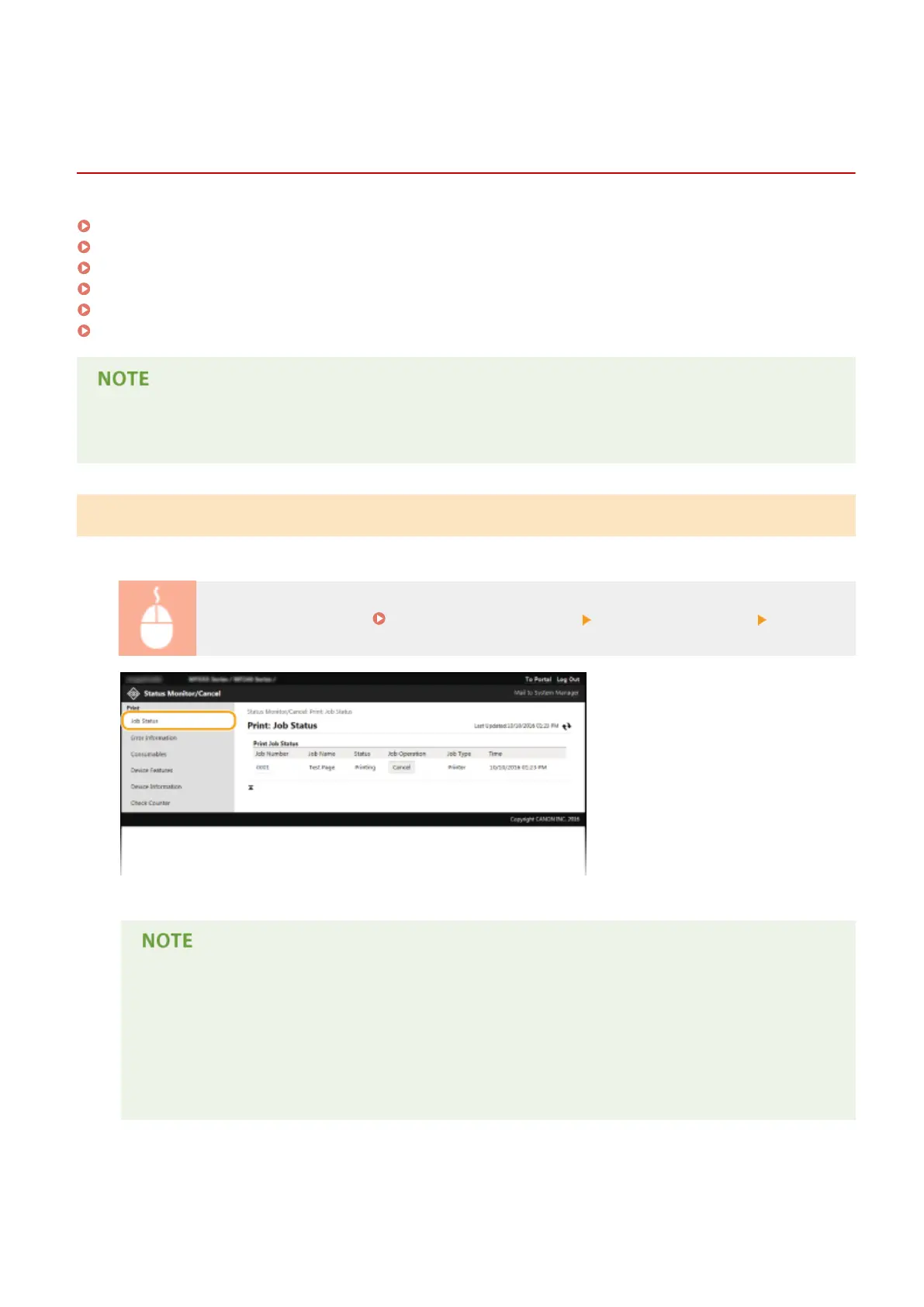
The list of the documents currently printing or waiting to be printed is displayed.
Log on to the Remote UI ( Starting Remote UI(P. 266) ) [Status Monitor/Cancel] [Job Status]
You can delete a document job by clicking [Cancel].
● If you logged on in System Manager Mode, all the print documents currently printing and waiting to
be printed will be listed.
● If you entered your user name when you logged on in General User Mode, your user name will only
be displayed on the documents that you printed.
● Click [Job Number] on the paused documents to display detailed information. You can check the user
name and the page count of the printed document.
Using Remote UI
271







 To Next Page