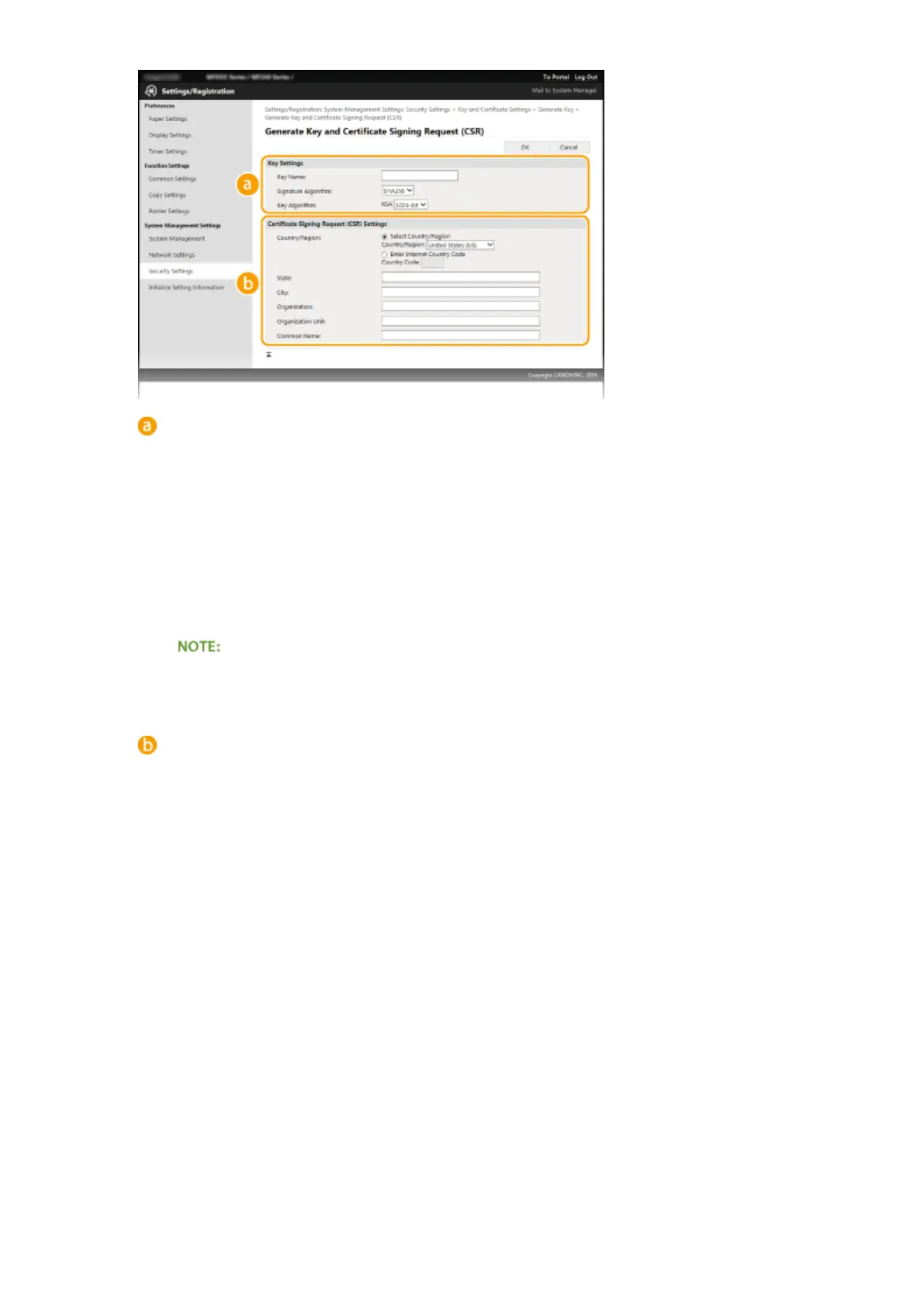
[Key Settings]
[Key Name]
Enter up to 24 alphanumeric characters for naming the key pair. Set a name that will be easy for you to
nd later in a list.
[Signature Algorithm]
Select the signature algorithm from the drop-down list.
[Key Algorithm]
RSA is used for generating a key pair. Select the key length from the drop-down list. The larger the
number for the key length, the slower the communication. However, the security is tighter.
● [512-bit] cannot be selected for the key length, if [SHA384] or [SHA512] is selected for [Signature
Algorithm].
[Certicate Signing Request (CSR) Settings]
[Country/Region]
Click the [Select Country/Region] radio button and select the country/region from the drop-down list.
You can also click the [Enter Internet Country Code] radio button and enter a country code, such as "US"
for the United States.
[State]/[City]
Enter up to 24 alphanumeric characters for the location as necessary.
[Organization]/[Organization Unit]
Enter up to 24 alphanumeric characters for the organization name as necessary.
[Common Name]
Enter up to 48 alphanumeric characters for the common name of the certicate as necessary. "Common
Name" is often abbreviated as "CN."
7
Click [OK].
● Key and Certicate Signing Request (CSR) may take approximately 10 to 15 minutes to generate.
8
Click [Store in File].
● A dialog box for storing the le appears. Choose where to store the le and click [Save].
Security
256







 To Next Page