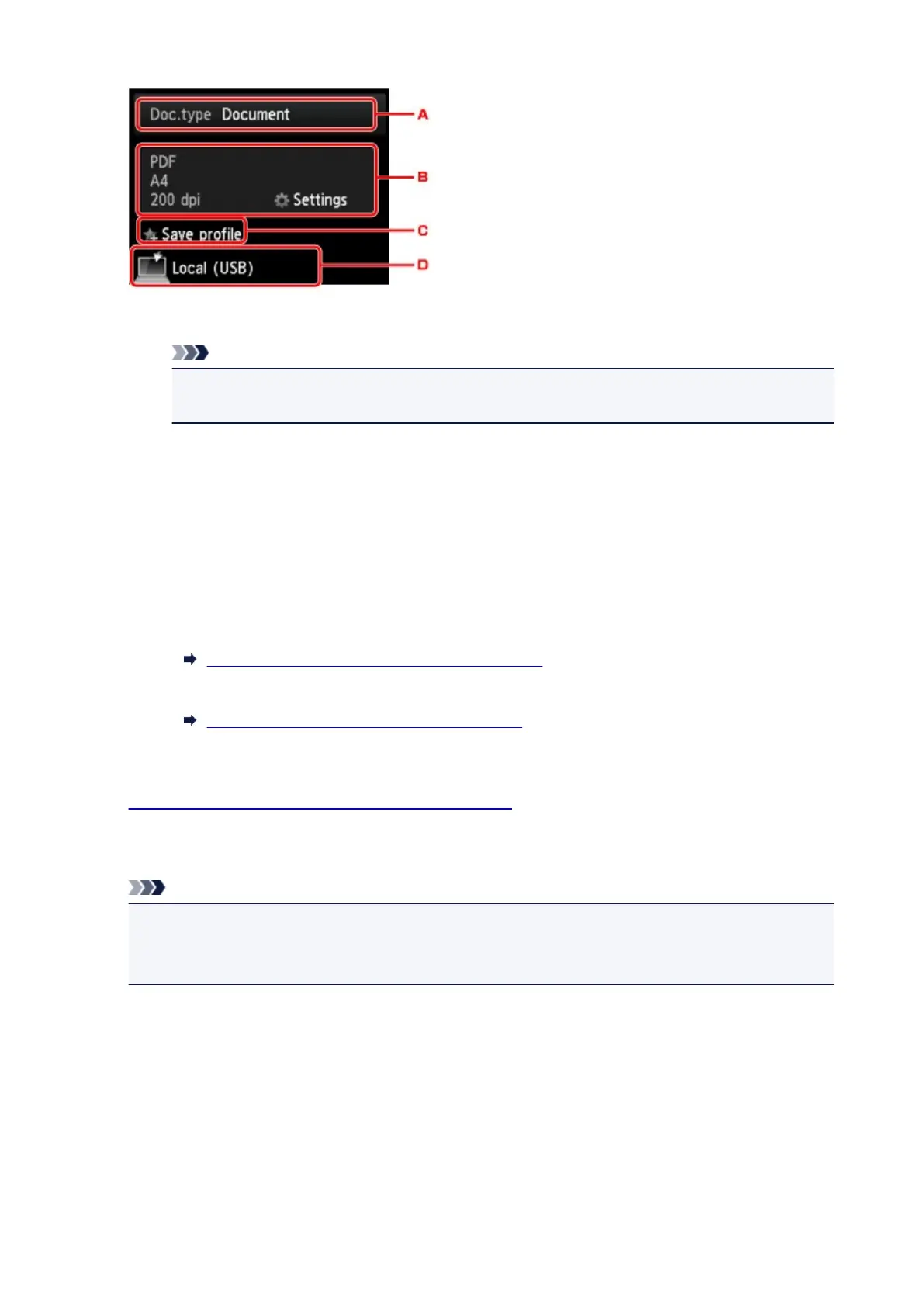
A. Tap to select the document type.
Note
•
When you forward the scanned data to the computer searched using WSD, you cannot select
the document type.
Document
Scans the original on the platen glass or in the ADF as a document data applying the settings
specified in Scan settings.
Photo
Scans the original on the platen glass as a photo data applying the settings specified in Scan
settings.
B. Tap to display Scan settings screen.
For more on the setting items:
Setting Items for Scanning Using Operation Panel
C. Tap to register the current scan settings as a custom setting.
Registering Favorite Settings (Custom profiles)
D. Tap to display the screen to select the destination.
6.
Load original document on platen glass or in ADF.
7.
Press Color button for color scanning, or Black button for black & white scanning.
Note
•
When you forward the scanned data to the computer using WSD, press the Color button.
•
If the original is not loaded properly, a message is displayed on the touch screen. Load the original
on the platen glass or in the ADF according to the scan settings.
•
If you load the original in the ADF:
The printer starts scanning and scanned data is forwarded to the computer.
•
If you load the original on the platen glass:
◦
When you select JPEG or TIFF for Format on the scan setting screen, the printer starts
scanning and scanned data is forwarded to the computer.
879


 To Next Page
 Loading...