To communicate locally through the Rnet port
TruVu™ VAVB3-E2 CARRIER CORPORATION ©2022
Installation and Start-up Guide All rights reserved
97
To set up a Local Access connection in the i-Vu® interface
For the i-Vu® Pro application to communicate with the Rnet port, you must do the following:
1 Click , select System Options > Connections.
2 On the Configure tab, click Add.
3 From the Type drop-down list, select BACnet/Rnet Connection.
4 Optional: Edit the Description.
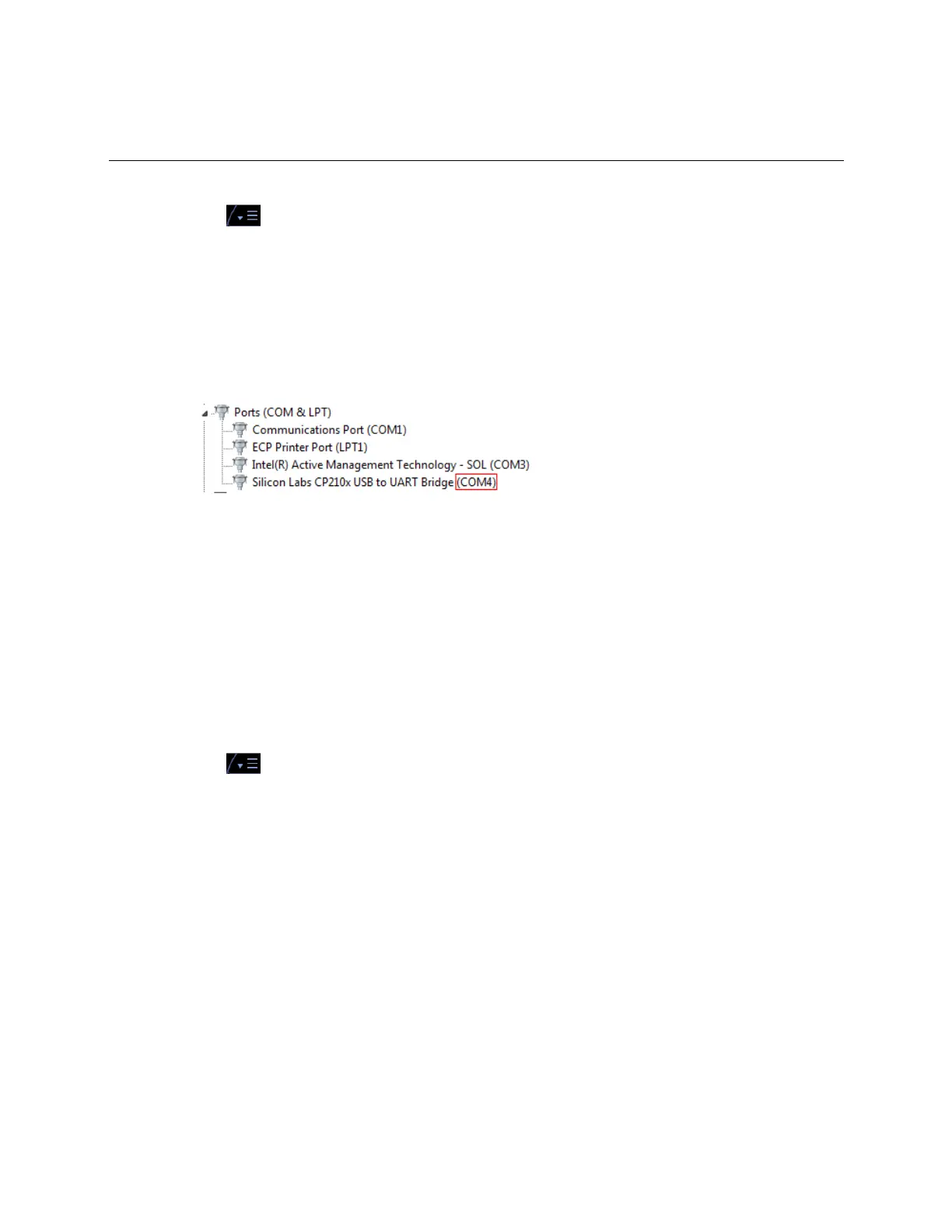
5 Type the computer's Port number that the USB cable is connected to.
NOTE To find the port number, plug the USB cable into the computer's USB port, then select Start > Control
Panel > System > Device Manager > Ports (Com & LPT). The COM port number is beside Silicon Labs
CP210x USB to UART Bridge.
6 Set the Baud rate to 115200.
7 Click Apply.
8 On the right of the page, in the Networks using selected connection table, click the checkbox next to the
network you want to connect to.
9 Click Apply.
10 Select BACnet/Rnet Connection, then click Start.
NOTE If an error message appears, make sure the COM port you selected is not in use. For example, PuTTY
may be open and is holding the port open.
11 Click Close.
12 On the navigation tree, select the controller that you are connected to.
13 Click and select Manual Command.
14 Type rnet here in the dialog box, then click OK.
15 On the Properties page, click Module Status. If a Modstat report appears, the i-Vu® application is
communicating with the controller.




 To Next Page