Adjusting the TV-VAVB3-E2 driver properties
TruVu™ VAVB3-E2 CARRIER CORPORATION ©2022
Installation and Start-up Guide All rights reserved
83
Network Diagnostics - Packet Capture
This page allows you to capture network communication on a port and then download the capture file for
troubleshooting. Choose one of the following capture options:
• Start/Stop - Define the start and stop criteria, and then click Start and Accept to begin the capture. When the
capture stops, the capture file is generated.
NOTE If a Start/Stop capture is running on any other port, the Get capture file button will be disabled until all
Start/Stop captures have completed.
○ Start capture: - When you check At (mm/dd/yyyy hh:mm AM/PM), enter the time and date, and click
Start, the packet capture begins at the date and time you specified.
NOTE The hours field is validated from 0 to 12, and minute field is validated from 0 to 59.
○ Continuous - Click Start and Accept to begin the capture. Click Save to momentarily stop the capture and
create the capture file. The capture will automatically resume. Click on the Start/Stop option to end the
Continuous capture.
○ If the port is set up for MS/TP, select an option in the Capture section.
To download the capture file
Capture files are Wireshark files that are added to the Device Log Archive .tgz file. Do the following to view the
files.
1 If you do not have Wireshark installed on your computer, download the latest version from the Wireshark
website (http://www.wireshark.org).
2 Run the install program, accepting all defaults. Include WinPcap in the installation.
3 On the i-Vu® Packet Capture page, click Get capture file to download the .tgz file. The message appears
"Retrieving the file, this may take a little while". Click OK.
NOTE If the size of the .tgz is large, there could be a considerable delay (for example, over 2 minutes) after
you click Get capture file until your browser begins the download.
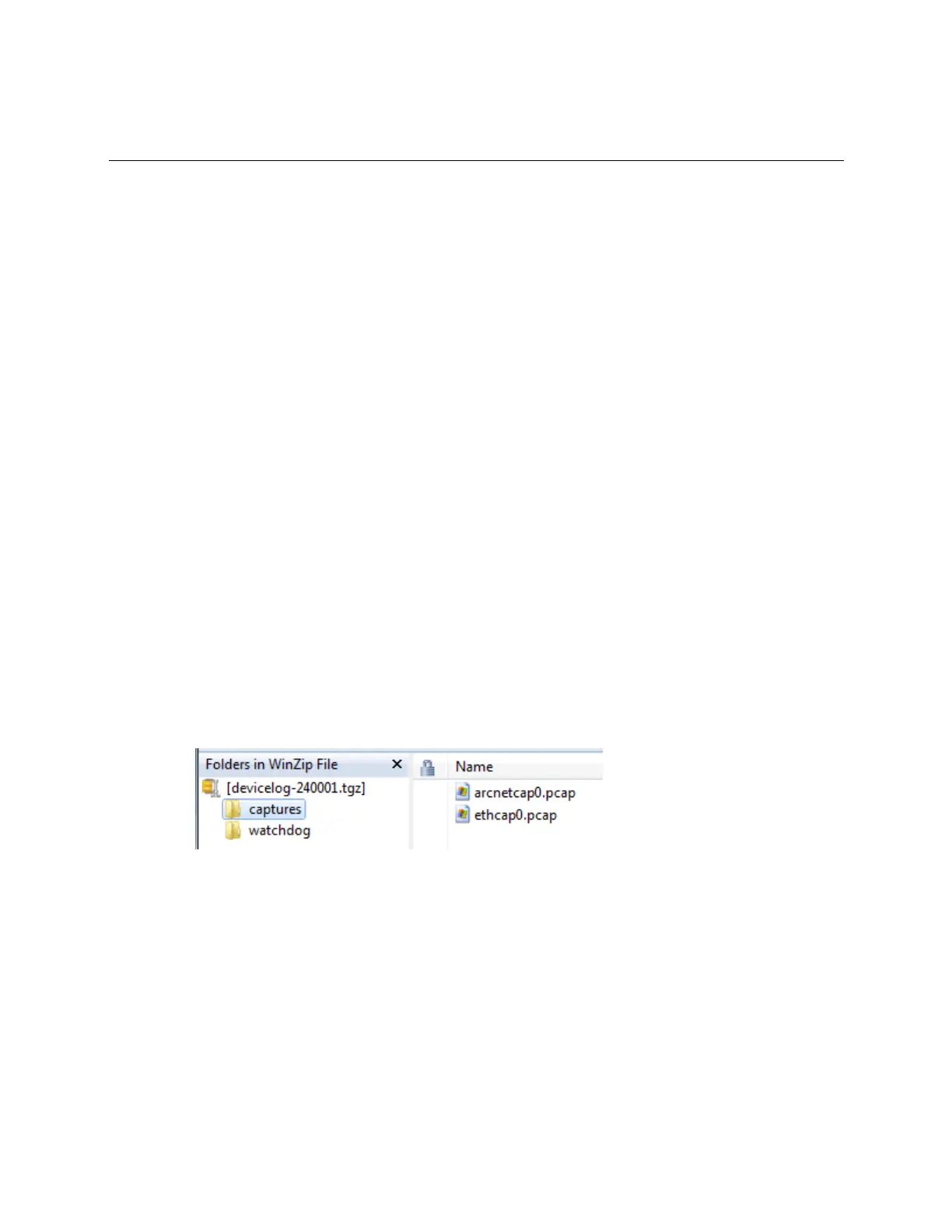
4 Open the .tgz file. The files are in the captures folder.
Capture file names are based on the ports.
NOTE Clicking Get capture file generates the port's .pcap file. If the port has a .pcap file from a previous
capture, that file will be overwritten.
5 Extract the .pcap file from the .tgz file.
6 Open the .pcap file in Wireshark.




 To Next Page