STROKE STOPS
DOWN STOP: When this is selected, the ram will
stop at the SPEED CHANGE POSITION on the
down stroke. To continue ram motion the Opera-
tor Station(s) or Footswitch(es) must be complete-
ly released and then depressed again. The default
for Down Stroke Stop is OFF.
Note that this function must be enabled if the
user has selected both Palmbutton Operator Sta-
tions and Footswitches active. (See Hand/Foot
Sequence in SECTION 6).
UP STOP: When this is selected the ram will auto-
matically stop just after bottom reversal position.
To continue ram motion, the Palmbutton Opera-
tor Station(s) or Footswitch(es) must be complete-
ly released and then depressed again. The default
value for Up Stroke Stop is OFF.
The user may select both stops OFF, ON, or have
either one ON/OFF independent of each other.
FORM SPEED SELECT
This selection controls the speed at which the work-
piece is formed. The ram will switch to this speed on
the down stroke at the specified SPEED CHANGE
POSITION. The selections are LOW, MEDIUM and
HIGH. The actual speeds are listed in “SPECIFICA-
TIONS”, SECTION 4. The default value is MEDIUM.
After entering the last field on the screen the high-
lighted field will remain as is. The control will not
automatically advance to another step. To create
another step press the “Next Step” softkey. Values
from the current step are copied to the new step.
This concludes the entry of values to define a
program.
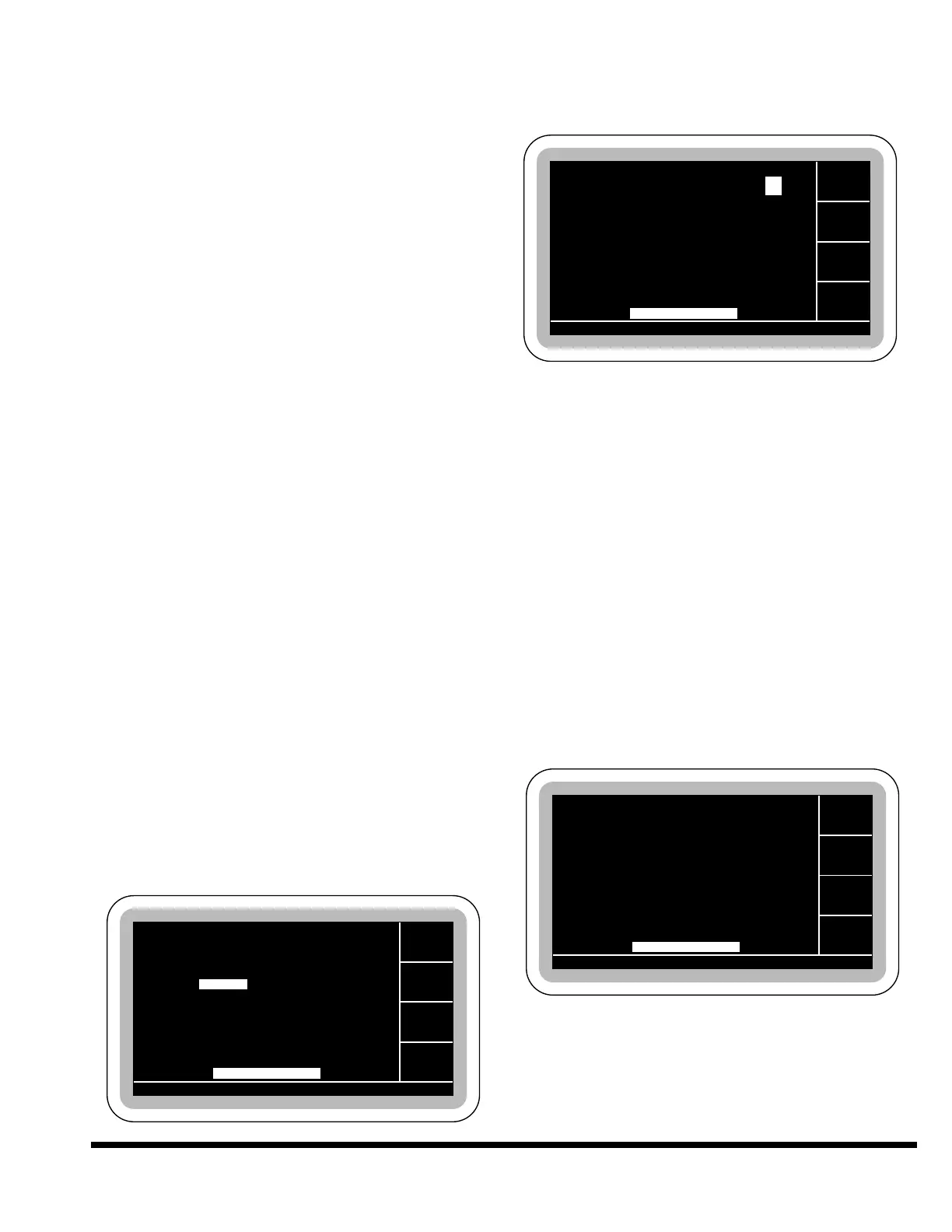
END PROGRAM
Once all steps have been entered the “End Prog”
softkey should be pressed. The screen will change
as shown:
Next Step: The “Next Step” softkey can now be
used to advance through the existing steps to
allow viewing or editing.
Add Step: This softkey will appear when the
“End Prog” softkey’s button is pressed and the
user selects the STEP field. When pressed, a new
step will be inserted after the current step. The
new step will contain a copy of values from the
current step.
Delete Step: This softkey will appear when the
“End Prog” softkey’s button is pressed and the
user selects the STEP field. When pressed the
current step will be deleted.
Alter Disply (Alternate Display): When this
softkey’s button is pressed, the screen will toggle
back and forth between the standard program
data screen and the alternate screen. The alter-
nate screen displays the values in a larger size
for viewing. Note that angle corrections cannot
be made in the large alternate display view.
GA. PAUSE 0.1
GA. PAUSE 0.1


 To Next Page