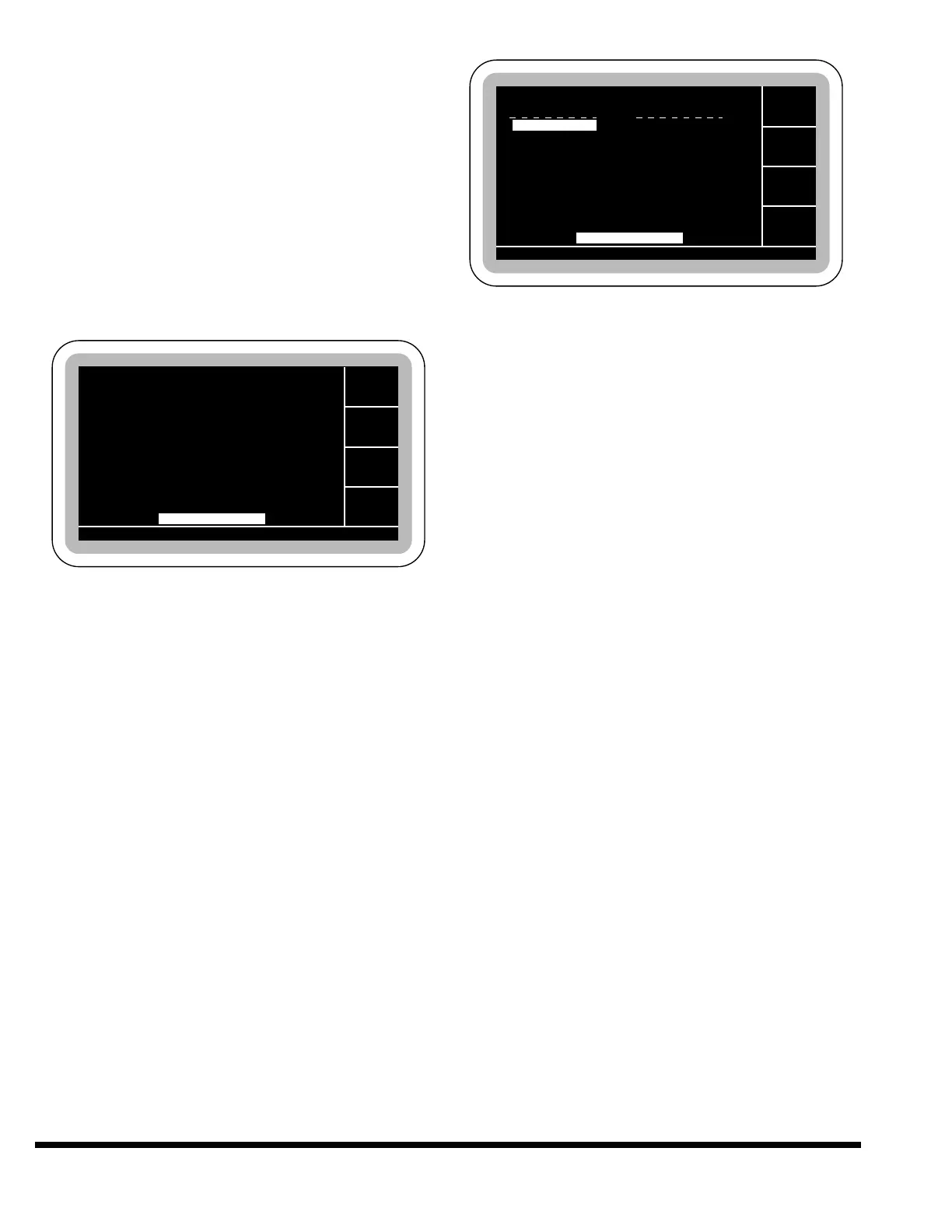
Cycle Start: When this softkey’s button is
pressed the control will process the values
entered for the current step. If all operator con-
trols are set properly, the status line will
change to CYCLE ACTIVE, and the softkeys will
change as shown. The gages will move into the
correct position for the current step. The ram
may now be cycled using the operator controls.
Once the ram completes the stroke, the STEP
field will be advanced by one. Once the program
step advances past the last step, the step value
will return to step one. The PART COUNT field
will advance by one each time the control
advances past the last step.
This will continue until the operator presses the
“Cycle Stop” softkey’s button at which time the
softkeys will change back and the CYCLE
ACTIVE status will be cleared.
Start Single Step: Pressing the “Start Single
Step” softkey’s button will activate the control for
one step of the program. This softkey operates
the same as the “Cycle Start” softkey above, but
the cycle will automatically end after one stroke
and the step counter will not index to the next
step. This is useful when making and checking
adjustments to the program.
STORAGE/COMMUNICATION
Once a program has been created in active memo-
ry, it can then be saved for future use in the inter-
nal memory of the control. The STORAGE/ COM-
MUNICATION screen allows programs to be saved
or recalled from internal storage. It also allows pro-
grams to be transferred between internal memory
and offline storage over the communications inter-
face. The internal memory storage consists of 16k
bytes which is large enough to contain a maximum
of 100, four-step programs.
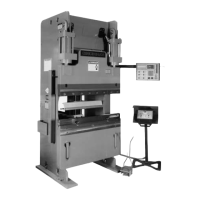
The screen indicates the current program loaded
into active memory in the upper left corner of the
screen. The upper right corner indicates the free
space available (bytes) in internal memory. The
main area of the screen shows two columns of the
sorted directory for internal memory. Each column
contains 10 programs. The programs are listed with
a sequence number and the name.
Additional files in the directory may be viewed by
pressing the arrow keys. The arrow keys will move
the highlighted select box up and down the directo-
ry. At the end of the page, if more files exist, the
screen will list another page of files and highlight
the first file on the page. Entering a sequence num-
ber on the keypad will move the highlighted select
box to that file.
The number in the lower right corner shows the
total number of files stored.
Load Prog: This softkey, when pressed, will load
the highlighted program from internal memory
into active memory. The user will first be
prompted to verify the current program in active
memory should be overwritten. The status line
will display the message:
OVERWRITE ACTIVE PROGRAM, Y/N?
Softkeys will appear to allow the YES or NO
response.
If the user selects YES, the program in active
memory will be erased and the selected program
will be loaded into active memory.
Note: To save changes made to the active pro-
gram, press the “Store Program” key
before loading the new program.
Store Prog: This softkey, when pressed, will
store the program in active memory to internal
memory using the name which is listed in the
JOB DATA screen. If the control finds a program
already stored under the same name, the opera-
tor will be prompted to verify that the existing


 To Next Page