program should be overwritten. In this case the
status line will display the following message
and the softkeys will change to either YES or NO.
OVERWRITE EXISTING PROGRAM, Y/N?
If the user presses the “Yes” softkey’s button, the
program will overwrite the existing one in inter-
nal memory. If the user presses the “No” soft-
key’s button, the program in active memory will
not be stored.
Delete Prog: This softkey, when pressed, will
delete the highlighted program from internal
storage. The user will first be prompted to verify
that the file should be deleted. The status line
will display the following.
DELETE PROGRAM, Y/N?
Press the “Yes” softkey’s button to delete the pro-
gram or the “No” softkey’s button to abort the
operation.
Comm Menu: When this softkey is pressed, the
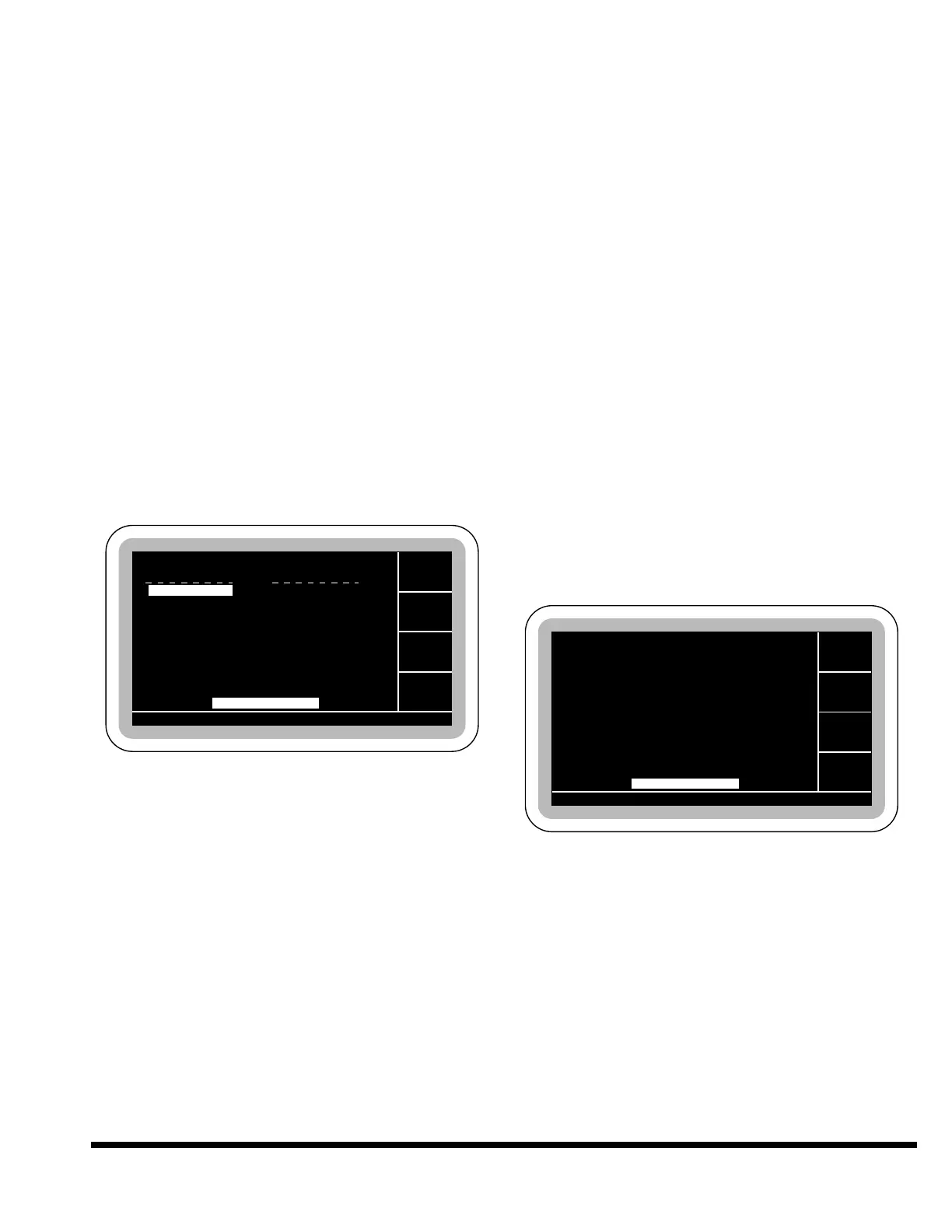
softkeys will change as shown:
The above softkeys allow the selection of sending
or receiving a program to the offline storage
device using the communications interface. The
Kermit protocol will be used. When a file trans-
fer takes place the host computer connected to
the control will locate files in the current work-
ing directory which the Kermit server has set.
Send Prog: When this softkey is pressed, the
highlighted file will be sent from internal memo-
ry to the offline storage device. A status box will
display the message:
SENDING FILE XXXXXXXX
The status box will indicate the progress of the
transfer as well as any errors which may be
encountered from the Kermit transfer. For exam-
ple, if the remote server is not running, the error:
ERROR: KM-TIMEOUT OCCURRED
will be shown. The “Abort” softkey’s button may
be pressed anytime during the file transfer to
stop sending the file.
Receive Prog: When this softkey is pressed, the
user will be prompted to enter the name of the
program which is to be transferred from the
offline storage device to internal memory. The
status box will display the message:
ENTER NAME? _
The operator can use the keypad to enter the
program name. Alpha characters can be entered
using the + or - keys as described earlier. After
pressing the ENT key the transfer will begin. The
status box will indicate the progress of the trans-
fer as well as any errors which may be encoun-
tered from the Kermit transfer.
If the transfer is successful, the program will
appear in the sorted directory. The free space
will be updated to reflect the additional program.
The directory displayed will remain on the cur-
rent page. Sequence numbers may change
depending on where the file is located in the
directory.
RS232 Parm/Test: This softkey, when pressed,
will change screens to show the following:
Baud Rate: The baud rate which the serial port
uses can be changed by pressing the desired
softkey choice. The possible values are 1200,
2400, 4800, 9600, 19200, 38400. Use the -
MORE- softkey to select a value from the second
group of three choices. The change is effective for
the next communication request.
Host Command: An additional feature when
sending files is the User Host Command Packet.
This allows a command to be sent to the remote
server each time a file transfer takes place. An
alpha numeric string up to 20 characters can be
entered. The valid characters are:


 To Next Page