Sample Configurations
Configuring Port Forwarding
Cisco PVC2300 and WVC2300 Internet Video Cameras with Audio Administration Guide 119
9
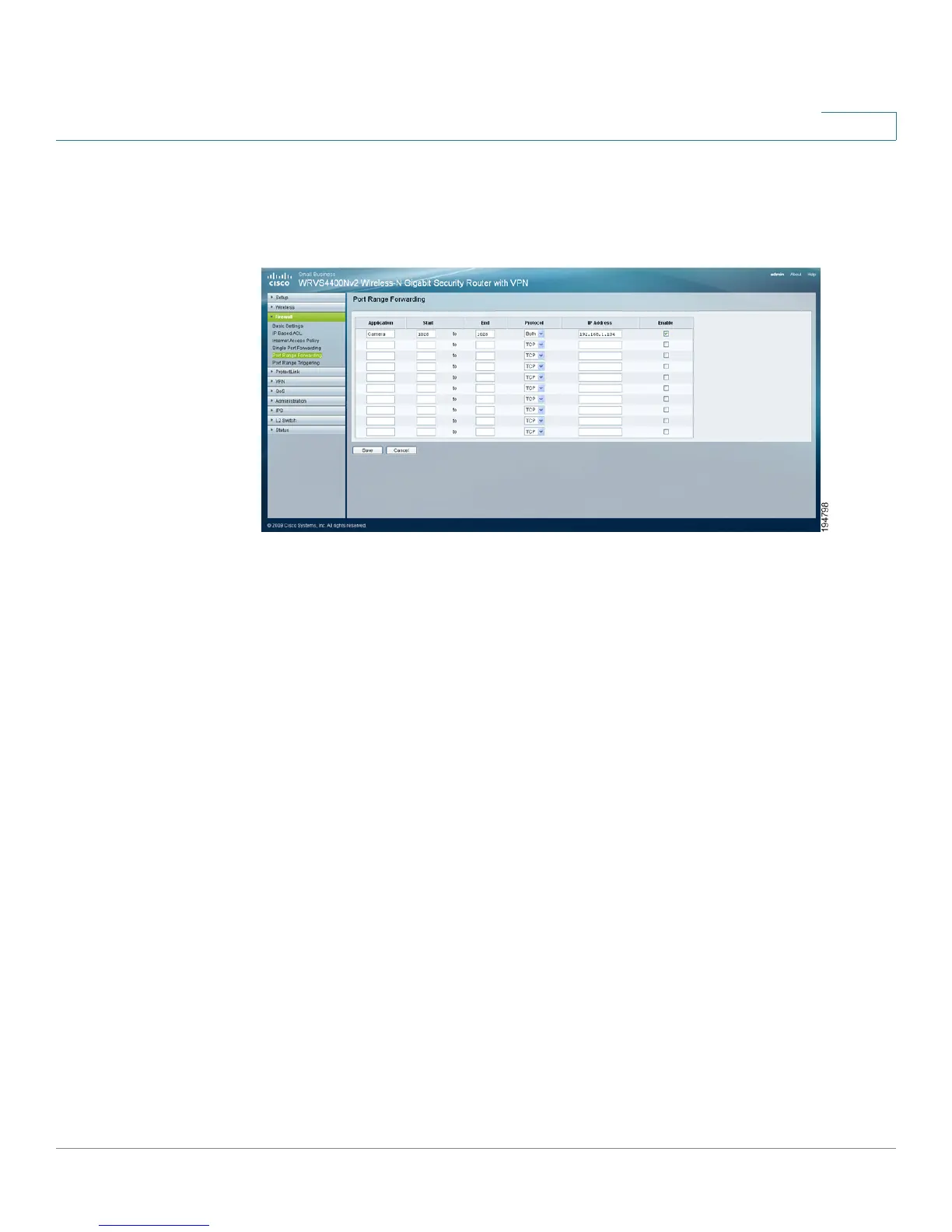
STEP 5 From the web-based configuration utility, click Firewall > Port Range Forwarding.
This example shows the Port Range Forwarding window of the Cisco
WRVS4400N router.
STEP 6 In the Port Range Forwarding window, configure the following:
a. Enter the Application
name, such as Camera.
b. Enter the Start and End port. In this example, 1028 is used and this should
match the alternate HTTP port configured on the camera in Step 2 on page
118.
c. Ensure that Protocol is set to Both (TCP and UDP).
d. Enter the IP address of the camera, in the IP Address field.
e. Check the Enable box to enable forwarding.
STEP 7 Click Save to save the configuration to the router.
STEP 8 Locate the WAN IP address for your router. Click Setup > Summary to view the
WAN IP address of the router. The WAN IP address is displayed in the Network
Status Setting section.



 To Next Page