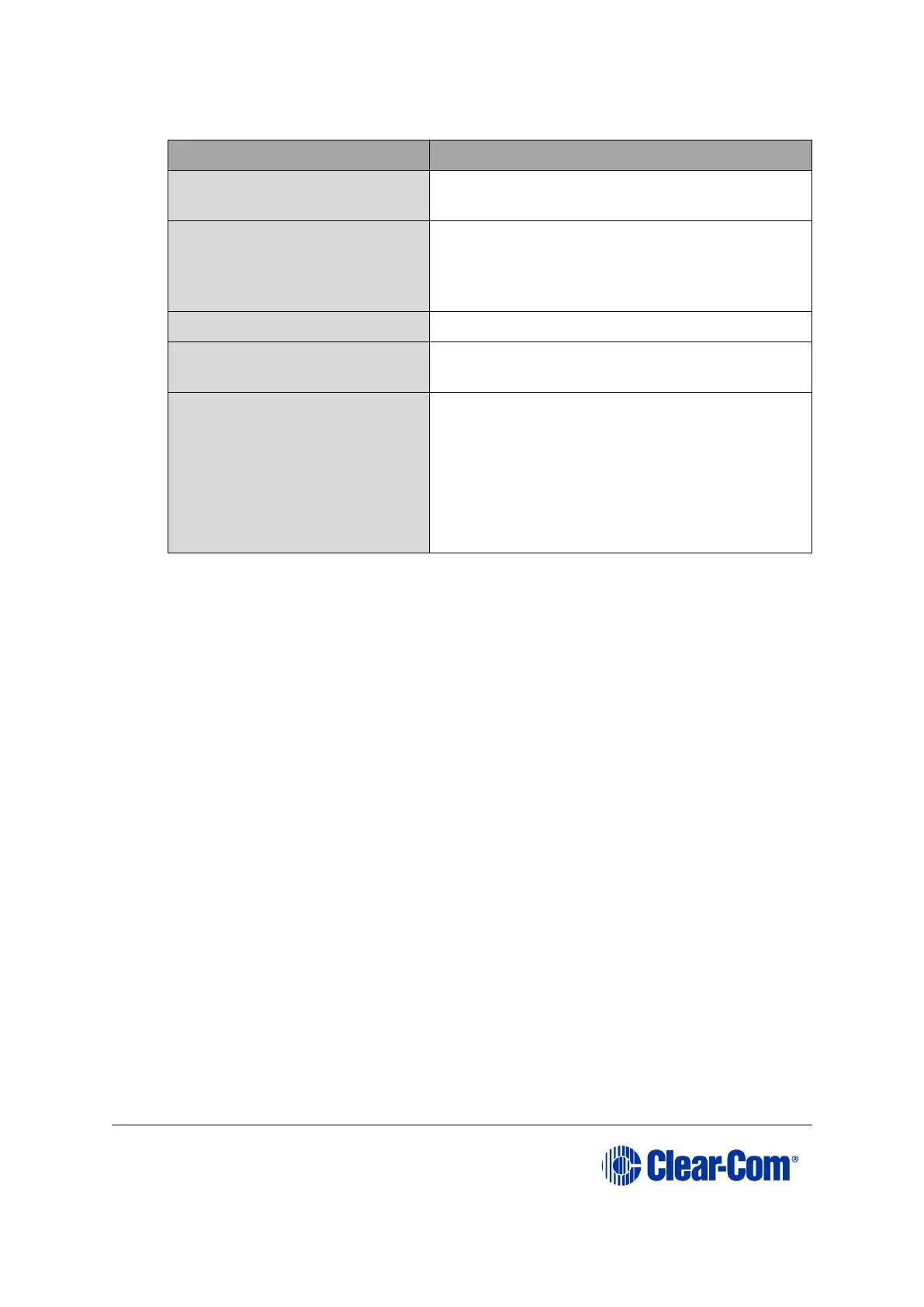
1) Ensure that you have the following equipment:
PC with an Ethernet
connector
LAN cable for the PC-to-
matrix connection
For direct connections, use Ethernet crossover
cable. If the connection passes through an
Ethernet switch on its way to the PC / matrix,
use straight CAT5 cable.
EHX must be configured and operational.
An EHX configuration file
(*.hxn or *.ccn format)
The configuration file must have an
appropriate IP address set.
The appropriate *.fwr data
file for the CPU card
application
You can find the *.fwr data file on the
software USB:
Software USB > SOFTWARE - EHX.xxx >
SOFTWARE - EHX.xxx > Eclipse HX-
Omega-Median-Delta > xxxxxx – Config
Card Application (where xxxxxx represents
the product number).
Table 5-1: Required equipment
2) Start EHX. Select File > Matrix connection.
3) In the Matrix connection dialog, select the Ethernet communications option.
4) Connect the PC to the Eclipse HX-Median / Eclipse HX-Omega / Eclipse HX-Delta
matrix, using the LAN#1 port on the rear of the matrix.
5) In EHX, select File > Import project. Navigate to the configuration file (*.ccn or
*.hxn format) and click Open to import the file.
6) Select System > Layout. In the work area, right click the Eclipse HX-Median /
Eclipse HX-Omega / Eclipse HX-Delta matrix.
7) From the menu, select Firmware > Update Firmware.



 To Next Page