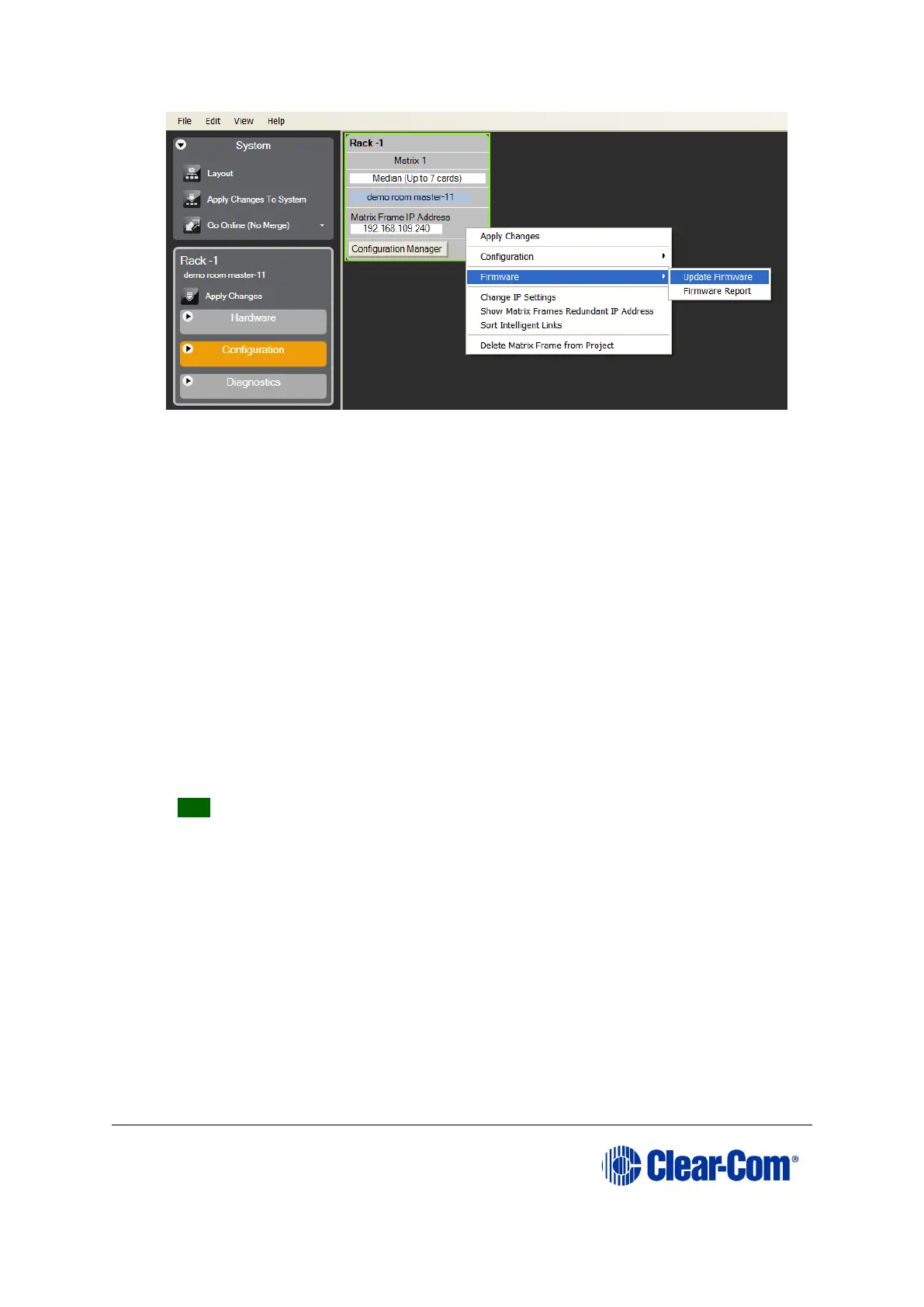
Figure 5-3: Upgrading app code: Matrix firmware update
1) In the Firmware update wizard, click Next. Ensure that Matrix is selected in the
following dialog, then click Next again.
2) In the next dialog, click Browse and navigate to the required *.fwr file for the
Eclipse HX-Omega / Eclipse HX-Median / Eclipse HX-Delta CPU card application:
a. Go to Software USB > SOFTWARE - EHX.xxx > SOFTWARE -
EHX.xxx > Eclipse HX-Omega-Median-Delta > xxxxxx – Config Card
Application (where xxxxxx represents the product number).
The folder contains the *.fwr file and a Read Me file (*.txt) with version
information.
b. Select the*.fwr file and click Open. Ensure that the correct file name is
displayed in the dialog.
3) Click Next. Confirm that the correct file has been selected, and click Next again
to start the firmware update. The update will take approximately 2 minutes.
Tip: While the update is in progress, check that the SI LED on the front of the
CPU card(s) is flashing rapidly. Rapid flashes indicate communication with the
PC.
4) When the update is completed, click Finish in the Firmware Update wizard.
The Eclipse HX-Median / Eclipse HX-Omega / Eclipse HX-Delta (matrix) matrix reboots.
The CPU card(s) is reset.
Download a configuration file (apply changes), using EHX.
Note: The CPU card uses a default configuration that is embedded in the download application
(even though the CPU DOT matrix display shows zero (0)). The default configuration
helps with the initial hardware configuration and testing of the Eclipse HX-Median /
Eclipse HX-Omega / Eclipse HX-Delta matrix by providing usable functionality to each of
the MVX-A16 cards fitted to the matrix.



 To Next Page