5.4.2 Upgrading the CPU card app code with EHX using a serial
link
You can upgrade the CPU card with EHX using a serial link, whether or not there is a
valid configuration (map) on the Eclipse HX-Median / Eclipse HX-Omega matrix / Eclipse
HX-Delta. Both CPU cards may remain inserted during the upgrade. You may choose to
perform the initial upgrade with EHX using a serial connection, then move to an Ethernet
connection for future configuration downloads and upgrades, once an IP address has
been configured.
Note: Before you use this procedure, check that the matrix event log can connect serially to a
CPU card with a configuration. Both CPU cards may remain inserted during the upgrade.
To upgrade the application code with EHX, using a serial link:
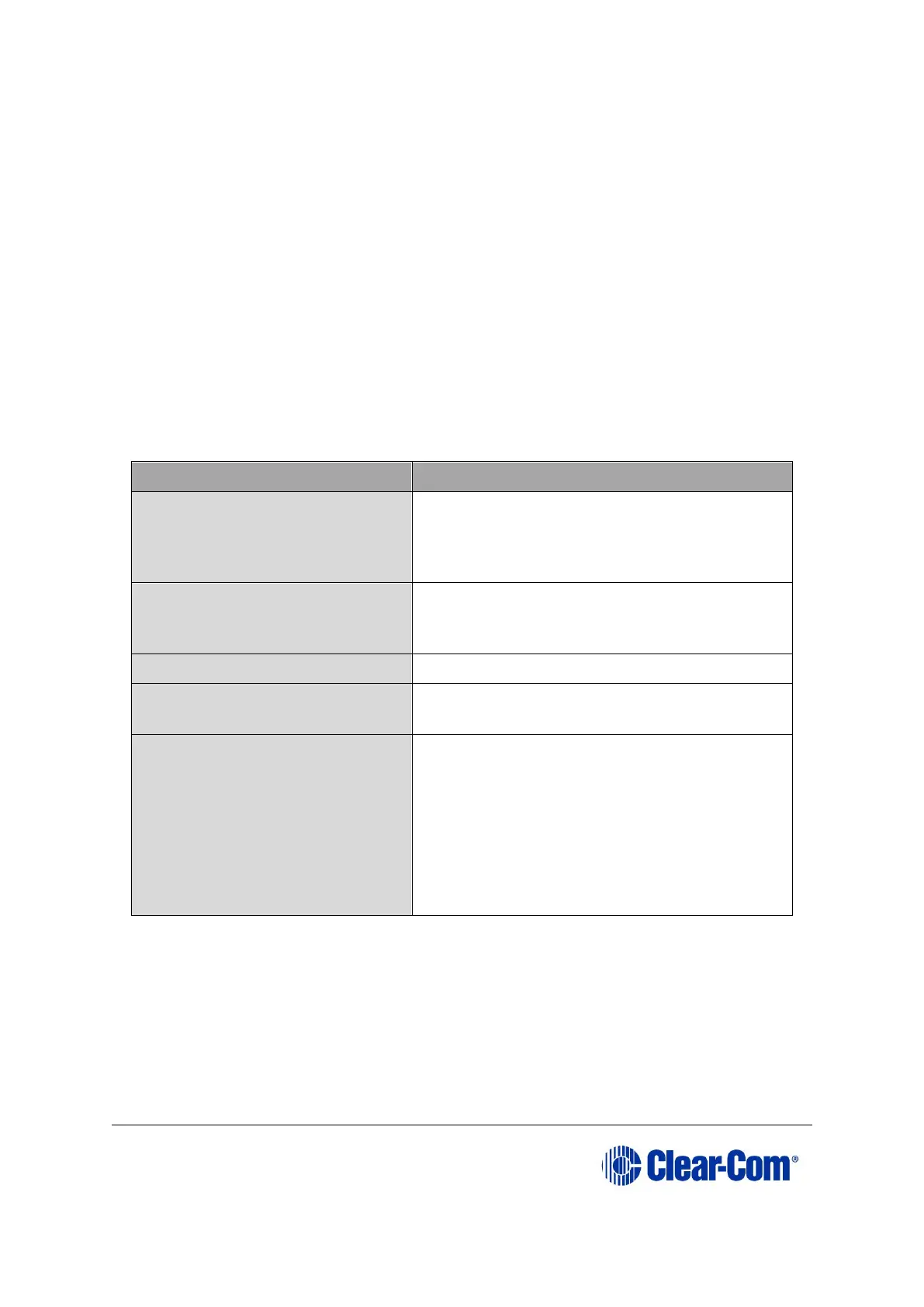
1) Ensure that you have the following equipment:
PC with either a serial port
connection or USB-to-serial
port adaptor
If using a USB-to-serial port adaptor cable,
you must connect the cable before starting
EHX to enable EHX to detect the USB port as
a COM port.
Standard RS232 serial cable
(9-pin D-Type to 9-pin D-
Type)
EHX must be configured and operational.
An EHX configuration file
(*.hxn or *.ccn format)
The configuration file must have the
appropriate IP addresses set.
The appropriate *.fwr data
file for the CPU card
application
You can find the *.fwr data file on the
software USB:
Software USB > SOFTWARE - EHX.xxx >
SOFTWARE - EHX.xxx > Eclipse HX-
Omega-Median-Delta > xxxxxx – Config
Card Application
(where xxxxxx represents the product
number).
Table 5-2: Required equipment
2) Start EHX. Select File > Matrix connection.
3) In the Matrix connection dialog, select the serial communications option.
4) Select the correct COM port then click OK.
5) Use the RS232 cable to connect the PC with the serial port on the rear of the
Eclipse HX-Median / Eclipse HX-Omega / Eclipse HX-Delta matrix.



 To Next Page