6) Do one of the following:
• If you are running EHX in Client-Server mode, select File > Import
project. Navigate to the configuration (*.ccn) file and click Open to
import the file.
• If you are running EHX in Client-Only mode, select File > Open.
Navigate to the configuration (*.ccn) and open the file.
Note: EHX can open *.ccn format files as well as its own *.hxn format configuration files.
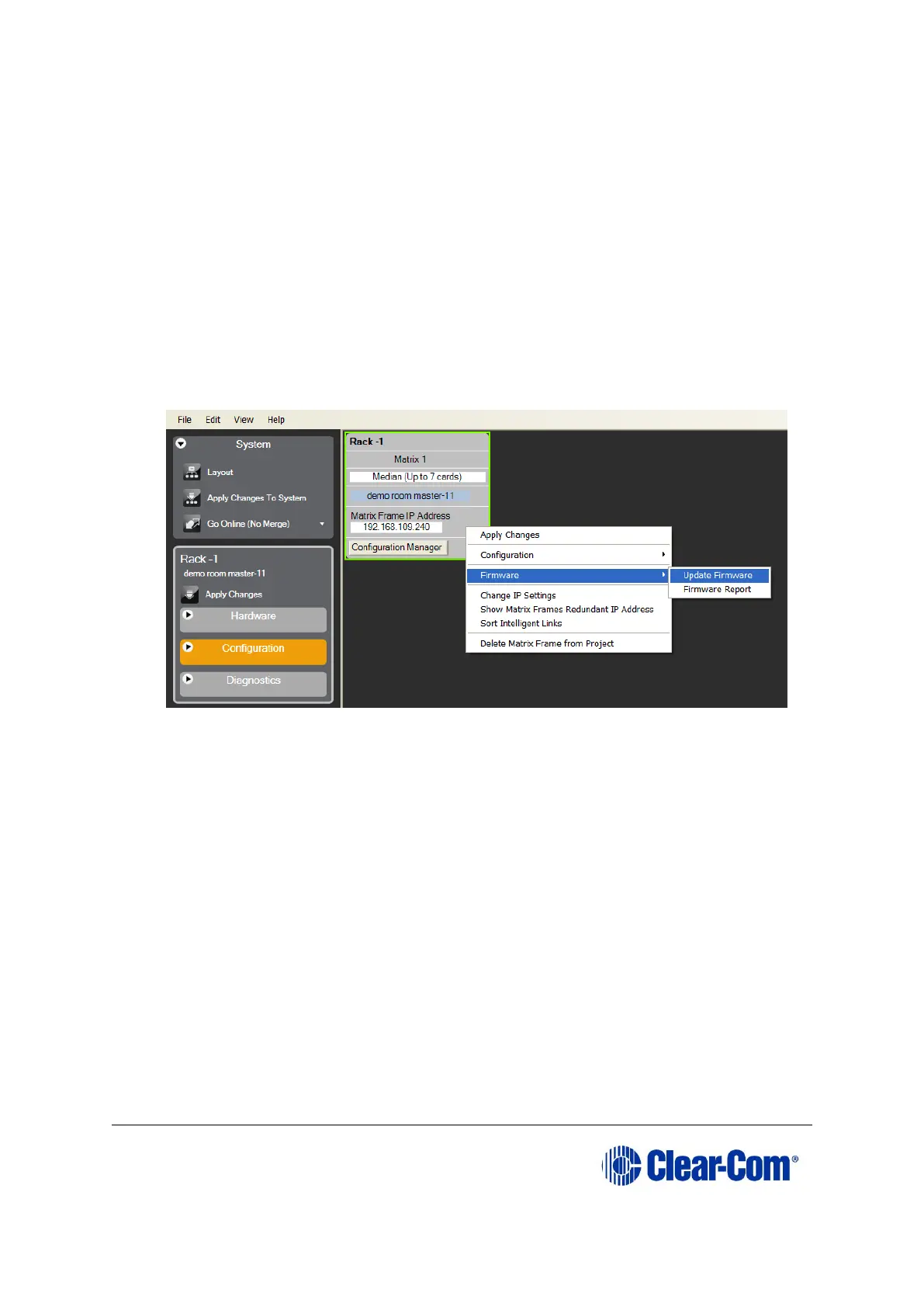
7) Select System > Layout. In the work area, right click the Eclipse HX-Median /
Eclipse HX-Omega / Eclipse HX-Delta matrix.
8) From the menu, select Firmware > Update Firmware.
Figure 5-4: Upgrading app code: Matrix firmware update
9) In the Firmware update wizard, click Next. Ensure that Matrix is selected in the
following dialog, then click Next again.
10) In the next dialog, click Browse and navigate to the required *.fwr file for the
Eclipse HX-Omega / Eclipse HX-Median / Eclipse HX-Delta CPU card application:
a. Go to Software USB > SOFTWARE - EHX.xxx > SOFTWARE -
EHX.xxx > Eclipse HX-Omega-Median-Delta > xxxxxx – Config Card
Application (where xxxxxx represents the product number).
The folder contains the *.fwr file and a Read Me file (*.txt) with version
information.
b. Select the*.fwr file and click Open. Ensure that the correct file name is
displayed in the dialog.
Click Open. Ensure that the correct file name is displayed in the dialog.



 To Next Page