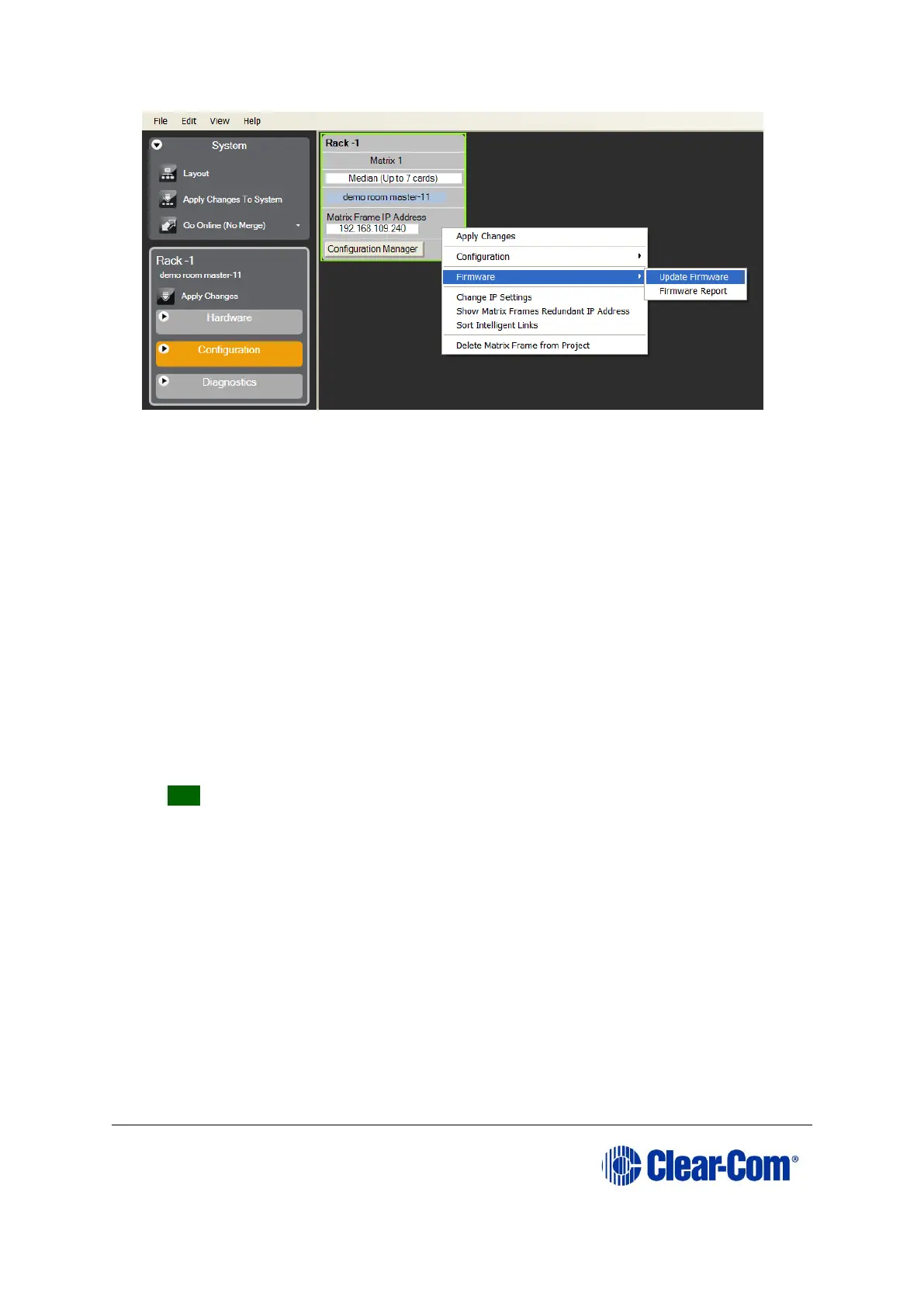
Figure 6-4: Upgrading app code: Matrix firmware update
8) In the Firmware update wizard, click Next. Ensure that Matrix is selected in the
following dialog, then click Next again.
9) In the next dialog, click Browse and navigate to the required *.fwr file for the
Eclipse HX-PiCo application:
a. Go to Software USB > SOFTWARE - EHX.xxx > SOFTWARE -
EHX.xxx > Eclipse HX-PiCo > xxxxxx – Application Code (where
xxxxxx represents the part number).
The folder contains the *.fwr file and a Read Me file (*.txt) with version
information.
b. Select the*.fwr file and click OK / Open. Ensure that the correct file
name is displayed in the dialog.
10) Click Next. Confirm that the correct file has been selected, and click Next again
to start the firmware update. The update will take approximately 2 minutes.
Tip: While the update is in progress, check that the LED on the front of the
Eclipse HX-PiCo is flashing rapidly. Rapid flashes indicate communication with the
PC.
Note: If you are upgrading from v5.2.5 to Eclipse HX v9.1, the
download dialog does not automatically finish. This is due to a
messaging change between the two system architectures.
Instead, close the dialog (which will continue to indicate
Verifying) when the Eclipse HX-PiCo reboots (see Step 10).
11) When the update is completed, click Finish in the Firmware Update wizard. The
Eclipse HX-PiCo reboots. The CPU is reset.
Note: The OK LED double flashes to indicate that valid application code
is present, but that there is no configuration in the cards.
Download a configuration file (*.hxn or *.ccn format), using
EHX.



 To Next Page