Table 6-7: Required equipment
2) Start EHX on the PC.
3) Connect the PC to the matrix using either Ethernet or a serial communications
port.
4) Open the EHX configuration map within EHX. Select System > Layout.
5) Right click the matrix and then select Firmware> Update Firmware.
6) The Update Firmware wizard dialog is displayed. Click Next.
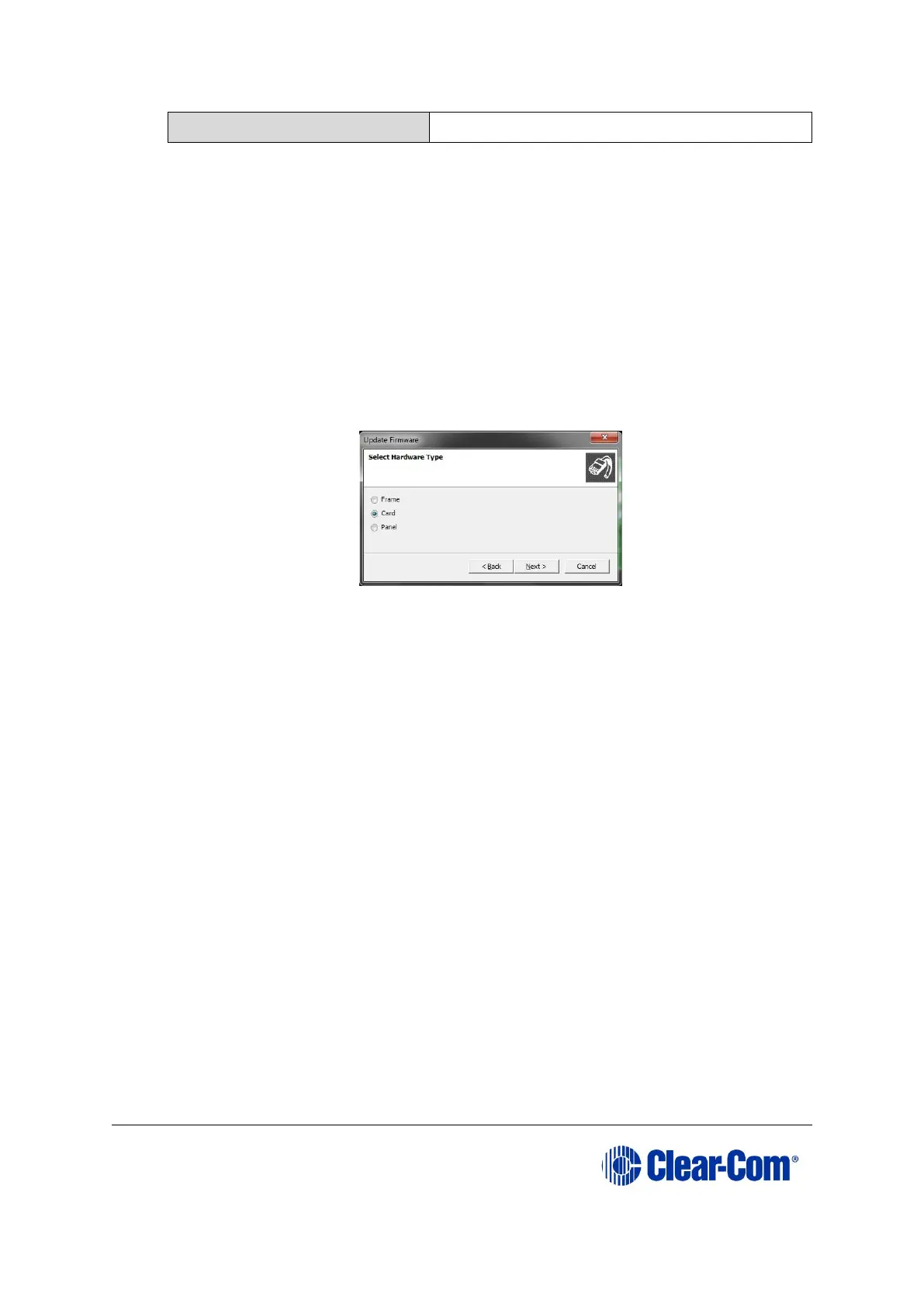
In the Select Hardware Type screen, ensure that the Card radio button is
selected.
Figure 6-13: Select Hardware Type
7) In the next dialog, click Browse and navigate to the required *.fwc file for the
Eclipse HX-PiCo application:
8) Go to Drivers USB > ECLIPSE DRIVERS > PiCo-HX_PiCo_E-32 > xxxxxx –
MVX Application (where xxxxxx represents the part number).
9) The folder contains the *.fwc file and a Read Me file (*.txt) with version
information.
10) Select the*.fwc file and click OK / Open. Ensure that the correct file name is
displayed in the dialog.
11) Click Next and confirm that the details displayed are correct.
12) Click Next and confirm that the download commences.
13) When the download has completed, click Finish to close the update firmware
wizard.
Note: Because of small differences in PCB layout, it may not be possible to complete the
upgrade of the MVX application code on a small number of Eclipse HX-PiCo units, using
EHX. If the upgrade fails, you can still upgrade the MVX application code using Renesas
FDT (which is suitable for all Eclipse HX-PiCo units).



 To Next Page