20 Commonwealth Bank Albert User Guide
4.1 Learn how to use the solution.
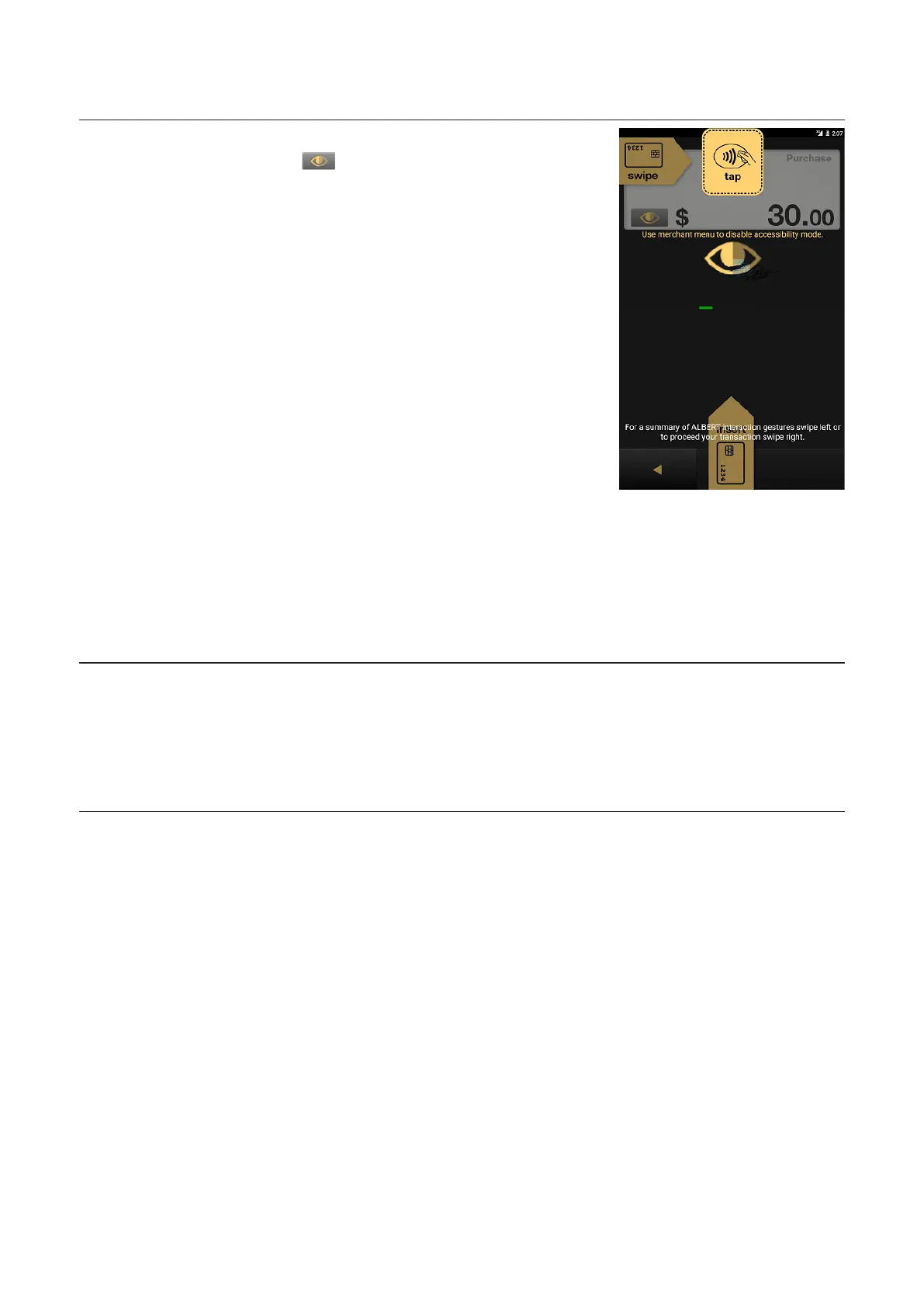
Card Presentation
Screen
• Tap the Accessible Mode
icon.
• The Albert text-to-speech
will advise that the
accessible mode has been
enabled.
• The three Accessible Mode
options will appear. Ask your
customer which of these
they wish to proceed with.
• The Albert text-to-speech
will advise that the
accessibility mode has been
enabled.
• The accessible functionality
will be enabled in the
Card Presentation Screen
only when the Complete
transaction accessible
mode option is selected.
• The customer follows the
spoken instructions.
Swiping from the
boom of the
screen with two
fingers
In the Payment App, enter the Accessible Mode by swiping from
the boom of the screen with two fingers. This can be enabled by
the merchant or the customer. The Albert text-to-speech will advise
that the accessible mode has been enabled. The options to select
the payment steps they wish to complete in the accessible mode will
appear on the screen.


 To Next Page