Introduction Getting Ready
Taking Pictures
Playback Set Up
EN-121
NEXT
Contents Glossary Index Nomenclature Menus and Settings Troubleshooting
[W] Rotating an Image
«Applicable images: Still images only»
Use the procedure below to rotate an image 90° left or right.
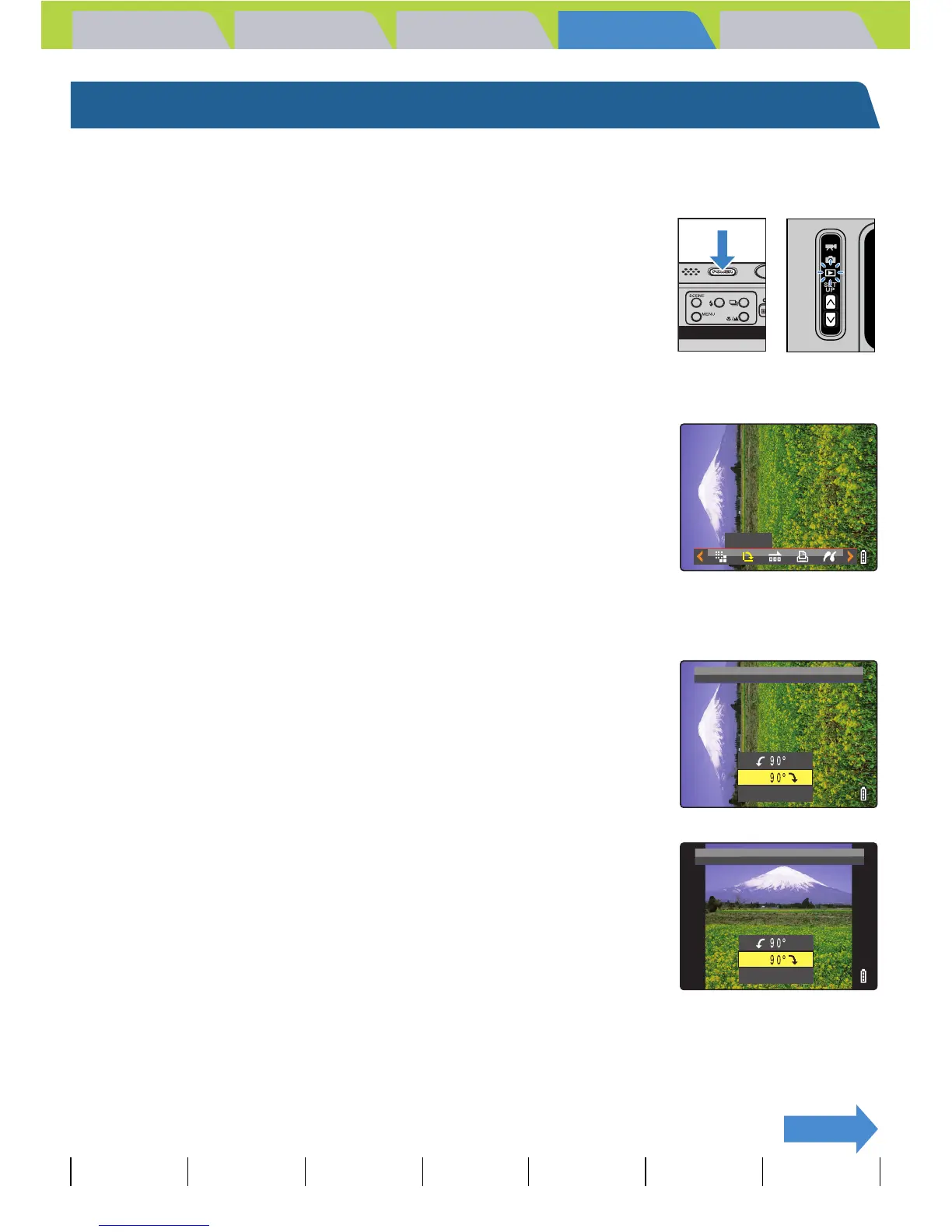
1 Turn the camera on and press the mode
buttons UD until "P" lights up on the
mode select LED.
2 Press the MENU button K to display the menu icons.
3 Move the selector lever left l or right r
to select ROTATE [W] and press E.
4 Move the selector lever left l or right r to select the image
to be rotated.
5 Move the selector lever up u or down d
to select the direction of rotation, then
press E.
The rotated image is displayed.
[C] : Rotates the image 90° to the left (counterclockwise)
[D] : Rotates the image 90° to the right (clockwise)
[RETURN]: Returns you to the menu icon screen
BNote
To rotate another image, repeat steps 4 and 5.
ROTATE
ROTATE
IMAGE?
RETURN
RETURN
ROTATE
IMAGE?


 To Next Page