Introduction Getting Ready
Taking Pictures
Playback Set Up
EN-86
NEXT
Contents Glossary Index Nomenclature Menus and Settings Troubleshooting
Viewing Still Images
«Applicable images: Still images only»
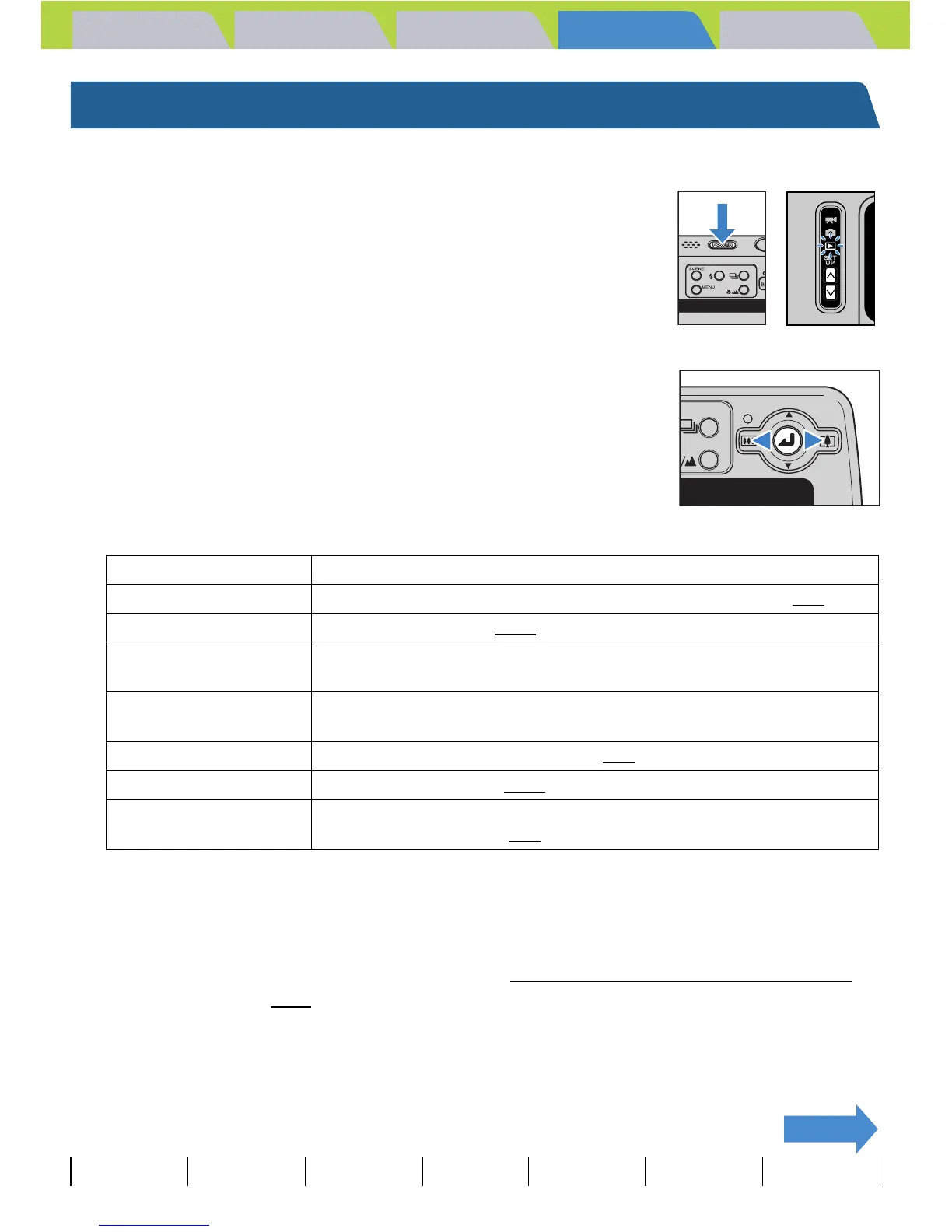
1 Turn the camera on and press the mode
buttons UD until "P" lights up on the
mode select LED.
The last image shot appears on the LCD monitor.
2 Move the selector lever left l or right r
to select the image to view.
The table below shows the operations that can be performed during playback.
Operation Description
Selector lever up u Switches to the File No display and the information display. (Æ p.88
)
Selector lever down d Erases the image. (Æ p.103
)
Selector lever left l Displays images in reverse order. Hold the lever left for more than one
second to scroll through the images at high speed.
Selector lever right r Displays images in forward order. Hold the lever right for more than one
second to scroll through the images at high speed.
E Enlarges the image for playback. (Æ p.87
)
SCENE button I Protects the image. (Æ p.107
)
Continuous shooting
button N
Plays back the group of continuous shots if the image belongs to a group
of continuous shots. (Æ p.94
)
BNote
• Any resized images are displayed before the normal images.
• Resized images are displayed at different sizes depending on the image size. When this
occurs, the resize icon [V] appears in the top-left corner of the LCD monitor. For more
information on resizing images, see "
[V] Resizing and Trimming Images (RESIZE)"
(Æ p.114
).


 To Next Page