Introduction Getting Ready
Taking Pictures
Playback Set Up
EN-88
NEXTBACK
Contents Glossary Index Nomenclature Menus and Settings Troubleshooting
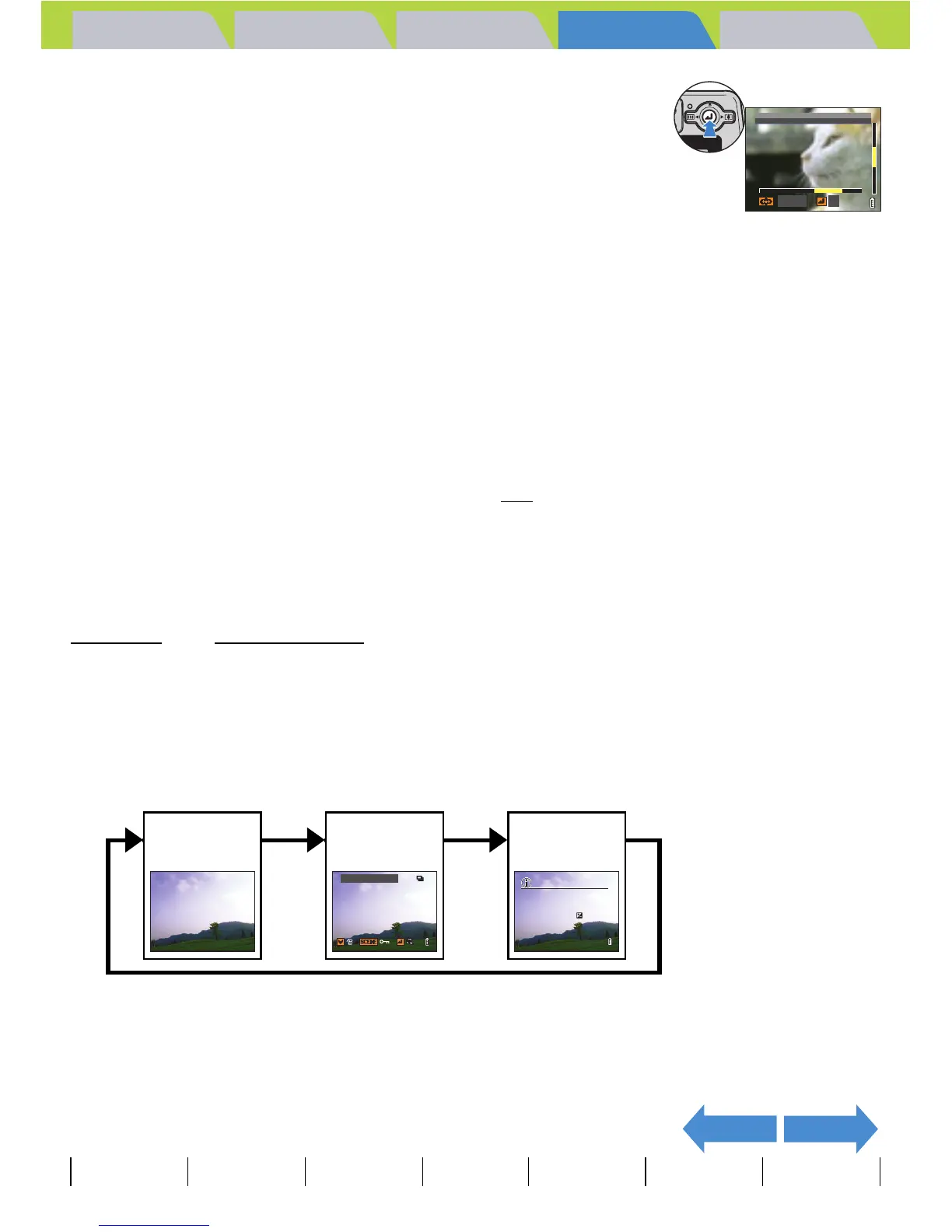
5 Press E to display the zoom area
movement screen.
Move the selector lever up, down, left or right udlr to scroll the
image in that direction.
Press E again to accept the selected magnification and area and
return to the playback screen (zoomed playback).
Viewing Image Information (File No/INFORMATION)
«Applicable images: Still images / movies»
You can use the procedure below to check information such as the
aperture
and shutter speed used to record an image.
1 Move the selector lever up u while the image is being
displayed.
The information for the displayed image appears.
The screen changes in the following order each time the selector lever is moved up u.
BNote
• Scroll bars are displayed at the bottom and on the right side of the zoom area
movement screen. The scroll bars act as a guide to which part of the original image
is currently displayed.
• During zoomed playback, move the selector lever left l or right r to move
forwards or backwards through the images while keeping the same magnification
and area selection.
A Important
• Resized images cannot be viewed enlarged using zoomed playback.
• When you are enlarging images with a postrecording attached, perform this step while
the File No screen is displayed (Æ p.88
).
A Important
For movies, moving the selector lever up u only adjusts the audio volume, and does not
display any information. To view movie information, first display the information for a still
image, then move the selector lever left l or right r to select the movie.
OKCHANGE
X4.0


 To Next Page