Introduction Getting Ready
Taking Pictures
Playback Set Up
EN-83
NEXTBACK
Contents Glossary Index Nomenclature Menus and Settings Troubleshooting
[CHROMA] Changing the color intensity
«Applicable mode: C»
The [CHROMA] setting lets you take pictures in which the intensity of the
colors is increased (brighter colors) or decreased (paler colors).
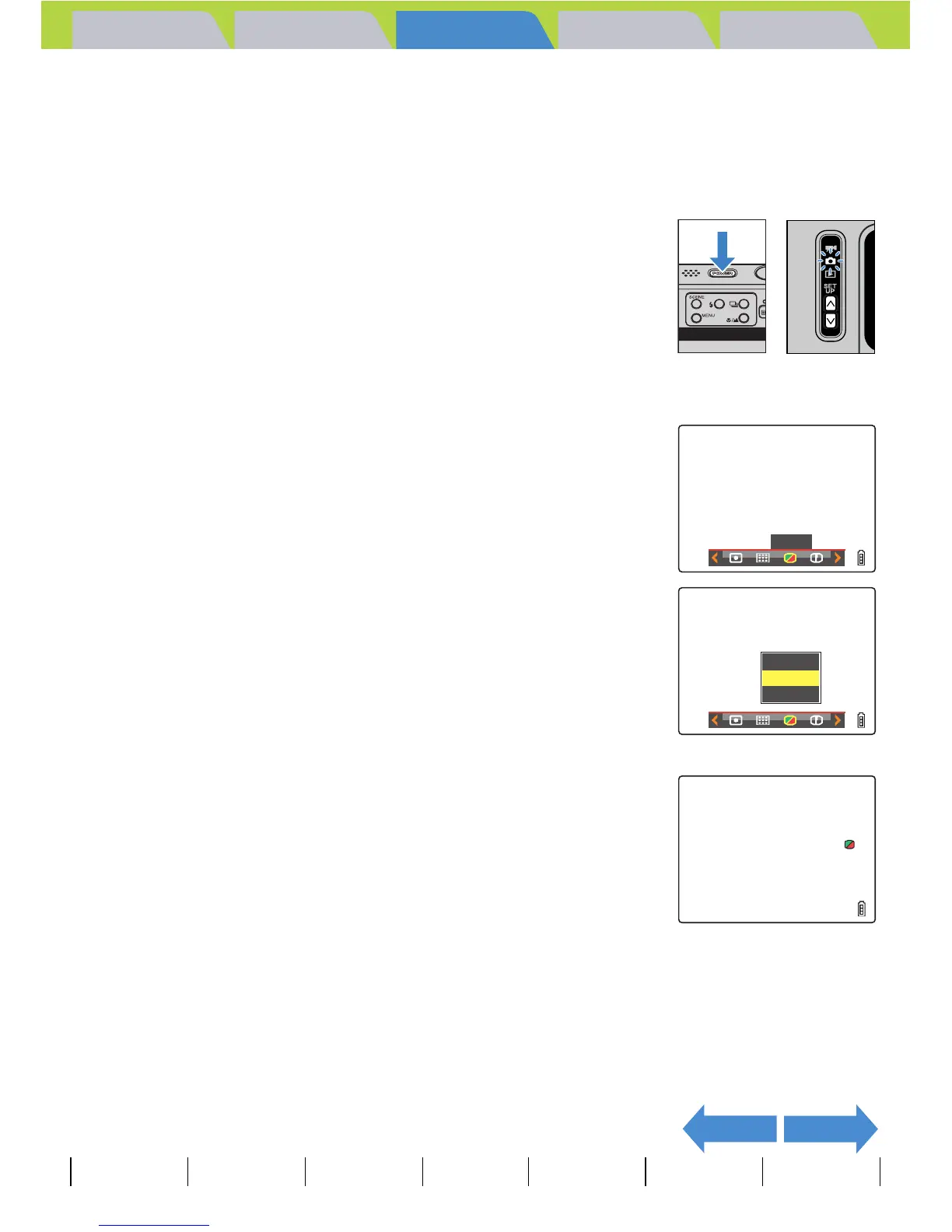
1 Turn the camera on and press the mode
buttons UD until "C" lights up on the
mode select LED.
2 Press the MENU button K to display the menu icons.
3 Move the selector lever left l or right r
to select CHROMA [H] and press E.
4 Move the selector lever up u or down d
to select the desired setting and press E.
The chroma settings is updated.
[H+1] [+] : Increases the color intensity.
(No icon) [STANDARD]: Uses the standard color intensity. (Default)
[H-1] [-] : Decreases the color intensity.
5 Press the MENU button K.
The icon for the selected intensity appears on the LCD monitor.
A Important
This setting is retained when you turn the camera off.
BNote
The [STANDARD] setting is used in Black and White mode and Sepia mode.
CHROMA
–
STANDARD
+
+1


 To Next Page