Introduction Getting Ready
Taking Pictures
Playback Set Up
EN-174
NEXTBACK
Contents Glossary Index Nomenclature Menus and Settings Troubleshooting
To set a user-defined screen (MULTI)
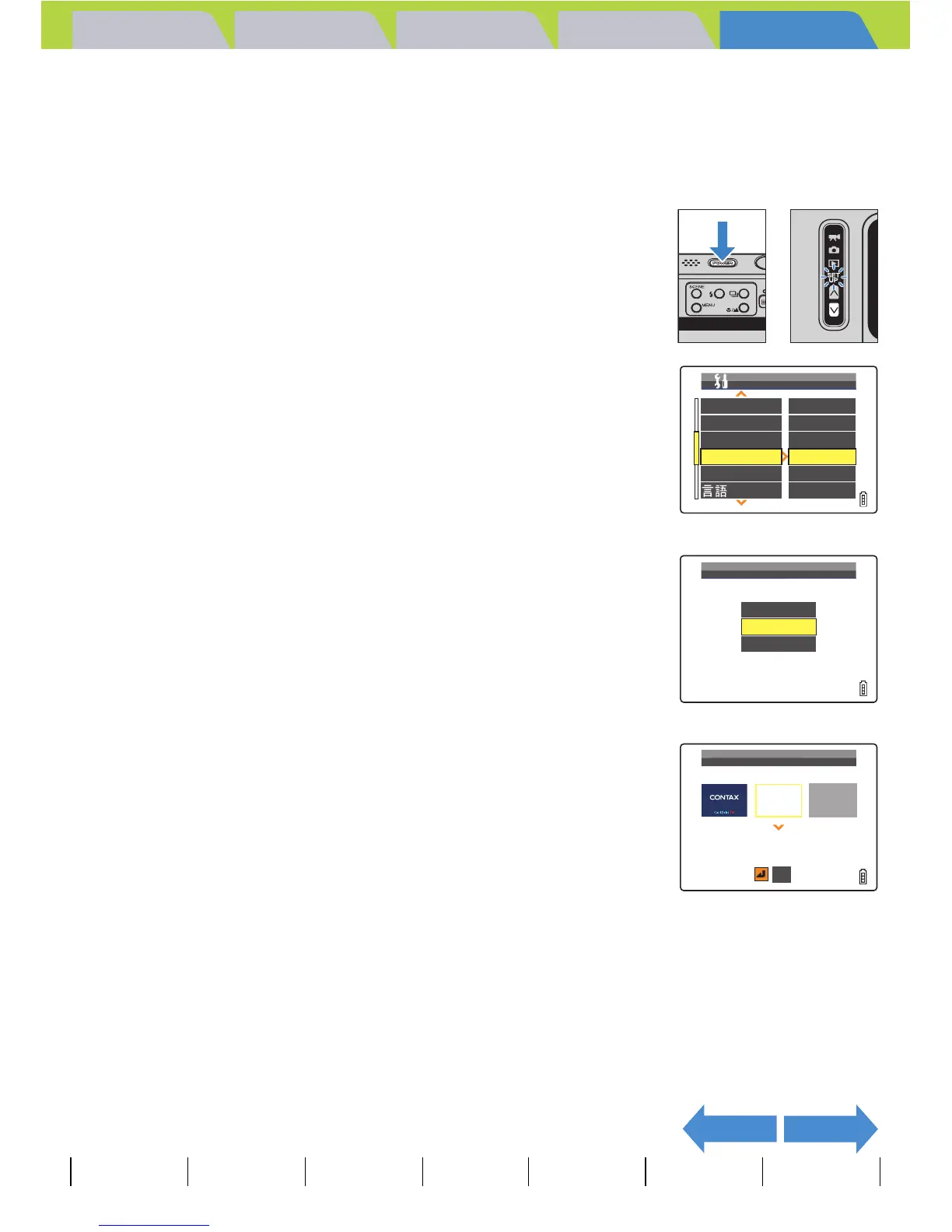
1 Turn the camera on and press the mode
button D until "G" lights up on the mode
select LED.
The SET UP menu screen is displayed.
2 Move the selector lever up u or down d
to select [START SCREEN], then move the
lever right r.
3 Move the selector lever up u or down d
to select [MULTI], then press E.
4 Move the selector lever left l or right r
to select the center location, then move
the lever down d.
The image selection screen appears showing the still images stored on
the memory card.
A Important
Check that the memory card containing the images you want to use is inserted into the
camera.
BNote
If you select [RESET], the reset confirmation
message appears. Select [EXECUTE] and press
E to delete the user-defined screen set previously
from the camera's memory.
BEEP
SHUTTER VOL
DIGITAL ZOOM
START SCREEN
REC REVIEW
+
2
+
2
ON
SET
2SEC
ENGLISH
SET UP(2/3)
LANGUAGE
MULTI
SINGLE
OFF
SELECT START SCREEN
RESET
SELECT START SCREEN
SELECT IMAGE
OK


 To Next Page