2. Setup and Installation
UniSite-xpi User Manual 2-5
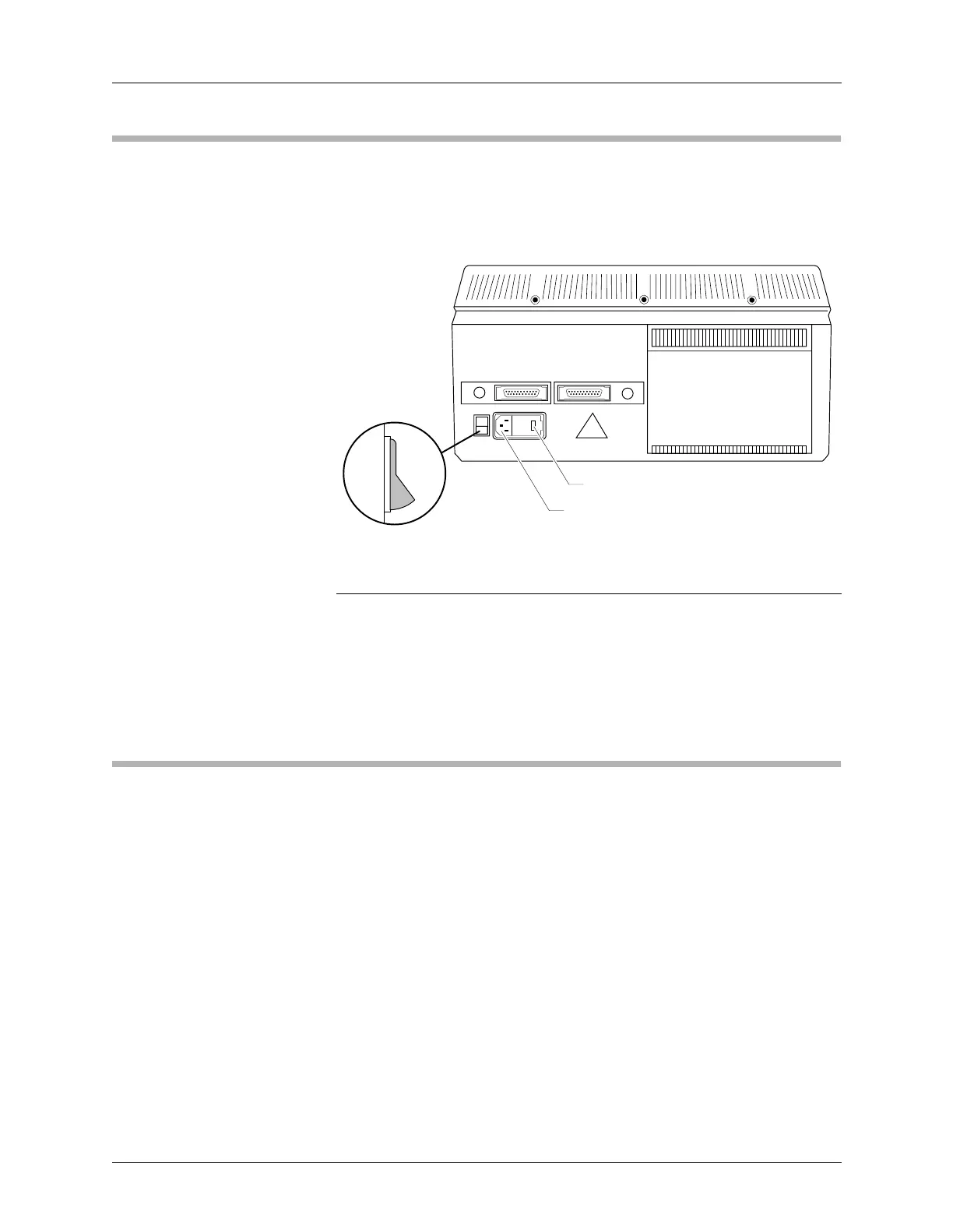
2. Check the Line Voltage (on older units)
(Legacy) On older units, verify that the line voltage is correct by checking
the line voltage indicator on the rear panel. Figure 2-2 shows the location
of the voltage indicator.
CAUTION: Damage to the equipment may occur if the instrument is
operated with the wrong voltage.
If the line voltage is correct, continue with the next section.
If the line voltage is not correct, skip to the section titled “Changing the
Line Voltage,” which is located at the end of this chapter. Continue with
the next section after you have changed the line voltage.
3. Choose Your Configuration
Hardware Choices Review the equipment you have available and then decide which of the
following hardware configurations you will use to control UniSite-xpi.
• Connecting to a PC — Support for serial port and parallel port
operations.
• Connecting to a Host — Support for serial port operations only.
• Connecting to a Terminal — Support for serial port operations only.
Software Choices If you connect to a PC you have three software choices:
• TaskLink for Windows — Support for both serial and parallel port
operations. TaskLink for Windows is shipped with UniSite-xpi.
Figure 2-2
UniSite’s Rear Panel
0054-2
ON
VOLTAGE INDICATOR
AC POWER RECEPTACLE


 To Next Page