A. Using Modules
A-10 UniSite-xpi User Manual
Opening/Removing a
MatchBook To open a MatchBook, unsnap the retaining latch. To remove a
MatchBook, open the MatchBook and lift it out of PinSite.
Installing a PLCC or
LCC Device in a
MatchBook
Use the following procedure to insert a PLCC or LCC device into a
MatchBook after the appropriate Base has been installed in PinSite.
1. Select and insert the appropriate MatchBook into the PLCC/LCC
Base. For example, select the 44-pin PLCC MatchBook for a 44-pin
PLCC device.
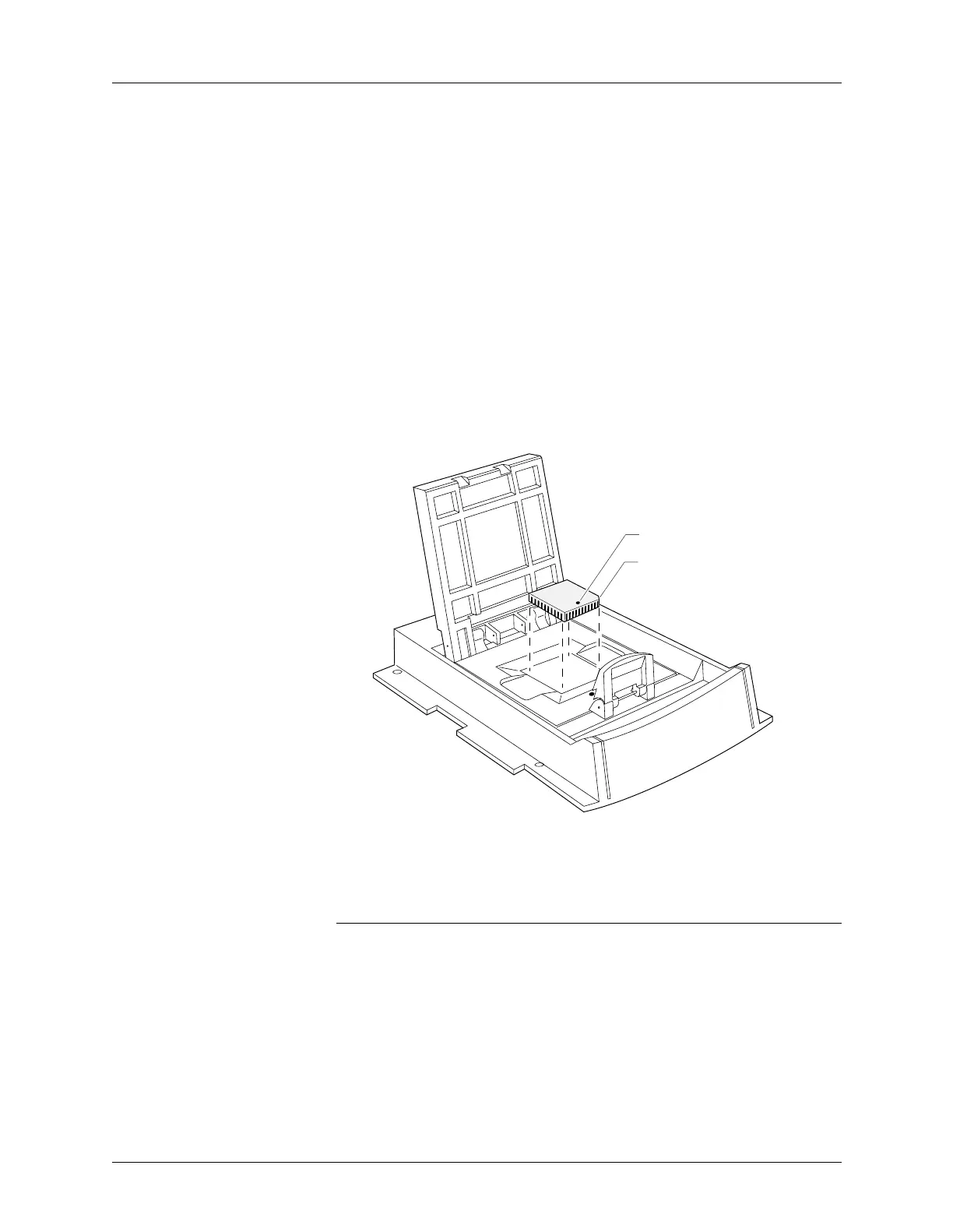
2. Position the PLCC or LCC device so that pin 1 is at the center bottom
as you view it from the top. Figure A-9 illustrates the proper
positioning of a PLCC or LCC device.
3. Insert the PLCC or LCC device into the open MatchBook. Make sure
that the center bottom locating dot on the device is properly aligned
with the locating dot on the MatchBook.
Note: Position the device so that pin 1 is near to the retaining clip. There is a
small dot molded into each MatchBook to help you align your device. Each
PLCC MatchBook also has a beveled corner to help you align devices with
a chamfered corner to indicate pin 1.
4. Close the MatchBook and press the retaining latch forward with your
thumb until the latch snaps into place.
Figure A-9
Inserting a Device into the PLCC
or LCC Base
0538-3
CHAMFERED
CORNER
PIN 1


 To Next Page