74
SECTION 7
DriveRack
™
7. Follow the instructions in the installer to complete installation.
8. If installing the DriveRack Updater, use the “back” button of your browser to return
to the start screen shown above. Right click on the “start here” link under “DriveRack
Firmware Updater V2.00 install from CD:” and choose “save to disk” or “save link as”
to save the DriveRack Updater installer.
9. Using Explorer, locate and run the “DriveRack Updater v.128”.exe. to install the
updater.
10. Follow the instructions in the installer to complete the installation.
11. To run DriveWare™ locate the DriveWare™ icon in the group created by the
installer. To update your firmware, locate the DriveRack Updater icon in the pro-
gram group created by the installer.
The following information offers basic operation information of the DriveRack™ GUI inter-
face.
BASIC OPERATION
Once all units are connected, boot up the GUI Interface by double-clicking on the applica-
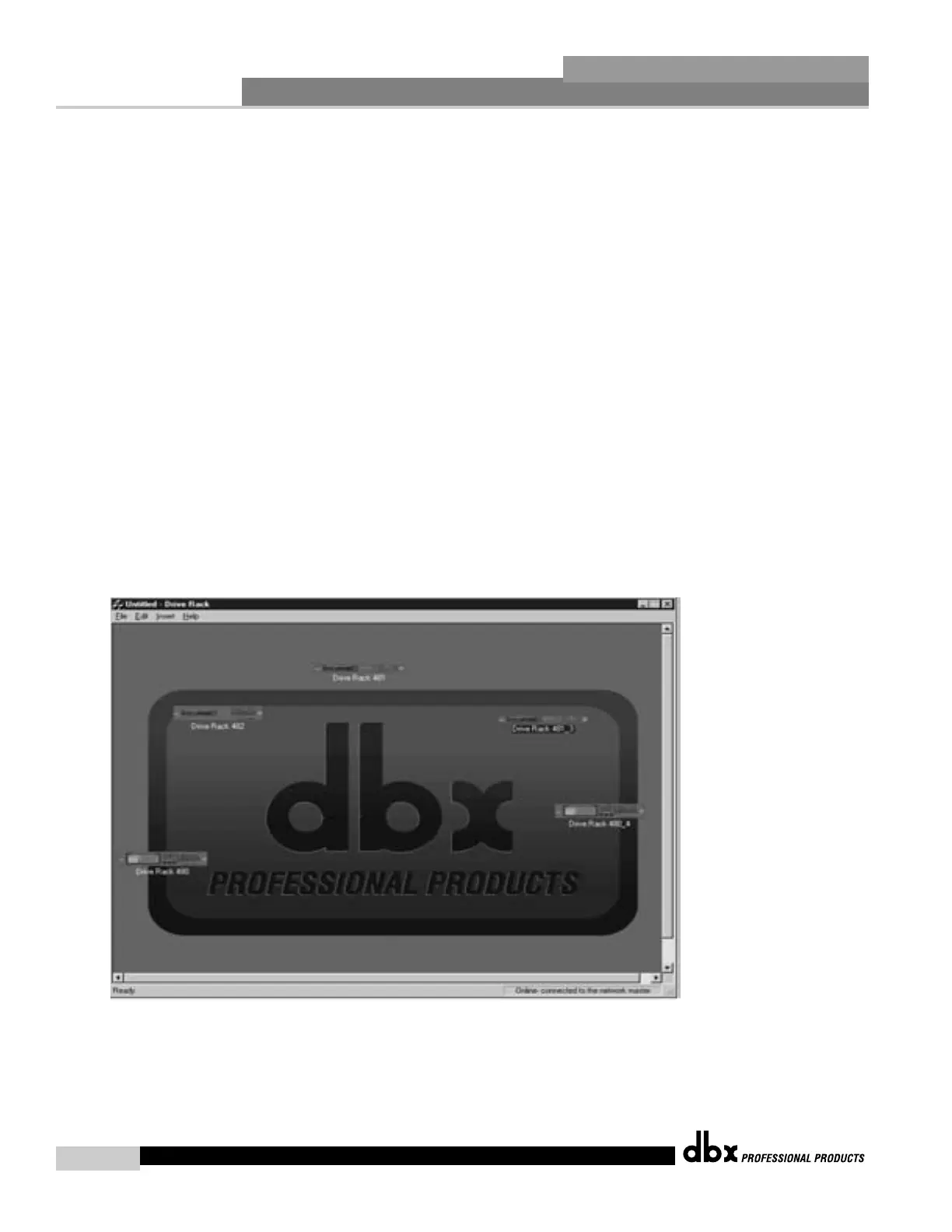
tion icon. When the program opens, the first view you will see will either be in VENUE or
DEVICE view. The VENUE view has icon representations of all units in the network sys-
tem, whereas, if you are connected to a single unit (non-master), you will be brought up
into DEVICE view. In VENUE view, simply double-click on the desired unit to enter
DEVICE view, where you can access and edit all parameter available in the selected unit.
Basic VENUE View
DriveRack™ User Manual


 To Next Page