EasyManua.ls Logo

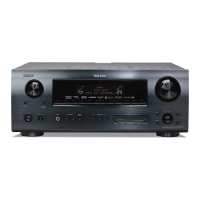
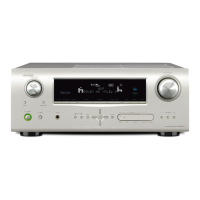
Denon AVR-2309CI - User Manual

Denon AVR-2309CI
106 pages
Print Icon
To Next Page IconTo Next Page
Loading...
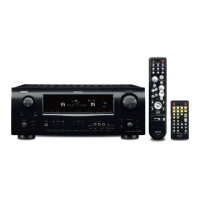
DENON
AV
SURROUND RECEIVER
AVR-2309CI
Owner's
Manual
Manuel
de
l'Utilisateur

Table of Contents

Other manuals for Denon AVR-2309CI

Questions and Answers

  • R
    Rachel ThompsonSep 23, 2025
    How to output HDMI audio signals from speakers on Denon AVR-2309CI Stereo Receiver?
    • B
      Brandon KochSep 23, 2025
      If HDMI audio signals are not being output from the speakers of your Denon Stereo Receiver, it's possible that the “Manual Setup” – “HDMI Setup” – “HDMI Audio Out” setting is set to “TV”. Change this setting to “AMP”.
  • R
    Rachael AndersonAug 23, 2025
    Why is there no sound from my Denon AVR-2309CI subwoofer?
    • R
      Robert StephensAug 25, 2025
      If no sound is produced from the subwoofer, possible reasons include: * The subwoofer's power is off. * The “Subwoofer” setting in “Speaker Configuration” is set to “No”. * The subwoofer is not properly connected. * The subwoofer’s volume is turned off. To address this: * Turn on the subwoofer’s power. * Set the “Subwoofer” setting to “Yes”. * Check the connections. * Adjust the subwoofer’s volume to an appropriate level.
  • R
    Rhonda HicksAug 25, 2025
    Why is there no sound coming from the speakers of my Denon AVR-2309CI Stereo Receiver?
    • K
      Kelly Montgomery DDSAug 26, 2025
      If no sound comes from your speakers connected to the Denon Stereo Receiver, it could be due to several reasons: * Faulty connections with input devices or speaker cables. * Mismatch between the selected input source and the device you want to play. * Master volume turned too low. * Mute mode being activated. * Headphones connected. * No digital signals being input. * Mismatch between assigned digital inputs and settable input modes. To resolve this: * Check all connections. * Select the correct input source. * Adjust the master volume. * Deactivate mute mode. * Disconnect headphones. * Select an input source with a digital input setting. * Set the input mode.
  • C
    Cory HillAug 26, 2025
    Why is no sound produced from the subwoofer connected to my Denon AVR-2309CI Stereo Receiver?
    • M
      Monique BryantAug 26, 2025
      If your Denon Stereo Receiver isn't producing sound from the subwoofer, ensure the subwoofer is powered on, the 'Subwoofer' setting in 'Speaker Configuration' is set to 'Yes', the subwoofer is correctly connected, and the subwoofer volume isn't turned off. Adjust these settings as needed.
  • M
    Megan RobertsAug 27, 2025
    Why is no sound produced from the surround back speaker on my Denon AVR-2309CI?
    • D
      David PruittAug 27, 2025
      If no sound is coming from the surround back speaker of your Denon Stereo Receiver, check these settings: * Ensure the surround back speaker’s power amplifier is assigned to the correct channel. * Make sure the surround back speaker setting is not set to “None”. * Verify that the “Parameter” – “Surround Parameter” – “SB CH Out” settings are not set to “OFF”. * Confirm that the surround mode is set to a mode for 6.1- or 7.1-channel playback.
  • F
    Frank PerezSep 16, 2025
    Why is there no picture with HDMI connections on my Denon AVR-2309CI?
    • C
      Cynthia Williams DVMSep 16, 2025
      If there's no picture when using HDMI connections on your Denon Stereo Receiver, check the following: * Ensure the HDMI connections are secure. * Verify the HDMI input setting is correct. * Confirm your monitor supports copyright protection (HDCP). * Ensure the HDMI formats of the player and monitor match.
  • M
    Michael PetersonSep 13, 2025
    How to turn on the display on my Denon AVR-2309CI?
    • M
      Monica LandrySep 13, 2025
      If your Denon Stereo Receiver's display is off, check if the “Dimmer” setting is set to “OFF” or if the “PURE DIRECT” mode is enabled. Change the “Dimmer” setting to something other than “OFF”. Also, set a surround mode other than the “PURE DIRECT” mode.
  • T
    Thomas JohnsonSep 15, 2025
    Why does my Denon Stereo Receiver not work properly when I use the remote control?
    • E
      Elizabeth BellSep 15, 2025
      If your Denon Stereo Receiver is not responding to the remote control, try these steps: * Replace the batteries with new ones. * Ensure you are within the specified operating range. * Remove any obstacles between the remote and the unit. * Make sure the batteries are inserted correctly, matching the polarity marks. * Move the unit away from strong light sources. * Set the “Remote ID” for the main unit to “1”.
  • M
    morrisjustinSep 5, 2025
    Why won't my iPod play on my Denon Stereo Receiver?
    • K
      Keith SnyderSep 6, 2025
      If your iPod cannot be played, it may be due to: * The input source assigned to “iPod Dock” is not selected. * The cable is not properly connected. * The control dock for iPod’s AC adapter is not connected to a power outlet. To solve this: * Switch to the input source assigned at “iPod Dock”. * Reconnect the cable. * Plug the control dock for iPod’s AC adapter into a power outlet.
  • C
    Courtney HensleySep 3, 2025
    What does “CHECK XM TUNER” mean on my Denon Stereo Receiver?
    • J
      James ZavalaSep 3, 2025
      If “CHECK XM TUNER” is displayed, it means the XM Mini-Tuner is either not installed, not fully seated in the XM Mini-Tuner Dock, or the XM Mini-Tuner dock is not connected to the AVR-2309CI. Confirm the XM Mini-Tuner is fully seated in the dock and check the XM Mini-Tuner dock cable is connected to the AVR-2309CI.

Summary

Safety Precautions

General Safety Instructions

Detailed list of precautions for safe operation and maintenance of the unit.

Critical Safety Warnings

Essential warnings about electric shock, opening the unit, and exposure to water or moisture.

FCC Information

Usage Precautions

General guidelines for operating the unit safely, avoiding common hazards.

Getting Started

Included Accessories

List of all items provided with the AV receiver, confirming package contents.

Handling and Installation Cautions

Remote Control Unit Guide

Instructions on battery insertion, operating range, and general remote control usage.

Part Identification Overview

Front Panel Controls

Identification and description of controls and connectors on the front of the AV receiver.

Display Indicators

Rear Panel Connections

Remote Control Units Overview

Connection Preparations

Video Conversion and Display Settings

Speaker Connections

Speaker Cable Connection and Protection Circuit

HDMI Connectivity and Compatibility

Connecting Monitors and Playback Devices

Connecting Audio Sources

Connecting Tuners and Recording Devices

Connecting Recorders and Other Devices

Multi-channel and XM Satellite Radio Connections

SIRIUS Satellite Radio Connection

Antenna Terminal Connections

Multi-zone Audio and External Control

Power Cord Connection and Initial Power-On

Navigating the Menu System

Menu and Display Examples

Menu Structure Overview

Auto Setup - Preparation

Auto Setup - Speaker Detection

Auto Setup - Measurement and Analysis

Auto Setup - Storing and Error Handling

Manual Setup - Speaker Configuration

Manual Setup - Surround and Subwoofer

Manual Setup - Audio Levels and Speaker Adjustments

HDMI Setup Options

Audio Setup Menu

EQ Presets and ZONE2 Setup

Option Setup - Volume and Power Management

Option Setup - Source and Display Management

Option Setup - Remote and Display Control

Input Source Setup Overview

Input Source Configuration Details

Video Scaling and Output Settings

Input Mode and Source Level Adjustments

Input Source Connector Assignment

iPod, SIRIUS, and Parental Lock Settings

Surround Mode Selection

Multi-channel Audio Playback

Parameter Adjustments for Surround Sound

Surround Parameter Details

Advanced Surround Parameter Settings

Tone, Audyssey, and MultEQ Settings

Dynamic EQ and Volume Control

Audio Enhancement and Delay Settings

Basic Playback and Radio Tuning

Radio Presets and XM Satellite Radio

Checking XM Signal and Radio ID

Preset Stations and SIRIUS Radio

Radio Presets and SIRIUS Radio Operation

Checking XM Signal Strength and Radio ID

iPod Playback and Channel Searching

Parental Lock Settings

iPod Music Playback Control

Memory Functions and System Reset

Remote Control Operations

Remote Control Button Functions by Component

Rear Remote Control Button Functions

Punch Through Function and Sub Remote Control

Amp Assign and Multi-zone Connections

Amp Assign Settings for Multi-zone and Bi-amp

Multi-zone Operations with Zone Output

Multi-zone Control Functions

Speaker Installation and Surround Back Speakers

Understanding Surround Sound Formats

Advanced Audio Technologies

Surround Mode Parameter Adjustability

Surround Mode Parameter Adjustability Chart

Surround Mode Selection Guide

Input Signal Compatibility with Surround Modes

Video Signal to Monitor Output Relationship

Video Output Capabilities Chart

Troubleshooting - General Issues

Troubleshooting - Remote Control and Audio Problems

Troubleshooting - Video and HDMI Issues

Troubleshooting - iPod and SIRIUS Issues

Product Specifications Overview

Audio and Video Specifications

Tuner Specifications

General and Remote Control Specifications

Remote Control Preset Codes

Additional Remote Control Preset Codes

CD Player Remote Control Preset Codes

Getting Started - Basic Connection Diagram

Choosing Your Video Connection

Video Connection Examples

Speaker Connectivity and Placement

Headphones and iPod Control Docks

Additional Headphones and iPod Dock Information

DENON Service Network

USA Limited Warranty Information

Warranty Coverage and Claim Procedures

Canada Limited Warranty Information

Denon AVR-2309CI Specifications

General IconGeneral
Channels7.1
Total Harmonic Distortion (THD)0.08%
Frequency Response10 Hz - 100 kHz
Input Sensitivity200 mV
Input Impedance47 kOhms
Signal-to-Noise Ratio100 dB
HDMI Inputs4
HDMI Outputs1
Tuner BandsAM/FM
HDMI SwitchingYes
USB PortNo
Surround Sound EffectsDolby TrueHD, Dolby Digital Plus, DTS-HD Master Audio
Video ConversionYes
Audio DecodersDTS
Network ConnectivityYes (Ethernet)

Related product manuals