2. Enter a name for your new preset, then click the ok button to save your new preset.
3. Click the activated edit button. The edit button changes to a save button, and a cancel button appears,
which allows you to cancel your entries.
The EQ parameters are now activated for editing, as shown in the figure on the next page.
4. Configure the desired parameters in the equalization screen.
Aer configuring all the desired parameters, click the save button to create your new preset.
Note: You can delete a custom preset by clicking the minus (-) button (shown previously in Figure
115). You cannot delete the AutoEQ preset.
Loading or editing an EQ preset
To load an existing preset:
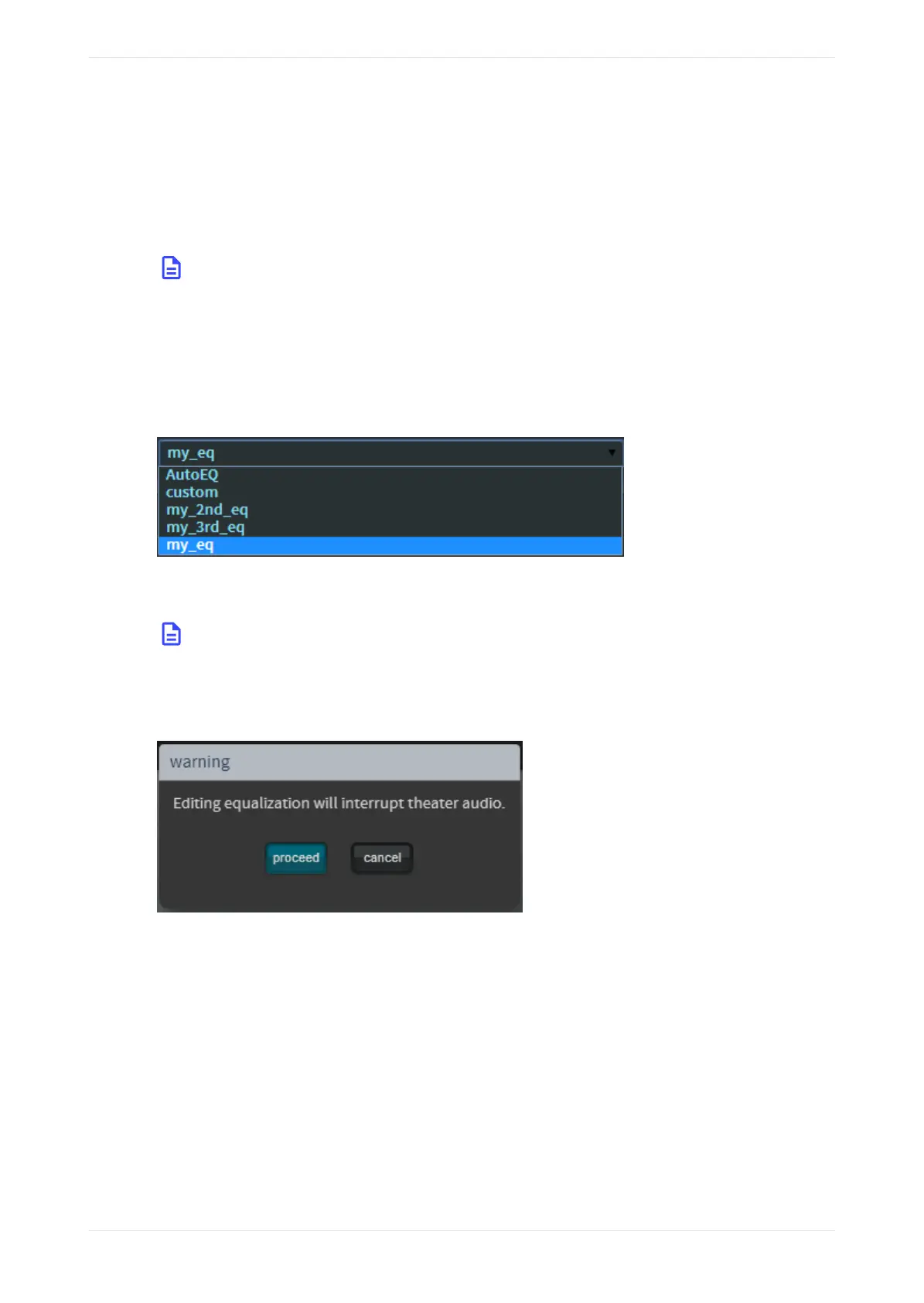
1. Select the desired preset in the EQ presets menu.
Figure 118: Load an EQ preset
You can use the loaded preset for EQ, or you can edit the parameters for one of your custom presets, as
described next.
Note: To edit one of your custom presets, click the edit button. You cannot edit the AutoEQ preset.
Save a copy of the AutoEQ preset under a dierent name.
Aer clicking the edit button, a warning message appears.
Figure 119: Editing EQ warning message
2. Click proceed to edit your preset.
The edit button changes to a save button, and a cancel button appears, which allows you to cancel your
entries.
The EQ parameters are now activated for editing, as shown in the following figure. Note that this example
uses ams as the preset name.
Configuring equalization with the CP950 real-time analyzer
Dolby Cinema Processor CP950 and Dolby Atmos Cinema Processor CP950A Manual 91
Issue 9 Part Number 8800298 19 January 2022



 To Next Page