16 | 10.1 Label-Making Basics
DuraLabel.com | 800.788.5572
10. Making Labels
10.1 Label-Making Basics
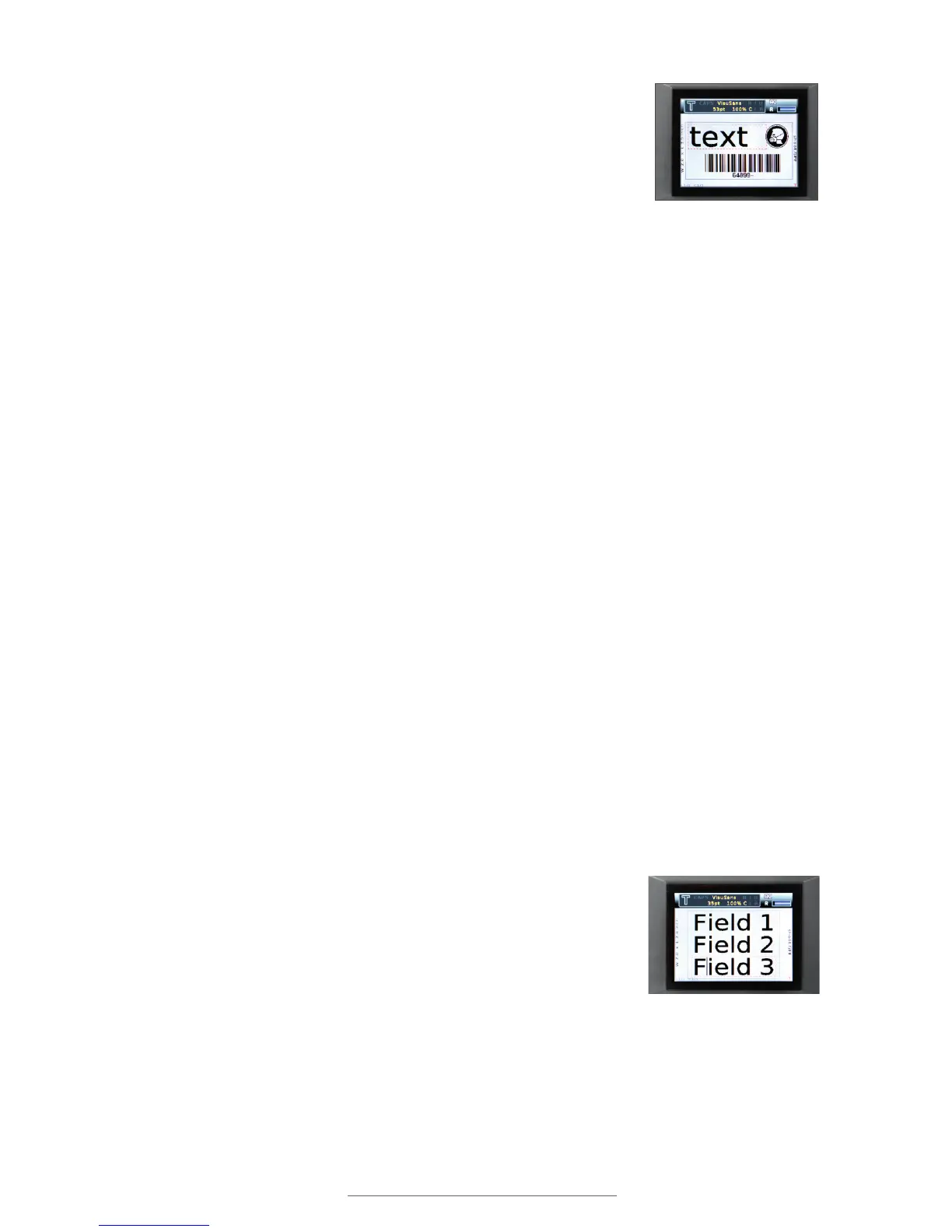
When you first turn the Lobo on, the screen displays the label
canvas. The label canvas displays the text and other content
placed on the label.
10.1.1 CONTENT TYPES
There are five types of content that can be placed on the label canvas:
Text: This includes any keyboard-entered characters, like letters, numbers, and
punctuation.
Symbol: The Lobo has a pre-loaded library of symbols and pictograms that are
commonly used for hazard or information labels.
Barcode: A barcode is a machine-readable graphical element that stores data. Lobo
offers several barcode types.
Sequence: A sequence field increases or decreases automatically after each label is
printed. For example, a series of labels could read “501,” “502,” “503,” and so on.
There are several format settings for sequences.
Time/Date: Time and Date fields automatically fill with the current date and/or time
when the label is printed.
Text is the default content type; you can start to enter text onto a new label immediately,
just by typing on the keyboard. The other content types are accessed by pressing their
respective function keys.
10.1.2 FIELDS
The cursor is the blinking vertical line visible on the label canvas. New text and content
are placed at the cursor’s location.
A field is the term used for a unit of content on the label canvas.
The field where the cursor is currently located has a dotted-line
rectangular border around it. A new field is created when a new
row of content is created, or when a new content type is created.
The up and down arrow keys on the keyboard move the cursor
between fields. Pressing the down arrow key moves to the next
field; pressing the up arrow key moves to the previous field.
The right and left arrow keys allow forward and backward
movement inside a text field.
Text and other types of
content can be placed
on the label canvas.
Up and down arrows move
between elds. Left and
right arrows move inside
of a text eld.



 To Next Page