30 | 13.5 Frame
DuraLabel.com | 800.788.5572
LABEL-EDITING FUNCTION KEYS
13.5 Frame
The Frame menu gives options for placing frames around the label edge or around the
label cells.
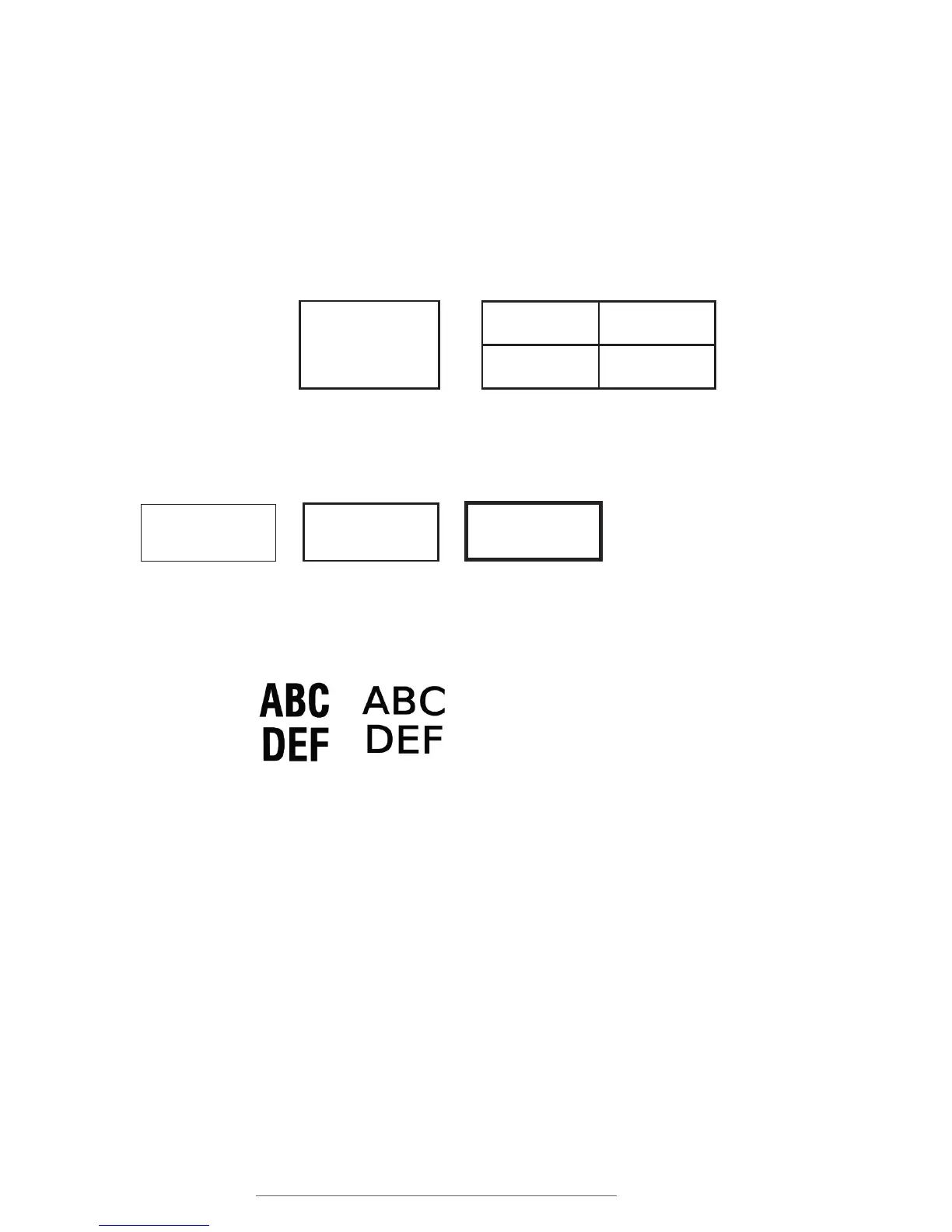
The first menu item, Frame, lets you switch between Off, Border and Grid. Off is the
default setting. If Border is selected, a frame is placed around the outer perimeter of
the entire label. If Grid is selected, a frame is placed around every single cell. (Selecting
Grid displays the structure of the layout, which is usually invisible.)
Frame Thickness lets you control how thick the frame will be. The three choices are
Thin, Medium, and Thick.
13.6 Font
The Font menu lets you choose from three fonts: Lobetica, Triumvirate, and VisuSans.
13.7 Font Size
The Font Size menu allows you to change the size of the label text.
By default, font sizes are in Auto mode. This automatically adjusts the size of text to fill
the label as content is added.
To manually enter a fixed font size, press the Font Size key, change the Font Fix/Auto
setting to Fixed, and press Enter. In the Input Fixed Font Size screen, type the desired
font size, and press Enter. (The Max value, shown below the input field, indicates the
maximum font size based on the space available.)
You can apply the font size change At Cursor, turning the setting on at that point in
the text, or to the entire Selected Field, making all text in that field have the assigned
attributes.
Labels with Thin frame, Medium frame, and Thick frame.
ABC
DEF
From left to right, samples of Lobetica, Triumvirate, and VisuSans.
Thin
Medium
Thick
Labels with Frame off, Frame set to Border and Frame set to Grid.
Layout with
Grid Border
Border
Frame
No
Frame



 To Next Page