DuraLabel.com | 800.788.5572
10.2 Label-Making Lessons | 21
MAKING LABELS
10.2.3 LESSON 3: BARCODE LABEL WITH SEQUENCE
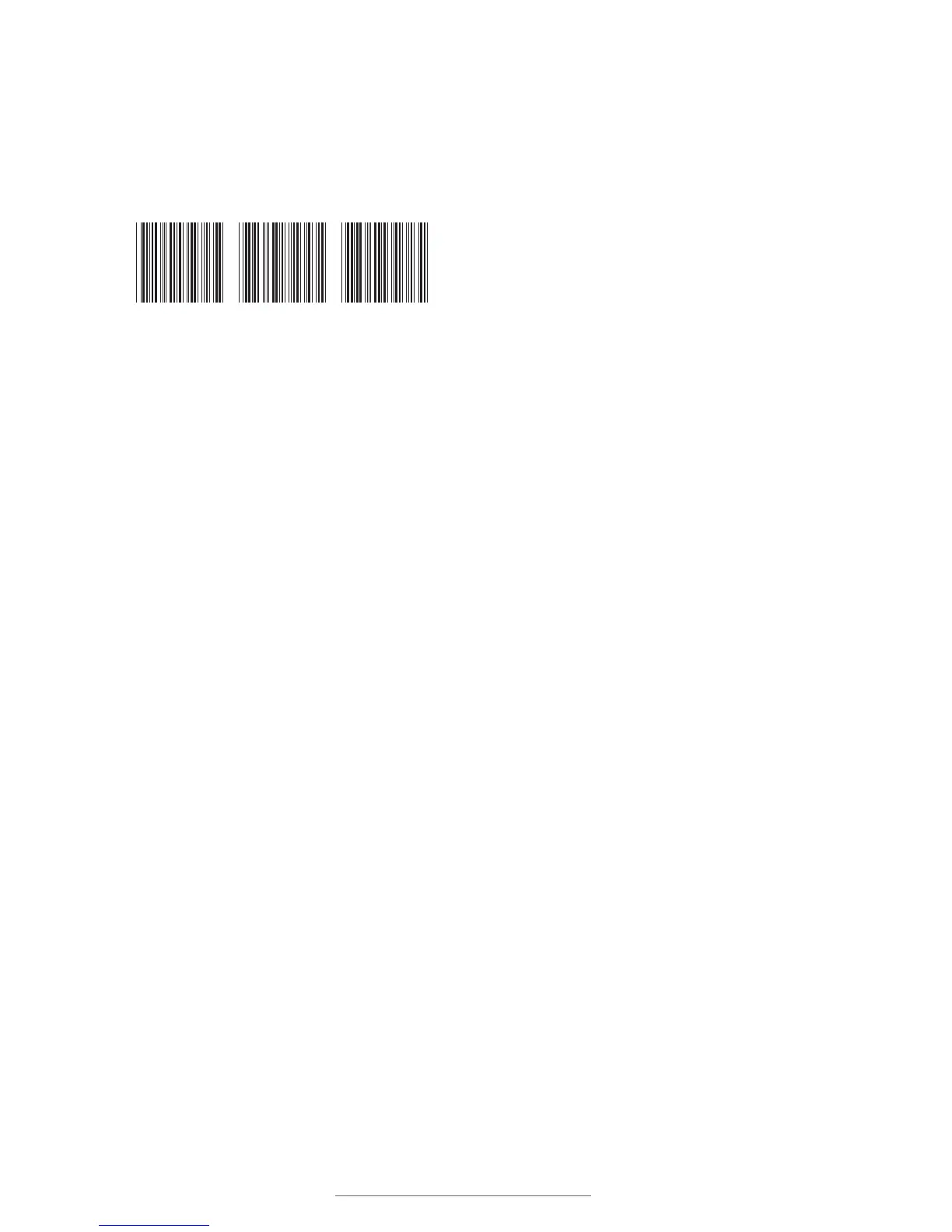
In this lesson, you will be creating a label, intended for use on a product shelf.
The barcode number will be sequenced data, meaning that if you printed several of
these labels in a series, the barcode numbers would read: 3011, 3012, 3013, etc.
Sequencing is useful for such tasks as creating
barcodes for a large number of products or
creating numbered labels for
many pieces of equipment.
Step 1: Create a new label.
Press the Next Label key. This creates a new blank label in the same project.
Step 2: Create a barcode.
Press the Bar Code key. This will bring up the barcode menu.
Scroll down to Check Digit and turn it OFF by pressing the left arrow key. If it is already
turned off, leave it off.
Move down to Sequence and turn it ON. Press Enter. Next, several screens will walk you
through sequence options.
The first screen selects whether the sequence will increment (Inc) or decrement (Dec)
with each successive print. Leave this set to Inc and press Enter.
The next screen selects the Input Sequence Count Value. This allows you to control
the value by which each label will advance between printing. For this example, we want
the numbers to increase by 1, leave the value at 1 and press Enter. (If you wanted a
sequence that increased by 2, like 1, 3, 5, 7, you would put 2 for this value.)
The next screen selects the Input Sequence Start Value. This is the value that the
sequence will be when the first label prints. For this value, enter 3011. Press Enter. The
barcode appears on the displayed label.
Step 3: Print the barcode series.
Press the Print key. The Input Quantity field lets you choose how many labels in the
sequence you want to print. Print three labels (barcode numbers 3011, 3012 and 3013)
by entering 3 and pressing Enter.
Step 4: Save the label files.
Press the File key.
Move down to Save and press Enter.
Type Lesson and press Enter. This multi-label project will be saved as Lesson, and can
be accessed by opening the File menu and choosing Open.
3011 3012 3013



 To Next Page