26 | 12.2 Control Screen Navigation
DuraLabel.com | 800.788.5572
NAVIGATION
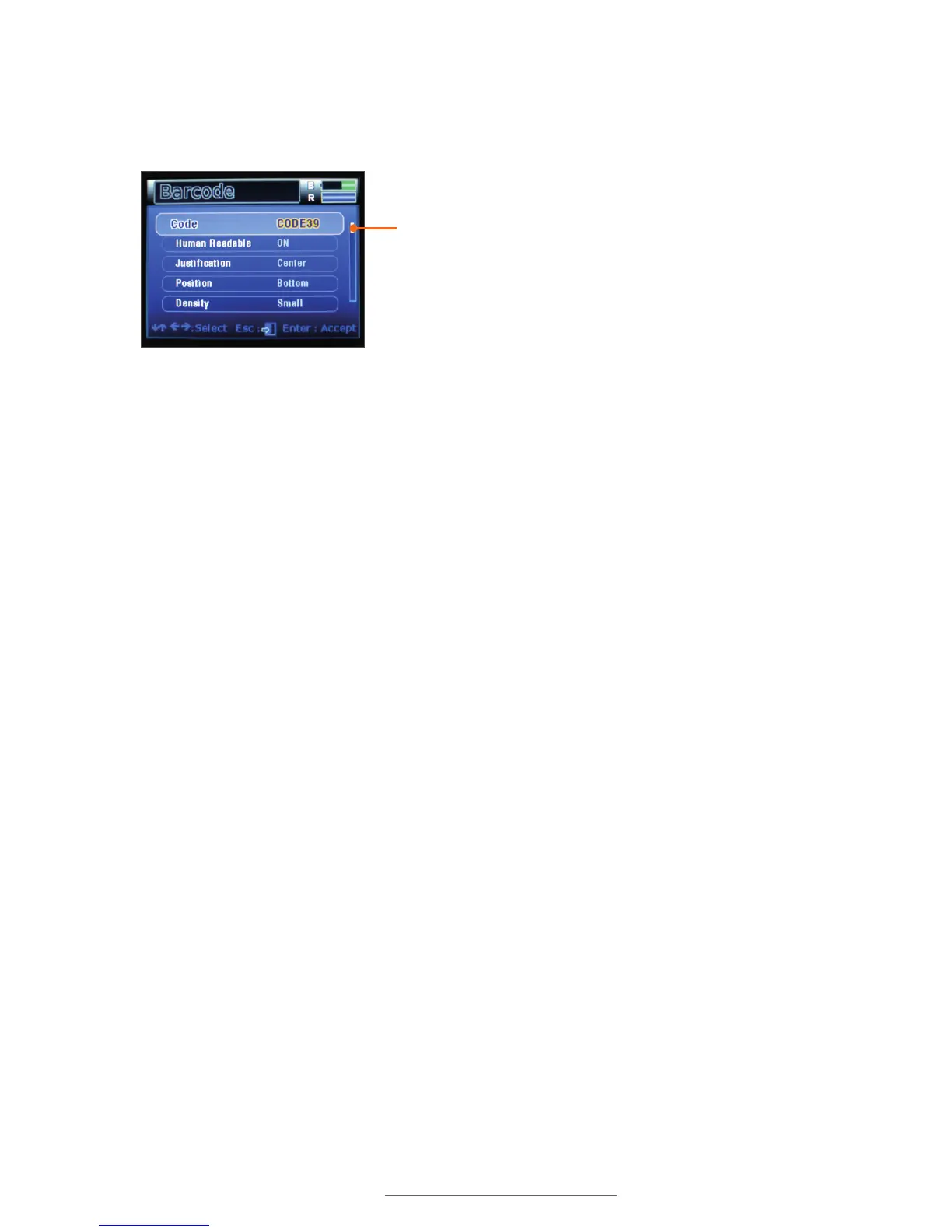
For longer lists, a menu position indicator along the side of the screen will indicate that
there are more items that are not currently visible. You can hold the Shift key and press
the up or down arrow to quickly navigate large menus.
12.2.3 EDITING SETTINGS
On a control screen, use the left and right arrows to change an item’s setting. In general,
the left arrow is used to move a selection to the Off position, to the lowest value setting
or to the left-most value setting (as in left-justified text, for example). The right arrow is
used to move a selection to the On position, to the highest value setting, or to the right-
most value setting.
To save changes made to control screen settings, you must press the Enter key. If you
change a setting and then exit out of the menu by pressing Esc, the change will not be
saved.
Some settings require additional information to be entered (for example, selecting a
fixed font size). For those types of settings, pressing Enter will take you to another
screen where you will be prompted to enter additional information.
The position indicator shows there are more items off-screen.
Menu position indicator



 To Next Page