DuraLabel.com | 800.788.5572
13.8 Font Options | 31
LABEL-EDITING FUNCTION KEYS
13.8 Font Options
Font Options lets you edit the style of the label text. The menu
items and their functions are as follows:
Bold turns boldfaced styling on or off.
Italics turns italicized styling on or off.
Underline turns underlined styling on or off.
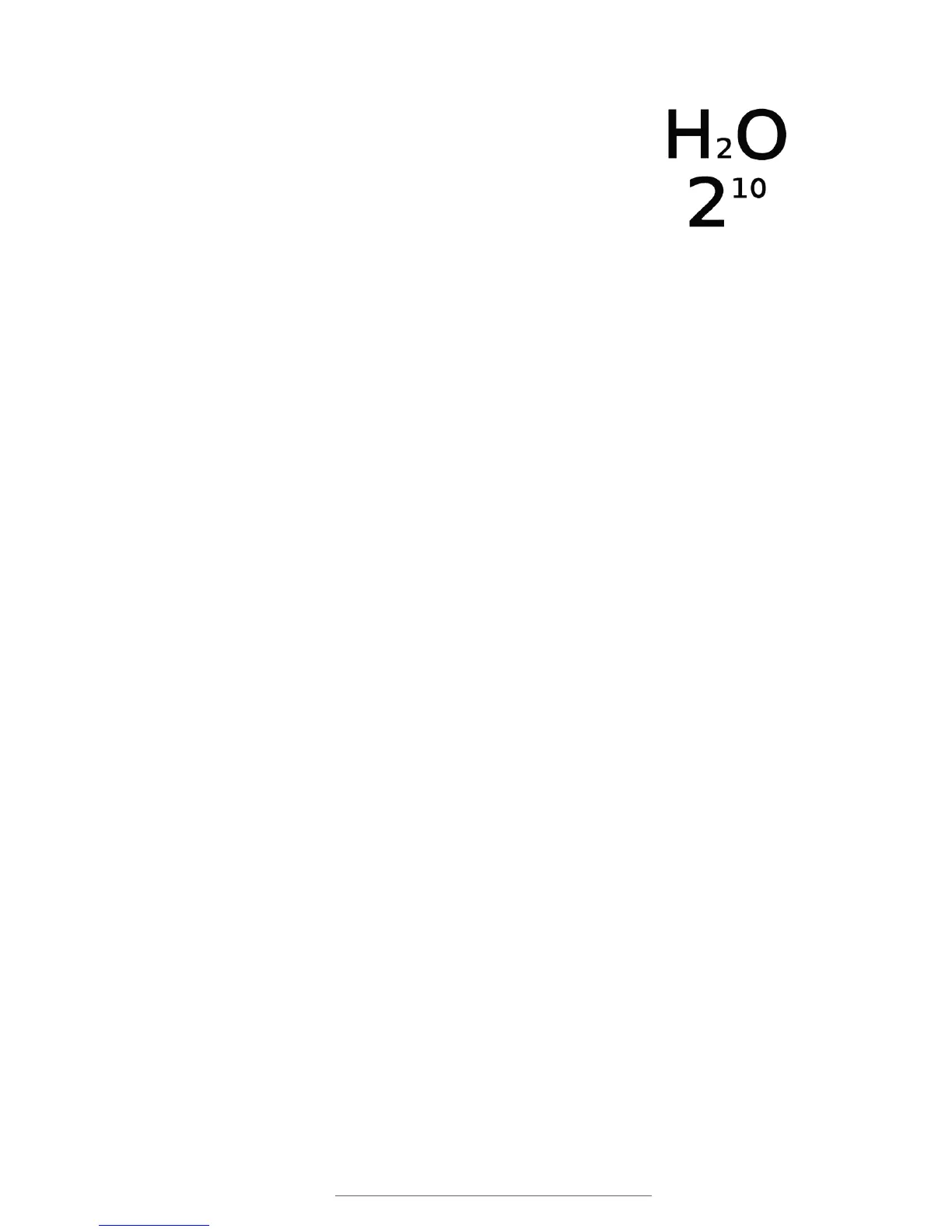
Character Position lets you switch the font style between Normal,
Subscript or Superscript, with Normal being the default value.
Expand/Condense adjusts the width of the text to an approximate percentage of its
normal width; the settings are
50, 100, 150 and 200.
Apply options: After choosing a font style, you will choose where the style will be
applied: At Cursor, Selected Field, Entire Cell, Entire Label or All Labels.
At Cursor will make the font style active at the cursor. This option effectively “turns on”
the chosen style; any new text that is entered will have the applied font style.
Selected Field will apply the font style to all text in the current field.
Entire Cell will apply the font style to all text in the current cell of the label. (If you have
not selected a Layout, your label may only have one cell.)
Entire Label will apply the font style to the entire label, across all cells.
All Labels will apply the font style across all labels in a multi-label project.
Label showing
subscript and
superscript font sizing.
Text
Text
Left label with Condense/Expand set to 50, right label with Condense/Expand set to 200.



 To Next Page