DuraLabel.com | 800.788.5572
13.4 Label Length | 29
LABEL-EDITING FUNCTION KEYS
13.4 Label Length
The Label Length menu lets you change between an Auto mode and a Fixed mode for
the label length.
The label length is set to Auto by default. This setting adjusts the length of a label
automatically, based on the content placed on the label canvas.
To use a fixed length, select the Fixed option and press Enter. Type the desired length
and press Enter to set the length of the label design. You will be returned to the label
canvas.
NOTE: If the label already includes content, the length may not be reduced.
There is also a Width value in this menu screen; it cannot be changed and is displayed
only as reference. The width of a label is determined by the print cartridge that is loaded.
The label canvas displays the current label dimensions (width and length) along the
side of the screen.
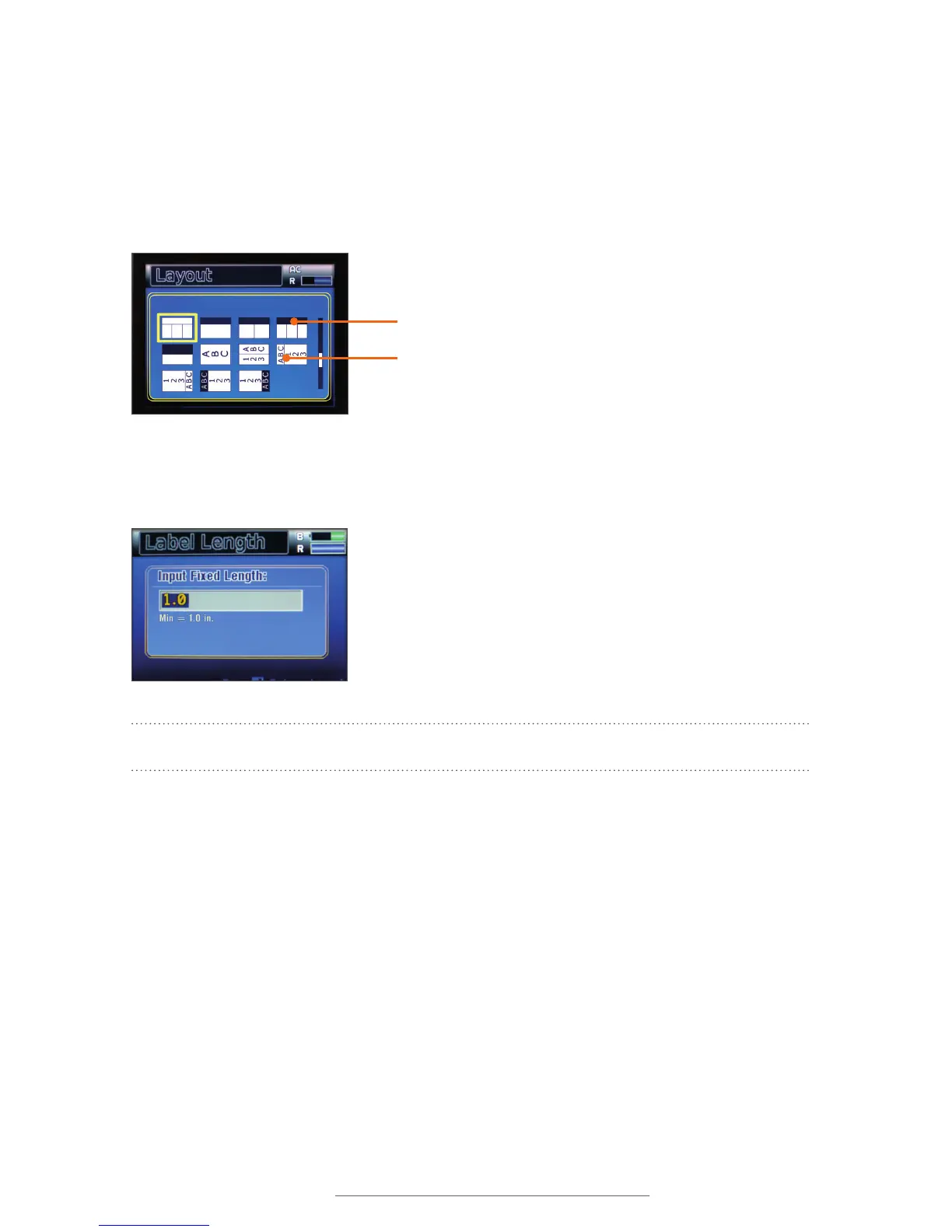
The black cells in some layouts represent negative cells.
Vertically-oriented layouts are indicated by the perpendicular
ABC/123 text.
After changing Length to Fixed mode, enter the desired xed length.



 To Next Page