40 | 13.20 End
DuraLabel.com | 800.788.5572
LABEL-EDITING FUNCTION KEYS
13.20 End
The End key is a navigation key. Pressing End will move the cursor to the very end of
the current field. Pressing Shift + End it moves the cursor to the very beginning of the
current field.
13.21 Directional Arrows and Enter
On the label canvas, the up and down arrow keys are used to move between content
fields. The left and right arrows are used to move the cursor inside a field.
In the control screens, the up and down arrows are used for moving through menus,
while the left and right arrows are used to change settings.
On the label canvas, the Enter key is used to move to another line of content. In control
screens, Enter is generally used to accept any changes that have been made.
13.22 Cut
Pressing the Cut key advances the print supply reel approximately one inch and
performs a cut.
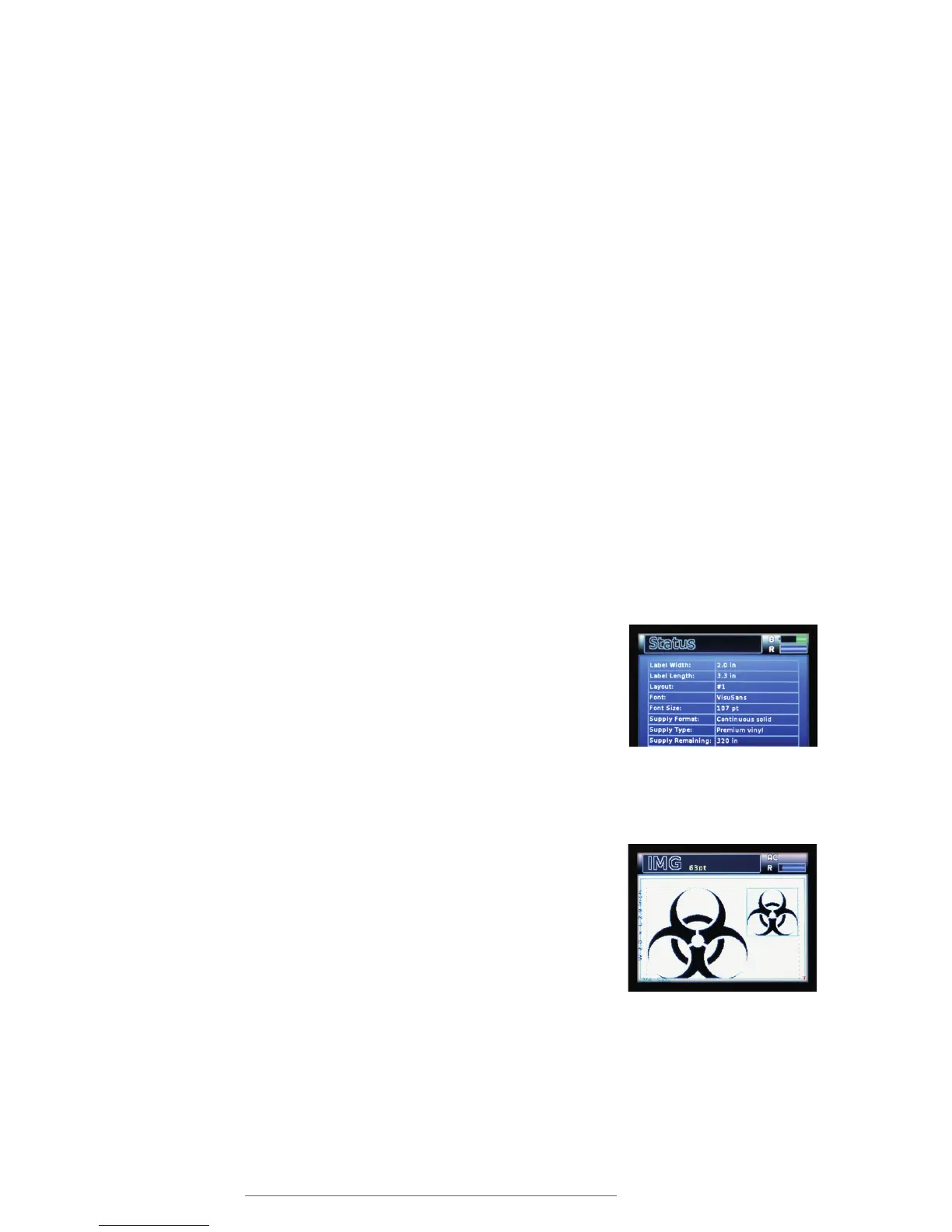
13.23 Status
Pressing the Status key displays a list of all of the Lobo’s
current settings.
Use the up and down arrow keys to scroll through the
status screens.
13.24 Image Resize
Image Resize is used to resize an image or symbol. When
you press Image Resize, the first image on the label will be
selected, and a box will appear around that image. If there
are multiple images on the label, pressing Image Resize
again will select the next image.
With an image selected, press the up arrow key to make the
image larger or press the down arrow key to make it smaller.
When you are finished resizing an image, press Enter to
accept the changes and exit the image resizing function, or
press Image Resize again to select another image.
Pressing the Status key shows
all current label settings.
Use Image Resize to make
symbols larger or smaller.



 To Next Page