DuraLabel.com | 800.788.5572
13.26 Image Move | 41
LABEL-EDITING FUNCTION KEYS
13.25 View Label
Pressing the View Label button gives you two options:
Print Preview and List of Labels.
Print Preview displays a preview of the current label. This
is the only way to see the complete design of a multi-celled
label. If the label is too long to be seen all at once, the left
and right arrow keys can be used to scroll across the length
of the label.
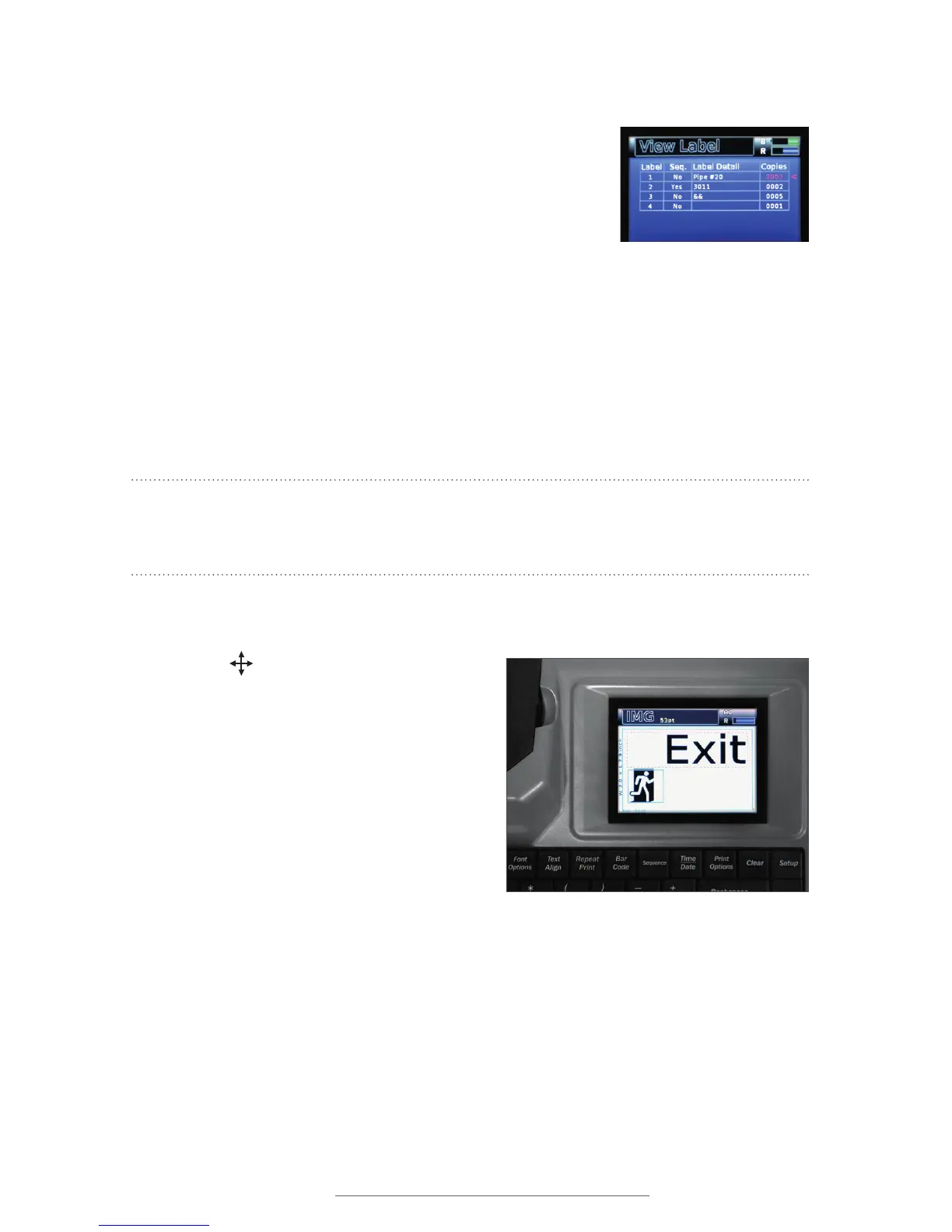
List of Labels displays a table of all of the labels in the current project. This table is
used to control how to print a multi-label project. The Copies column of the table lets
you input the number of copies of each label you’d like to print. After setting the copy
numbers for the various labels in your project, pressing the Print key begin printing the
specified copies.
NOTE: You cannot print labels that have changing sequence data or changing Time/
Date data with the List of Labels printing function. It only prints identical copies
of labels.
13.26 Image Move
Image Move is used to move an image or
symbol from its original position. When you
press Image Move, the first image on the
label will be selected, and a box will appear
around that image. If there are multiple
images on the label, pressing Image Resize
again will select the next image.
With an image selected, use the arrow keys
to move the image around on the label
canvas. When the image is in the desired
location, press Enter to accept changes and
stop repositioning images, or press Image
Move again to select another image.
When you reposition an image, the adjustment is made relative to the image’s original
location, or anchor point. Adding other text or content can move the image’s anchor
point, causing the image to move as well. To remove an image, you must delete it from
its anchor point.
Pressing the Status key shows
all current label settings.
Even after the image has been moved, its anchor
point is still in its original location on the label
canvas, to the left of the Exit text.



 To Next Page