DuraLabel.com | 800.788.5572
13.13 Time/Date | 35
LABEL-EDITING FUNCTION KEYS
When you press the Sequence key, you are walked through a series of data input
screens, as follows:
Inc/Dec: This option sets whether the sequence increases (Inc) or decreases (Dec) in
value after each print. The default is Inc; use the left and right arrow keys to change this
option, and press Enter to continue.
Sequence Count Value: This is the amount by which the sequenced number will
increase or decrease in a single step, after each label is printed. For example, if you
wanted a sequence of numbers that incremented by 2 every time (such as 1, 3, 5, 7,
etc.), you would enter 2 here.
Sequence Start Value: This is the sequence’s starting value, which will be the first value
to be printed when a multiple-label print job is begun.
The number of digits in the Start Value will set the number of digits for the rest of the
sequence. For example, if you wanted each number in the sequence to have three digits,
and the first sequence value to be 1, you would input 001 as the Start Value.
Printing: To print labels with sequences, you can either use the Print key or the Repeat
Print key. For either approach, you will see an Input Quantity screen to input a number.
This is the number of labels with changing sequence data that will be printed. For
instance, if your label’s sequence begins with 0001 and you enter a quantity of 2, the
printer will print two sequential labels: 0001 and 0002.
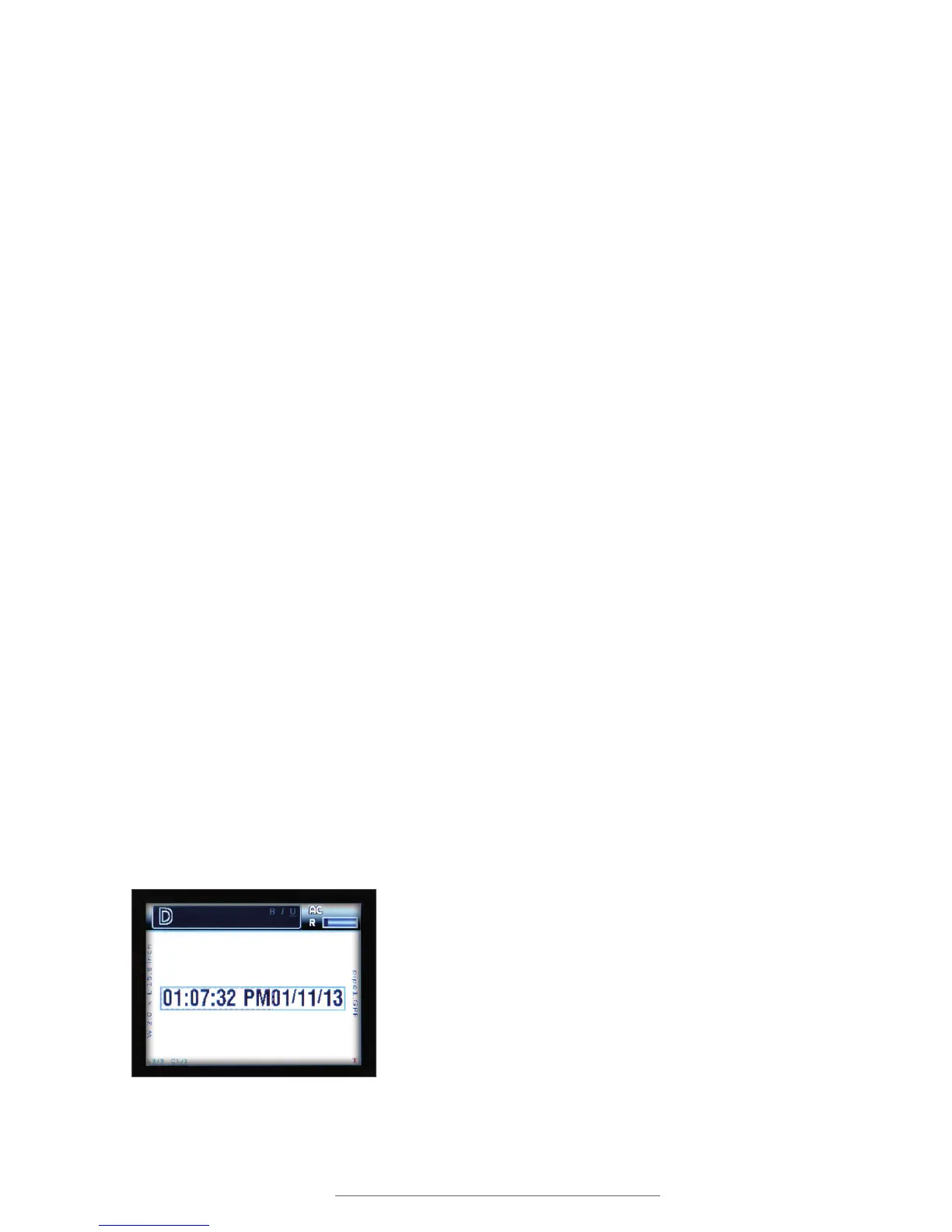
13.13 Time/Date
Pressing the Time/Date key places a time field and a date field on the label canvas.
The time and the date fields cannot be edited on the label canvas. They are special fields
that auto-fill with the current time and date, based on the current time and date set in
the Lobo. These fields will update after each printing to reflect the new time and date.
AB100 AB200 AB300
Labels with a Sequence Count Value of 100.
Pressing the Time/Date button will place a time eld and a date eld on the label.



 To Next Page