DuraLabel.com | 800.788.5572
10.2 Label-Making Lessons | 19
MAKING LABELS
10.2.2 LESSON 2: MULTI-CELL LABEL
In this lesson we will make a pipe label using a special layout, some text formatting, a
Time/Date field and a frame.
Step 1: Create a new label.
Press the Next Label key to create a new blank label in the same project.
Step 2: Select a layout.
Press the Layout key.
Use the arrow keys to browse the layouts. Select the
layout and press Enter.
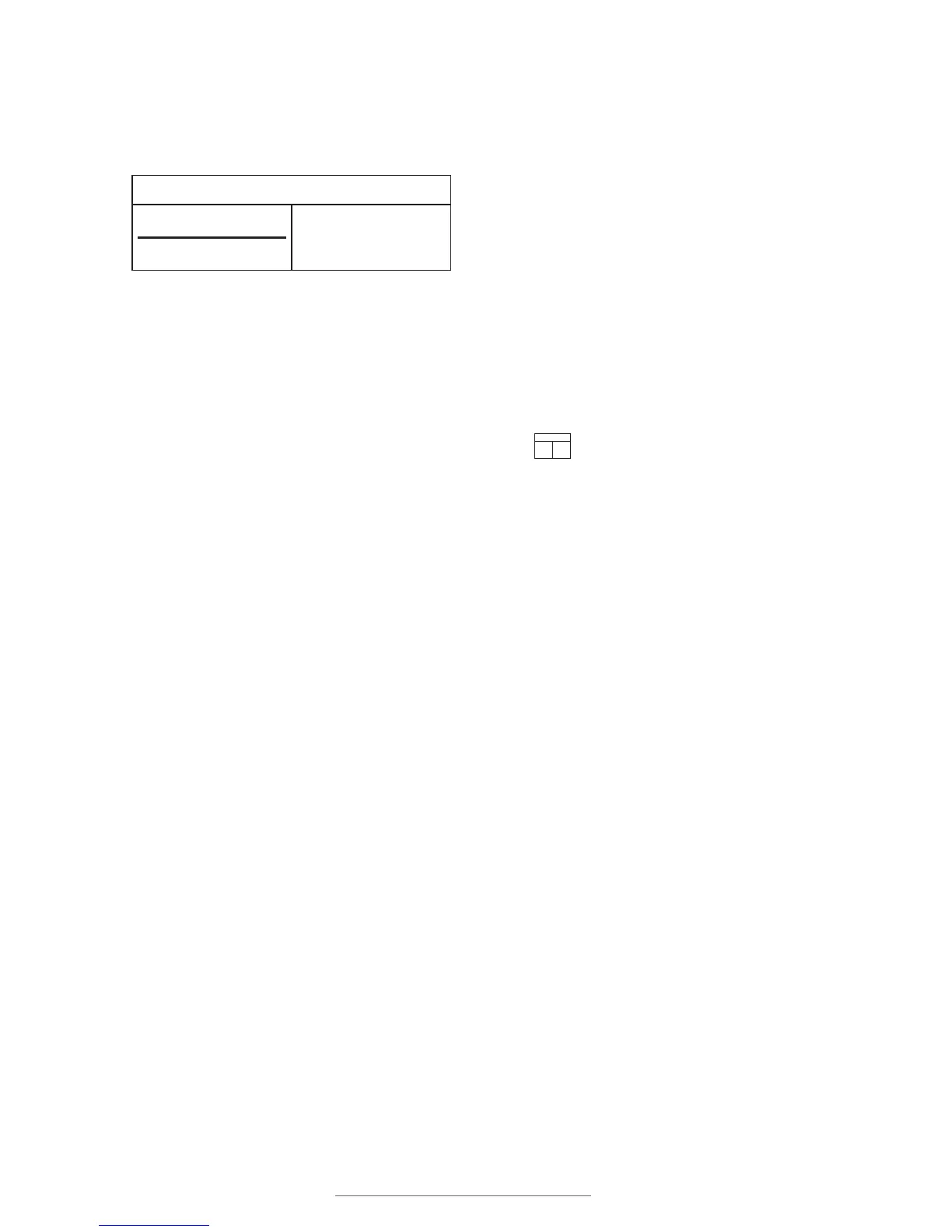
The layout of the current label is visible in the upper right corner of the screen.
The current cell being worked on is highlighted in yellow.
Step 3: Enter content in first cell.
Type Pipe #20.
Step 4: Enter content in second cell.
To move to the label’s next cell, press the Next Cell key.
Type Contents.
Press Enter to move the cursor to the next line in that cell.
Type Water.
Step 5: Enter content in third cell.
Press the Next Cell key to move to the third cell.
Type Install.
Press Enter to move the cursor to the next line.
Press the Time/Date key. This will place a time field and a date field on the label. These
fields are automatically populated with the current time and date, as they are set in the
Lobo Setup menu.
Press the up arrow key twice to move to the time field.
Press the Backspace key to delete the time field, leaving only the date field.
Pipe #20
Contents
Water
Install
01/22/13



 To Next Page