DuraLabel.com | 800.788.5572
10.1 Label-Making Basics | 17
MAKING LABELS
The End key moves the cursor to the end of a field. Shift + End moves the cursor to the
start of a field.
The Backspace key deletes text or content to the left of the cursor.
Shift + Backspace deletes text or content to the right of the cursor.
10.1.3 CELLS
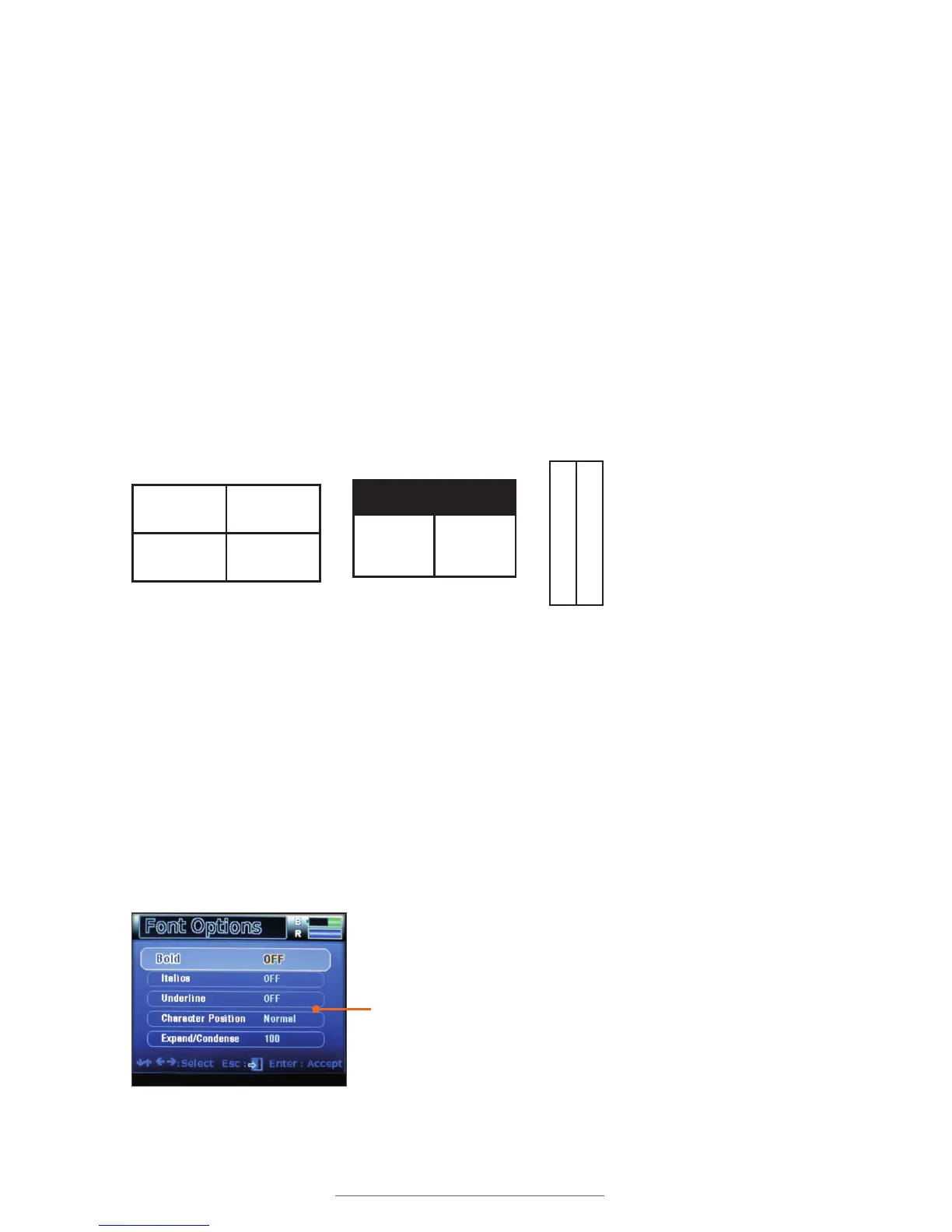
The Lobo has various layouts that are selected by pressing the Layout key. Layouts have
sections known as cells arranged in various configurations. If no layout is chosen, the
label has a single cell.
The label canvas only displays one cell at a time. To move between cells, use the Next
Cell key to move to the next cell. Pressing Next Cell multiple times will eventually cycle
through all of the cells, returning to the first cell. You can also use Shift + Next Cell to
move back to a previous cell.
10.1.4 MULTIPLE-LABEL PROJECTS
There can be more than one label in a single label project. The Next Label key moves
to the next label in a project, creating a new label if one does not already exist. Pressing
Shift + Next Label moves to the previous label. A maximum of eight labels can be
stored in a multi-label project.
10.1.5 FUNCTION KEYS
Label content is formatted using the keyboard’s function keys. Many of the function keys
bring up control screens where settings can be edited. The arrow keys and the Enter key
are used to navigate these menus and make selections.
Cell 1 Cell 2
Cell 3 Cell 4
C
e
l
l
1
C
e
l
l
2
Cell 1
Cell 2 Cell 3
Different label layouts allow editing of individual cells.
Font Options Function keys bring
up function control screens.



 To Next Page