DuraLabel.com | 800.788.5572
13.1 File | 27
13. Label-Editing Function Keys
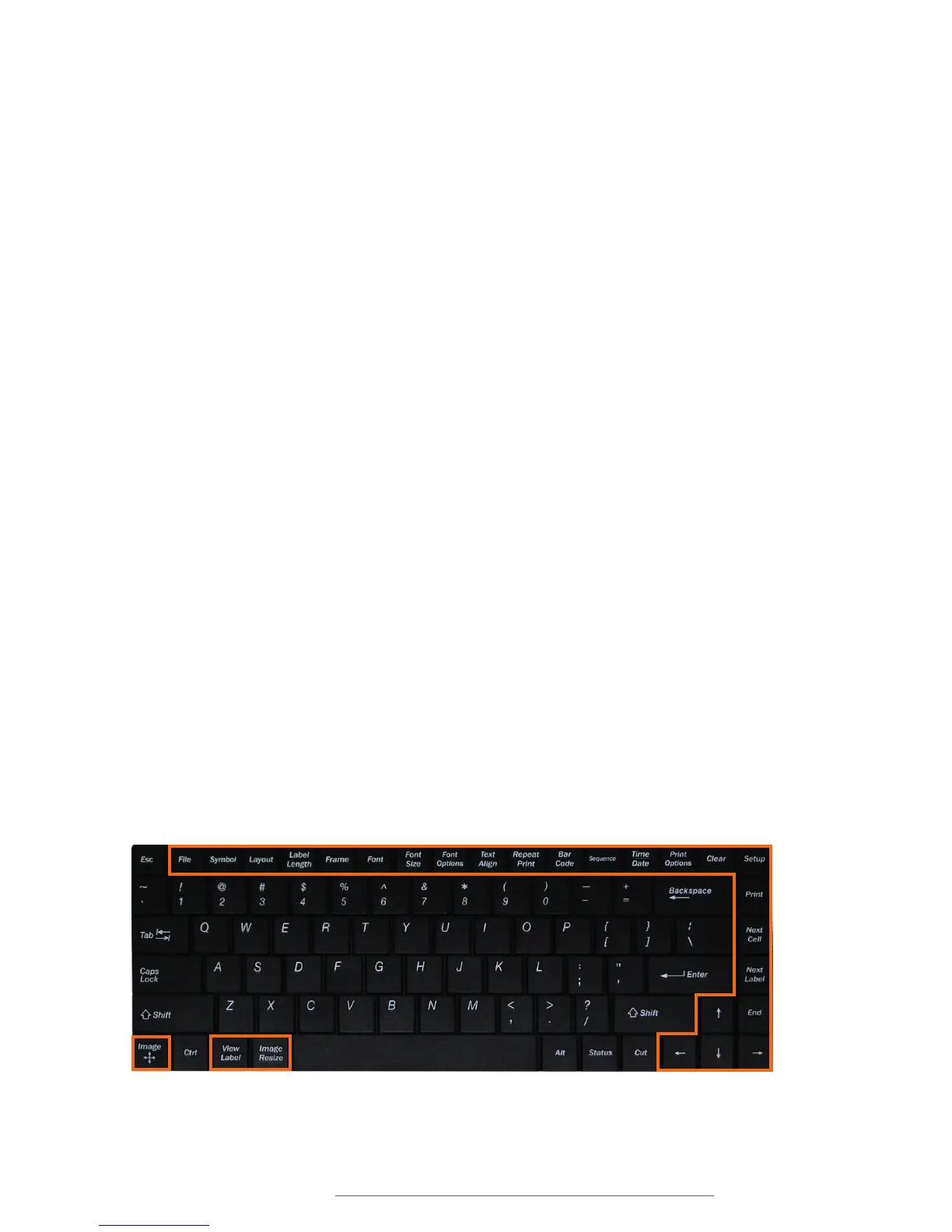
The Lobo has various label-editing and navigation functions that are accessed by
pressing the function keys. These function keys are located around the perimeter of the
keyboard on the upper, lower and right sides.
13.1 File
The File menu includes the following functions:
Open allows you to open label files that were created on the Lobo. It will display files
stored either internally or on the SD card, depending on what is chosen for the Location
setting (farther down in the File menu.)
You can only open a project file that matches the size of the print cartridge that is
loaded. If a label file doesn’t match the current print cartridge, you will see a note
explaining this and will not be able to open the file.
New begins a new label project. If you were working on an existing label, you will be
asked whether you want to save the existing label before starting a new label.
Save will prompt you for a file name to save the current label project. Files are saved
to Lobo’s internal memory, or to an optional SD card, depending on the selection in
the Location field. File names may only include numerals and capital letters, with a
maximum file name length of 8 characters.
Delete gives two delete options: Delete File and Delete All. Delete File allows you to
select a file for deletion. Delete All will delete all saved labels. (Use the Clear function
key to delete a label currently being worked on.)
Location can be set to Internal (to use Lobo’s internal memory) or SD (to use an
optional SD card.) Use the left and right arrow keys to toggle between the two locations.
To use the SD card, it must be present when Lobo starts up.



 To Next Page