DuraLabel.com | 800.788.5572
13.19 Next Label | 39
LABEL-EDITING FUNCTION KEYS
13.17 Print
Pressing the Print key will print the current label you are working on. Change printing
and cutting options in the Setup menu.
13.17.1 PRINTING A SEQUENCE
If the label currently being worked on has a sequence, pressing the Print key will
present an Input Quantity prompt, choosing how many labels in the sequence series will
be printed. (See Sequence for more information about working with sequences.) If the
sequence series contains Time/Date stamps, these will also update with every print.
13.17.2 PRINTING A MULTIPLE-LABEL PROJECT
If you are working in a project with multiple labels and would like to print multiple copies
of the labels in the project, use View Label >List of Labels to choose how many of each
label you want to print.
13.18 Next Cell
The Next Cell key is a navigation key. If the label being
worked on has a multiple-cell layout, pressing Next Cell will
move to the next cell on the label canvas. Pressing Shift +
Next Cell will move back to the previous cell.
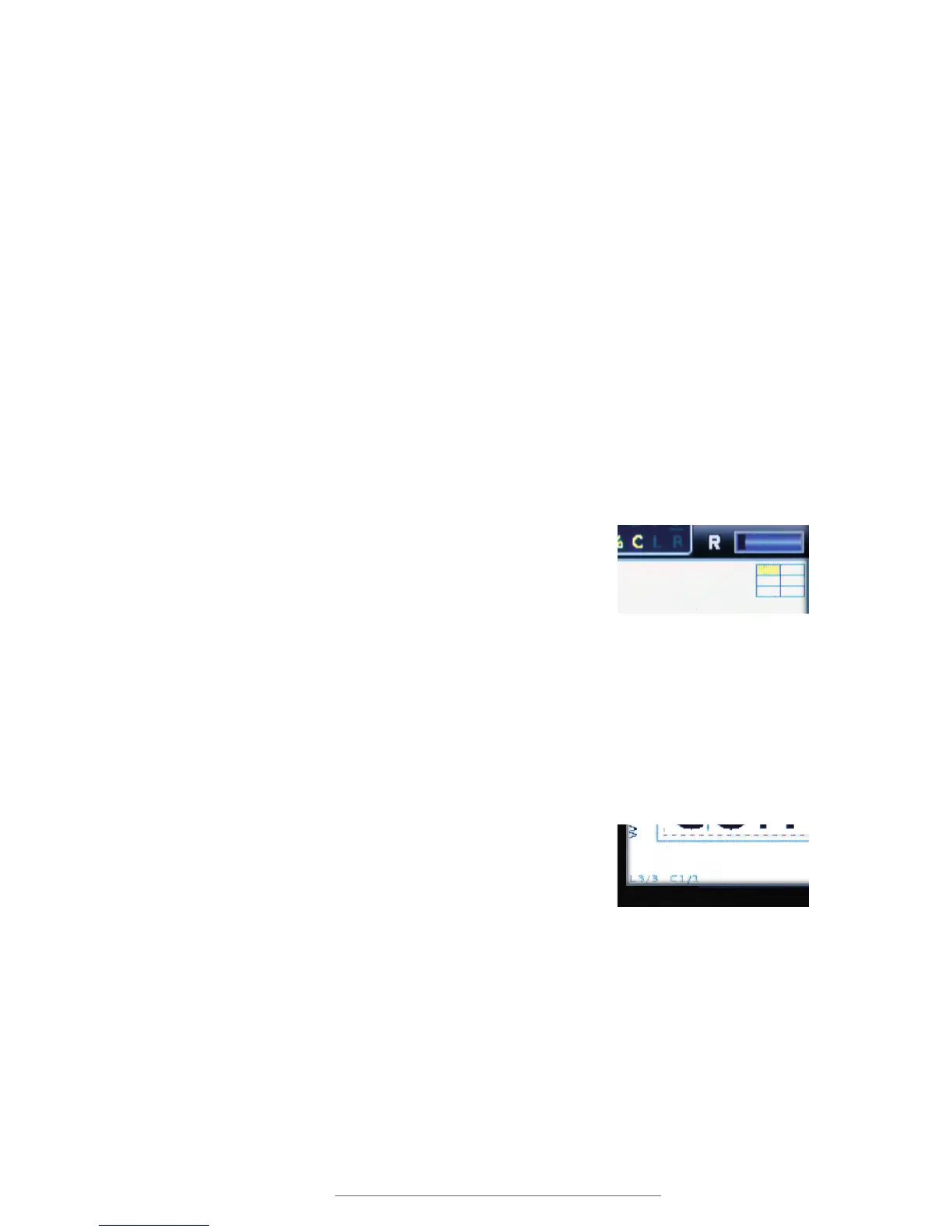
If you are working on a label with multiple cells, an icon with
the label’s layout structure will be displayed at the top right
corner of the screen. The current cell will be highlighted
yellow on the layout icon.
13.19 Next Label
The Next Label key is a navigation key. In a multi-label
project, pressing Next Label moves to the next label. Pressing
Shift + Next Label will move back to the previous label.
If there is no next label, pressing Next Label will create a
new label.
The number of the label currently being worked on is
displayed in the lower left corner of the display screen.
A maximum of eight labels can be created in any one label project.
Use Clear > Current Label to erase a label from a multi-label project.
Pressing Next Cell and Shift +
Next Cell will move you forward
and backward in a multi-cell
layout.
The L3 on the display screen
indicates that this is the third
label in a multi-label project.



 To Next Page