TP-00347-01 85
Upgrading the Library Firmware
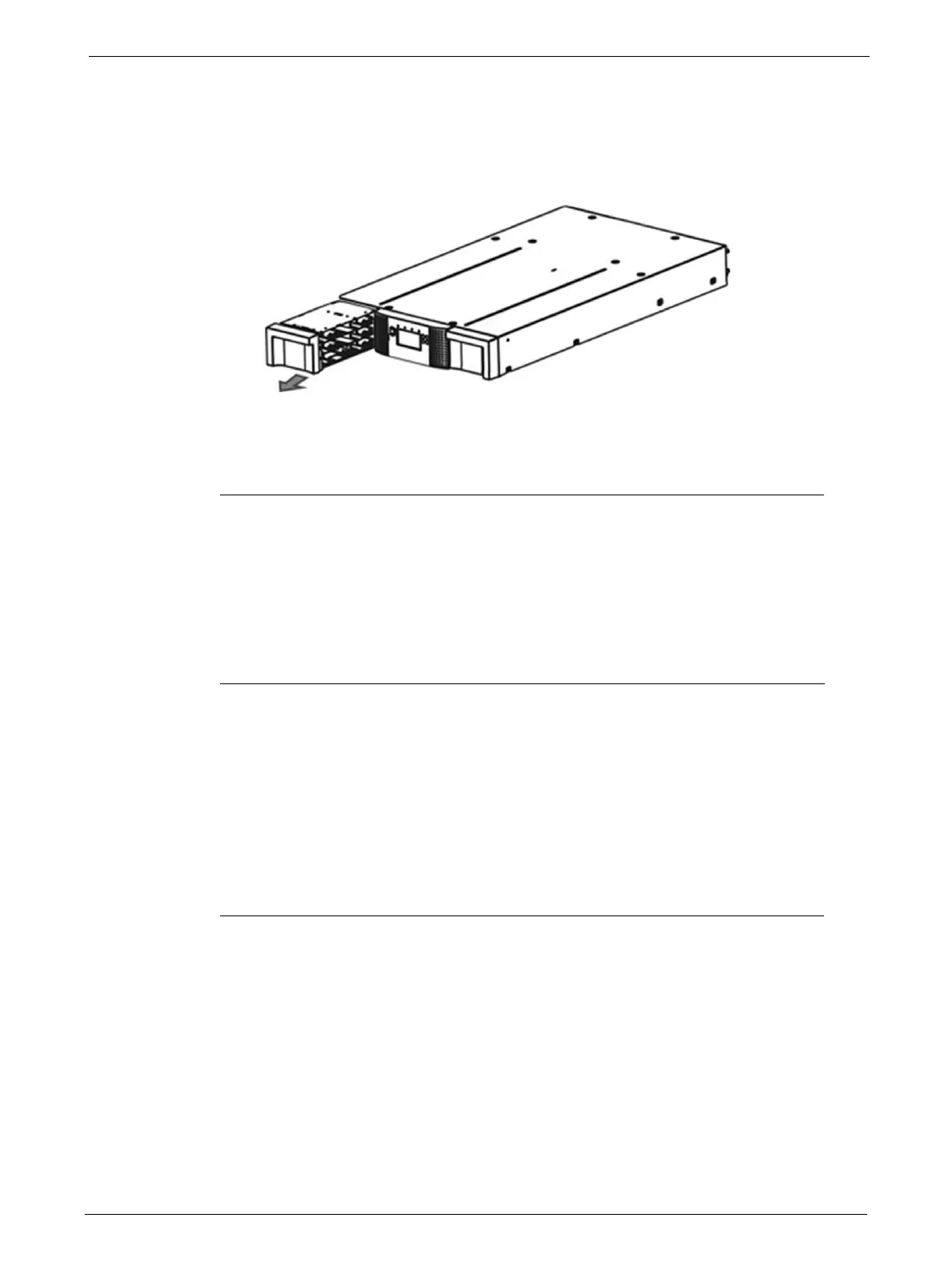
4. Push the end of a small metal pin or straightened paper clip into the magazine access hole
at the back of the device. While holding the pin or clip, have a second person attempt to pull
the magazine out of the front of the unit.
For the 48Q Tape Library, all magazines on a side are released and should be removed at the
same
time.
5. If necessary, repeat the steps 3 and 4 for the other magazine.
6. If you are unable to remove any tape cartridges or to release the
magazines by any of the
foregoing methods, contact your Service Representative.
Upgrading the Library Firmware
It is advisable to keep the library firmware updated to the latest version. To update the library
firmware:
1. Use the RMU or OCP to navigate to the appropriate screen:
• RMU screen: > Service > Firmware > Upgrade Library Firmware > Upload
• OCP screen: > Main Menu > Service > Se
rvice Library > Library FW Upgrade by USB
2. Load the library firmware on to a USB stick, then insert the USB
stick into the port on the rear
panel of the library.
3. When the firmware file name displays, select it to start
the updating process.
4. After updating the library firmware, the library system restarts automatically



 To Next Page