40 Ion Operations Manual
in the icon. Once a layout is assigned, you can select which displays and controls will be in which
frames.
See Displays (on page34) for more information.
Display and Control Icons
Clicking on an icon will open the appropriate display or control in a new tab.
Display Tabs
Control Tabs
Single Monitor Snapshots
The snapshots displayed here are single monitor-only snapshots recorded for the visible workspace.
For information about snapshots, see About Snapshots (on page376). These snapshots can be
recalled from any selected monitor from the Home Screen or the Display Controls menu screen. You
can recall a monitor-only snapshot from the command line by using the syntax [Snapshot] [n] [Enter].
When recalled from the command line, the selected snapshot will only affect the monitor from
which it was originally recorded.
To record a monitor-only snapshot, press the {New Snapshot} button on the Display Controls menu
screen. [Delete] [Snapshot] [n] [Enter] [Enter] will delete a monitor-only snapshot.
All snapshots can be viewed on the snapshot list display, which can be opened by pressing [Snap-
shot] [Snapshot] or from the home screen.
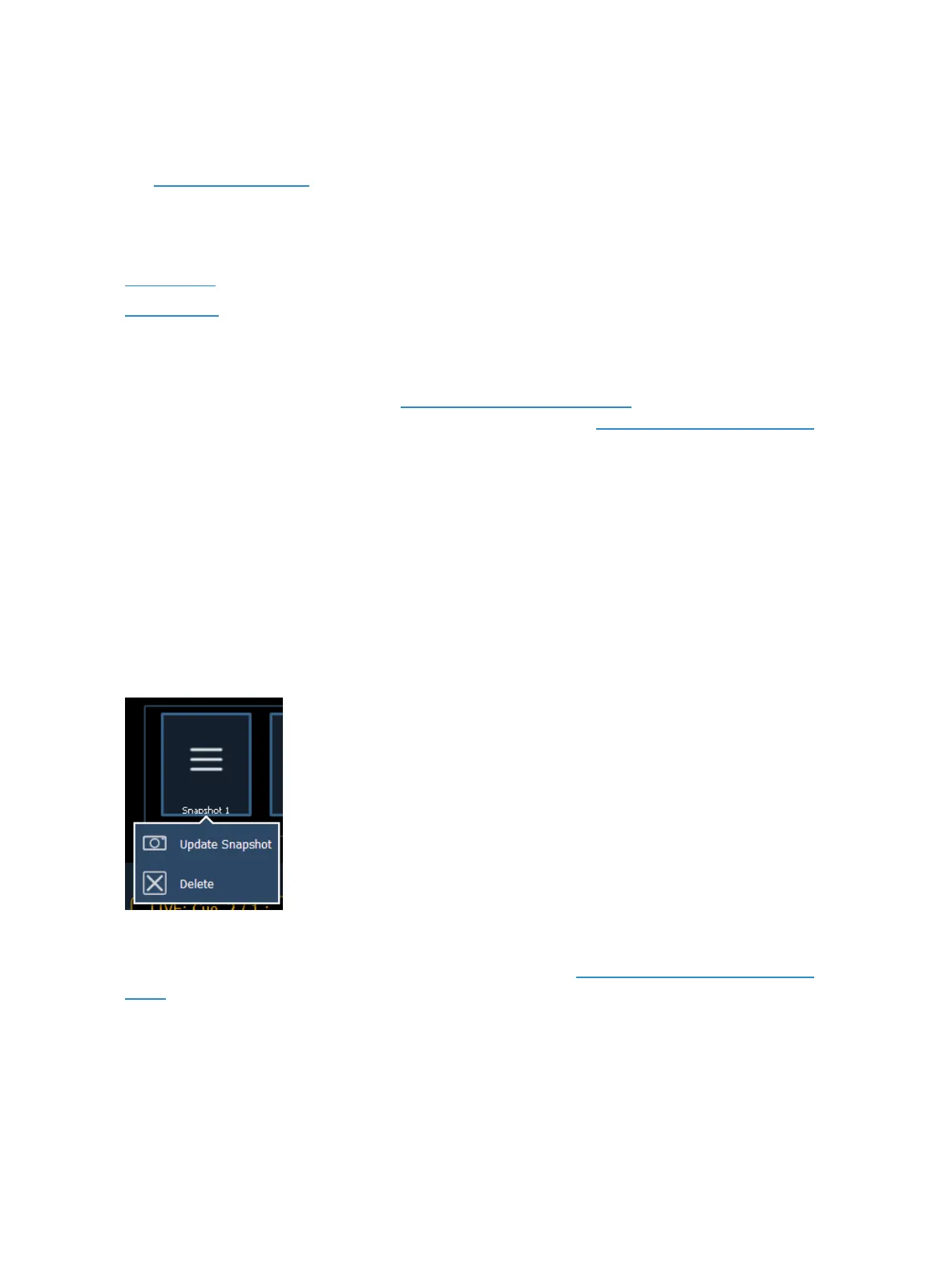
Updating a Single Monitor Snapshot
A single monitor snapshot can be updated or deleted by right clicking on its icon in the Snapshot
area of the Home screen.
Display Controls Screen
Selecting the display controls icon will grant you access to the Layout Options (on theprevious
page). Choose the layout icon for the arrangement and number of frames you want to use on the
monitor.



 To Next Page