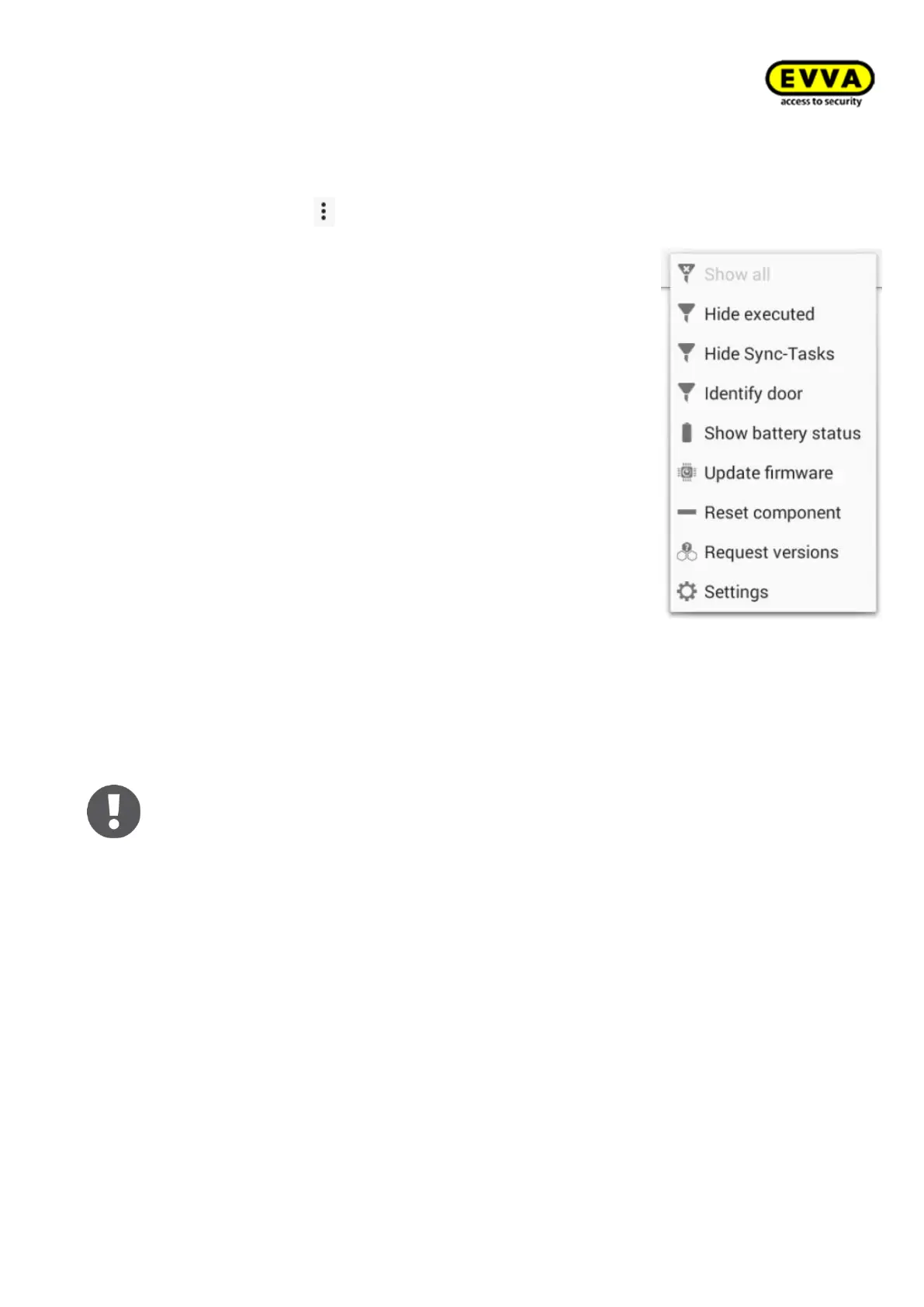
Click the three small dots to open a drop-down menu for:
• Show all
- All tasks are shown
• Hide completed
- Any completed tasks are not shown
• Hide synchronisation tasks
- Synchronisation tasks (collect logs, set time) are hid-
den. Only configuration tasks (configuration changes)
are displayed.
• Identify door
- Automatically identifies the connected door
• Show battery status
- Shows the battery status of the component
• Update firmware
- Update firmware using connection cable
• Reset component
- Resets the component to factory status
• Request versions
- Shows the firmware version
• Settings
- Select here whether the component event log must always be retrieved
• Logout
- Logs out the active user
Notice: Refer to the following section for instructions on how to link a Xesar tablet
to a Xesar system: → 5.6 Integrating your Xesar tablet into your system



 To Next Page