4.2.1.2 Docker installation steps
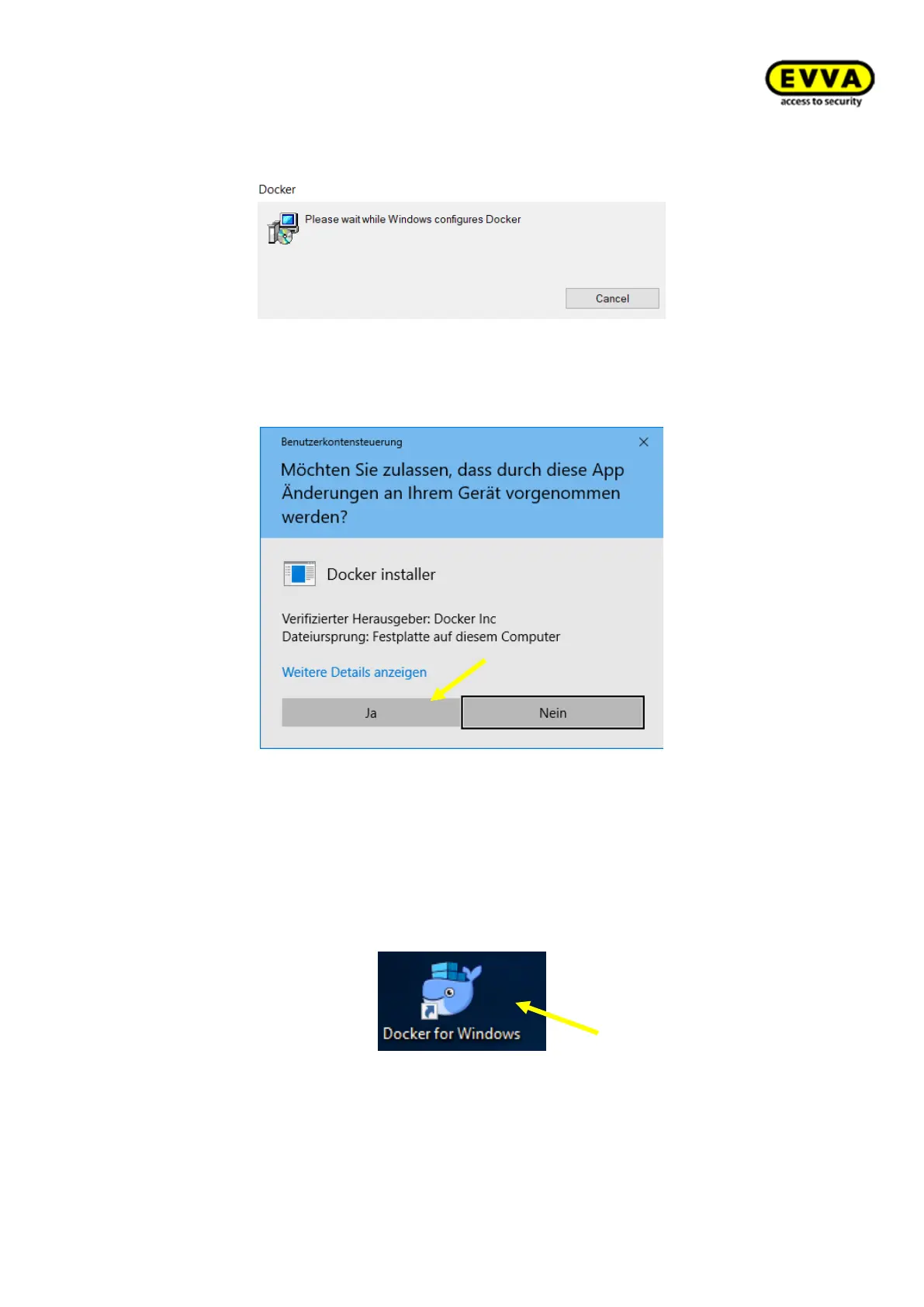
1. Step: the installer automatically opens after the download.
Figure 26 – Installing Docker
Click "Yes" if a Windows warning message appears.
Figure 27 – Installing Docker security notice
2. Step: Starting Docker
a. The "Docker is starting…" status message automatically opens in the Windows
task bar.
b. If this is not the case, double-click the "Docker for Windows" link on your desk-
top.
!!Start may take a few minutes!!
Figure 28 – Starting Docker



 To Next Page