User Manual HOW TO … February 16, 2010
Xynergi Media Production Centre Page 32
Play Again Plays from the same point as last time.
Note:
Play Again appears on the same key, so you can just press Play Menu twice for Play Again
Pressing the
Play key while the Play Menu is active causes Play-with-Preroll from the current
position. In other words, the transport backs up by the Preroll amount, then goes into Play.
Alternative Transport Set
For users more accustomed to earlier Fairlight products, an alternative transport layout can be
chosen. To do this, press the
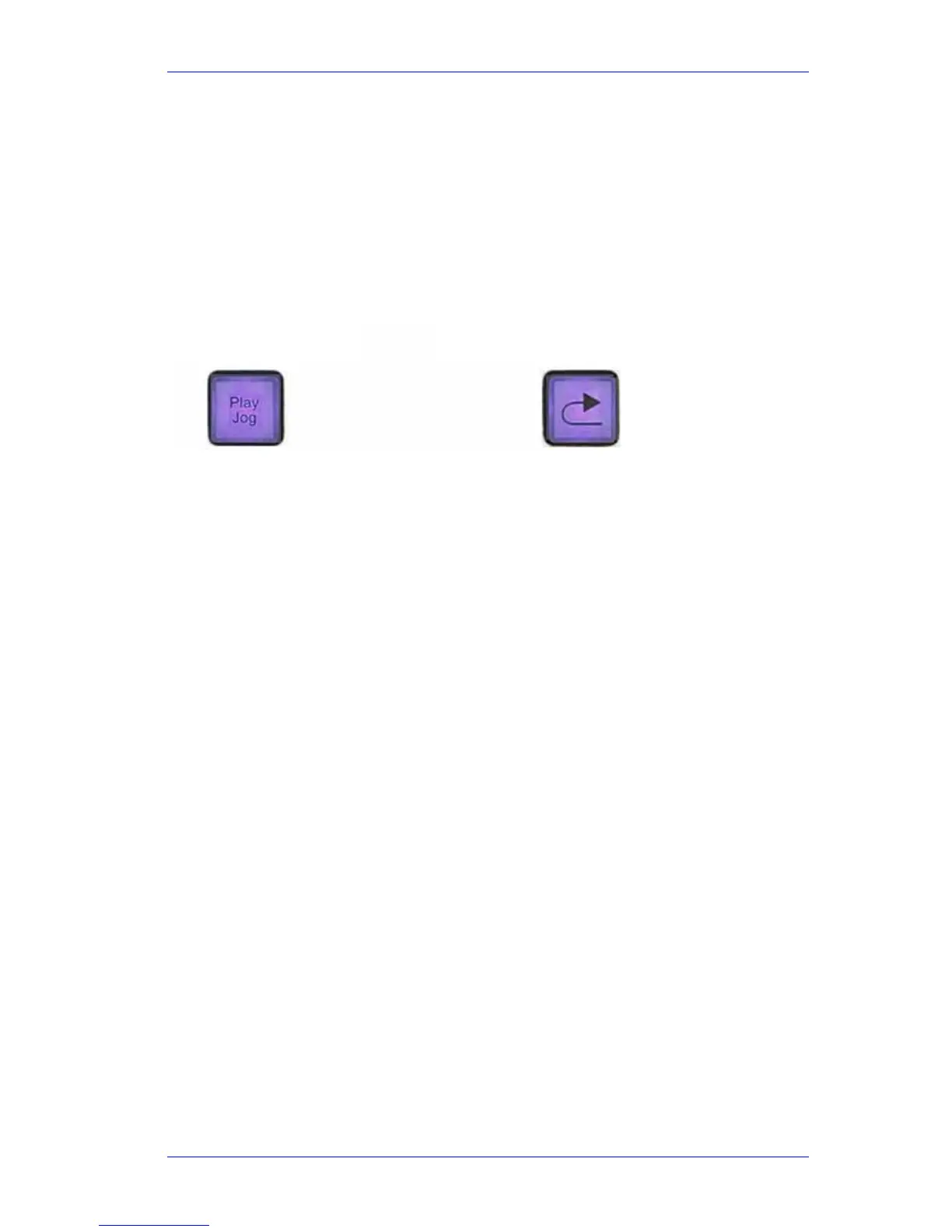
play jog button on the Setup Megamode.
When play jog is toggled on, the keys are coloured violet, and work as shown below:
Jumping
Overview
The Jump keys locate the transport instantly to your choice of Jump Targets, such as clip heads
and tails, fades and marks.
To set the current Jump Target, hold down either Jump Key and use the
soft keys to choose one
or more targets.
To jump by a
number of seconds, hold down either Jump Key and use the Numeric Keypad to
select the length of jump from one to nine seconds.
0 jumps 10 seconds. 00 jumps 1 frame.
Get Ready
Select one of the following megamode buttons for illustration of the Jump keys:
Record Megamode, Editor Megamode or Mixer Megamode.
The Jump Menu
While you hold down a Jump Key, the soft keys offer the following Jump Targets. Select one (or
two) and release to jump there. Next time you use a Jump key it will use the same target (unless
you change it)
-
Variable (jumps by the number of frames shown next to the word Variable) To set the Variable
parameter, press its soft key and type in a number on the
Numeric keypad, or use the Jog Wheel.
Release the Jump Key when ready to accept the value.
-
Point (Head, Tail or Sync Point of a clip, on any selected track)
-
Point or Fade (Head, Tail, Fade Point or Sync Point of a clip)
-
Mark (stored timecode location in the Project)
Note:
Mark can be selected with Point, or with Point or Fade
Jump overrides
The following key combinations extend the Jump functionality



 To Next Page