User Manual HOW TO … February 16, 2010
Xynergi Media Production Centre Page 34
Marks can be edited and named. They can also be used in Jump and Go To commands as target
locations.
This guide will show you how to edit marks, and how to use them for locating.
Get Ready
Press the green Editor Megamode button.
Press the
FF button. While the transport moves, press the Mark button a few times. Press Stop.
You have made some Marks.
Go to Mark
Press the Go To button to display the Go To menu.
In the Go To menu, press the
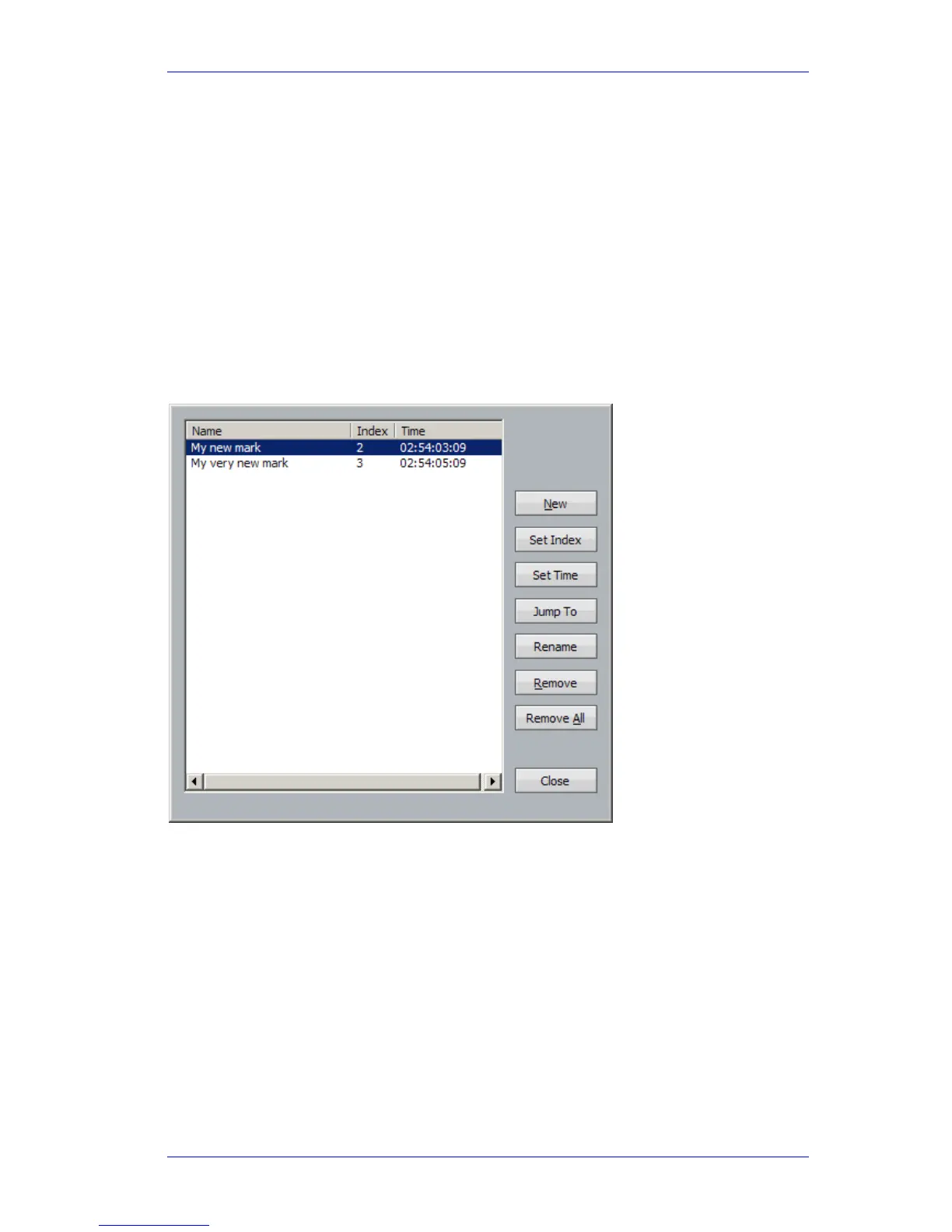
mark soft key. The list of marks appears over the Edit screen.
To select a Mark, use the
Jog Wheel, the + and – buttons, click with the mouse, or type the index
number on the Numpad. Press
Enter to locate there, or click the Jump To button if you want to
keep the dialog open.
Jump to Mark
Hold down one of the Jump keys.
Press the
Mark soft key if it's not already on. Just for now, turn the others off. Marks are now
your Jump Target.
Release the
Jump button to locate to the next (or previous) mark in the project. Press the Jump
button a few more times to keep moving through the marks



 To Next Page