User Manual HOW TO … February 16, 2010
Xynergi Media Production Centre Page 81
You can create up to 9 Fader Sets. To learn about this, see
How to
Mixer9. Map Faders
This guide will explain more about using faders.
Get Ready
Faders are used in all megamodes. To play with the automation functions, you will need to be in
the Mixer Megamode. Press the green
Mixer button.
Press the
Mix On button to display automation functions.
Configuration
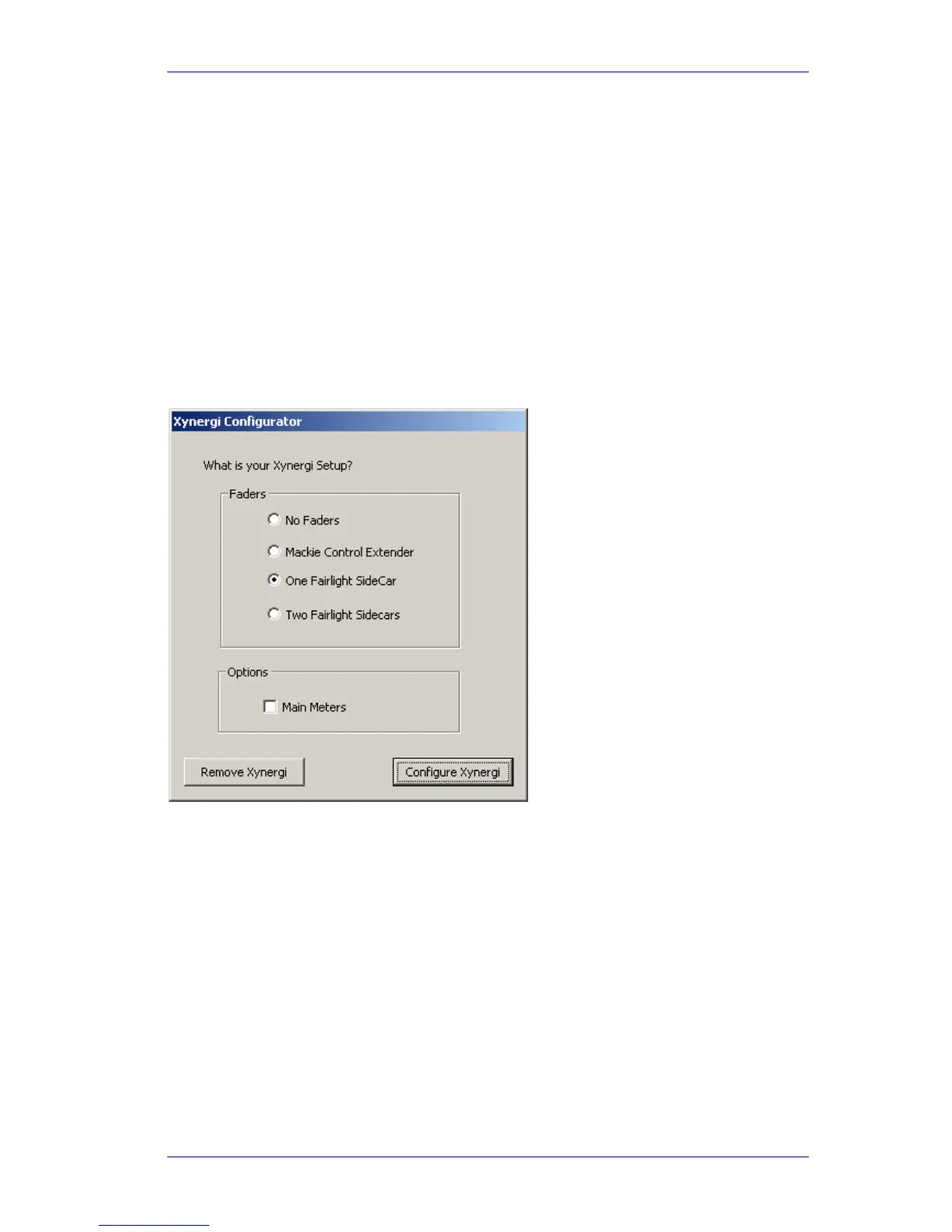
The system needs to “know” about connected faders. To set this up, use the mouse to access the
following:
Start
All Programs Fairlight Xynergi Utils Configure Xynergi
Select your configuration, then click
Configure Xynergi.
Fairlight Sidecar Operation
Pressing the CALL button on a Sidecar Fader brings its signal path to the Pad and the Fat Channel.
It behaves as though it is the most-recently-selected path. If it is a track this does not select it for
editing.
Pressing the
SOFT button adds or removes the signal path from the automation selection.
This means the channel will go into Write if the
IN button on the Xynergi controller is pressed (it
is available in the Mixer Megamode when Mix On is selected.)
The physical fader, Mute button, Solo button and panpot on the Sidecar affect only this signal
path. The Xynergi Pad Controls, on the other hand, affect the most-recently-selected path, or, if
MULTI is ON, all selected paths.
Similarly, the Fader's Auto button puts this path into Automation Write, while the Xynergi Auto
button does it for the most-recently-selected path, or, if MULTI is ON, all selected paths.



 To Next Page