RESTRICTED USE ONLY Fargo Electronics, Inc.
DTC300/DTC300M Card Printer/Encoder User Guide (Rev. 2.2)
4-50
Resolving the Image Placement problems
All Troubleshooting procedures assume that only factory-authorized supplies are in use in
the Printer. This procedure is used to adjust the position of the card in the Print driver and
does not change the internal settings of the Printer. See Using the Printer Calibration Utility
(DTC300/DTC300M) for instructions on changing the Printers internal settings.
Step Procedure
1 Review the following information.
Symptom: Printing is cut off or is not centered on the card, or a white border
appears.
Printer Error State: None
LCD Error Display: None
Driver Monitor Error Display: None
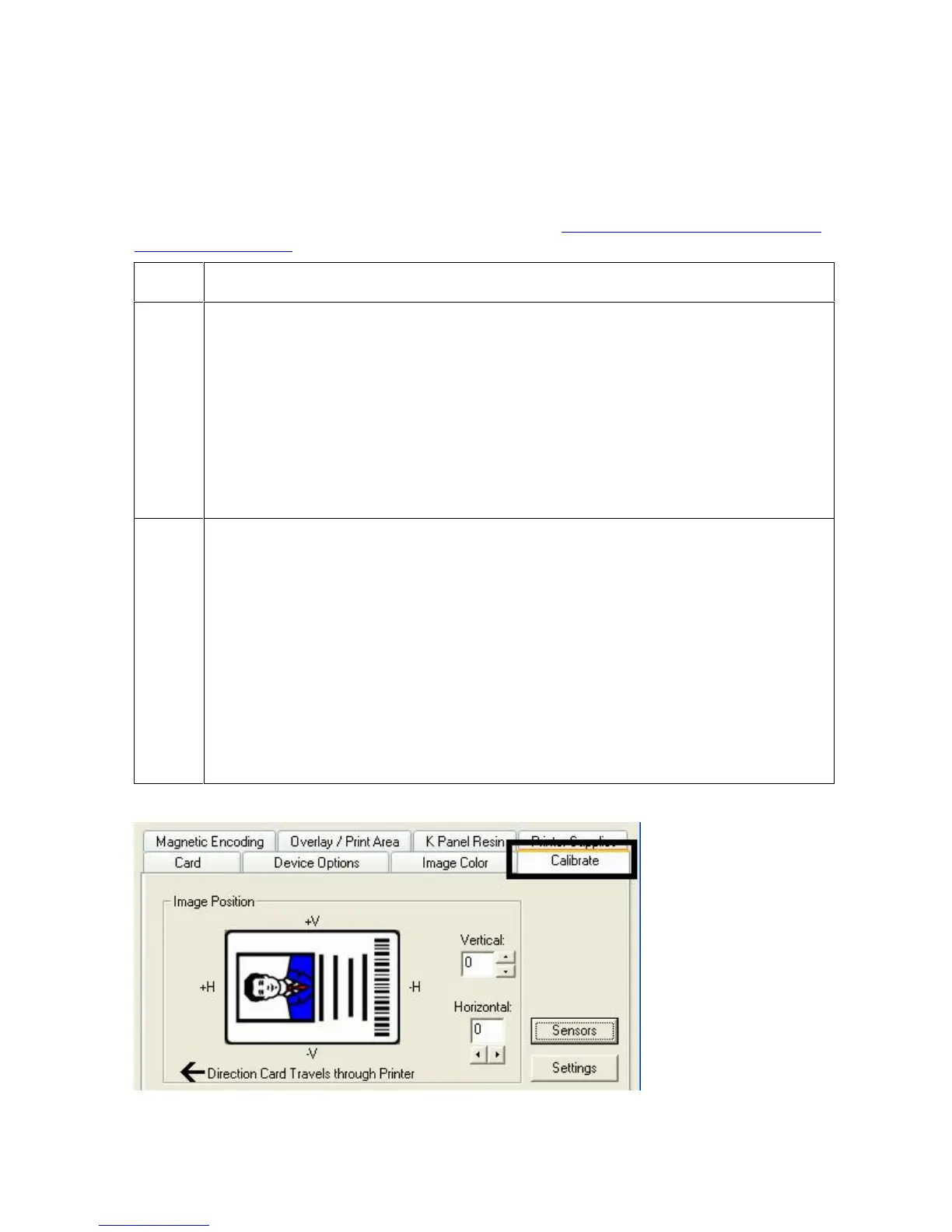
2 Verify if the Image Position option within the Calibrate tab is set correctly or
incorrectly.
a. Open the Printer Control Panel from the Computer.
If using Windows 98SE, Me, right click on the DTC300/DTC300M Card
Printer Icon and select Properties.
If using Windows 2000/XP, right click on the DTC300/DTC300M Card
Printer and select Printing Preferences.
b. Click on the Calibrate tab.
c. Adjust the Vertical and/or Horizontal Image Position settings based on
where the white border is on the card.



 To Next Page