RESTRICTED USE ONLY Fargo Electronics, Inc.
DTC300/DTC300M Card Printer/Encoder User Guide (Rev. 2.2)
3-30
Printing a Test Print Image
Step Procedure
1 a. From your computer’s startup menu, select Settings > Printers and Faxes
(Windows XP) or > Printers (Windows 98SE, Me and 2000).
b. Double click on the DTC300/DTC300M Card Printer under the Printers
window.
c. Select Printing Preferences under the Printer drop-down menu. This will bring
up the DTC300/DTC300M Printing Preferences window.
2
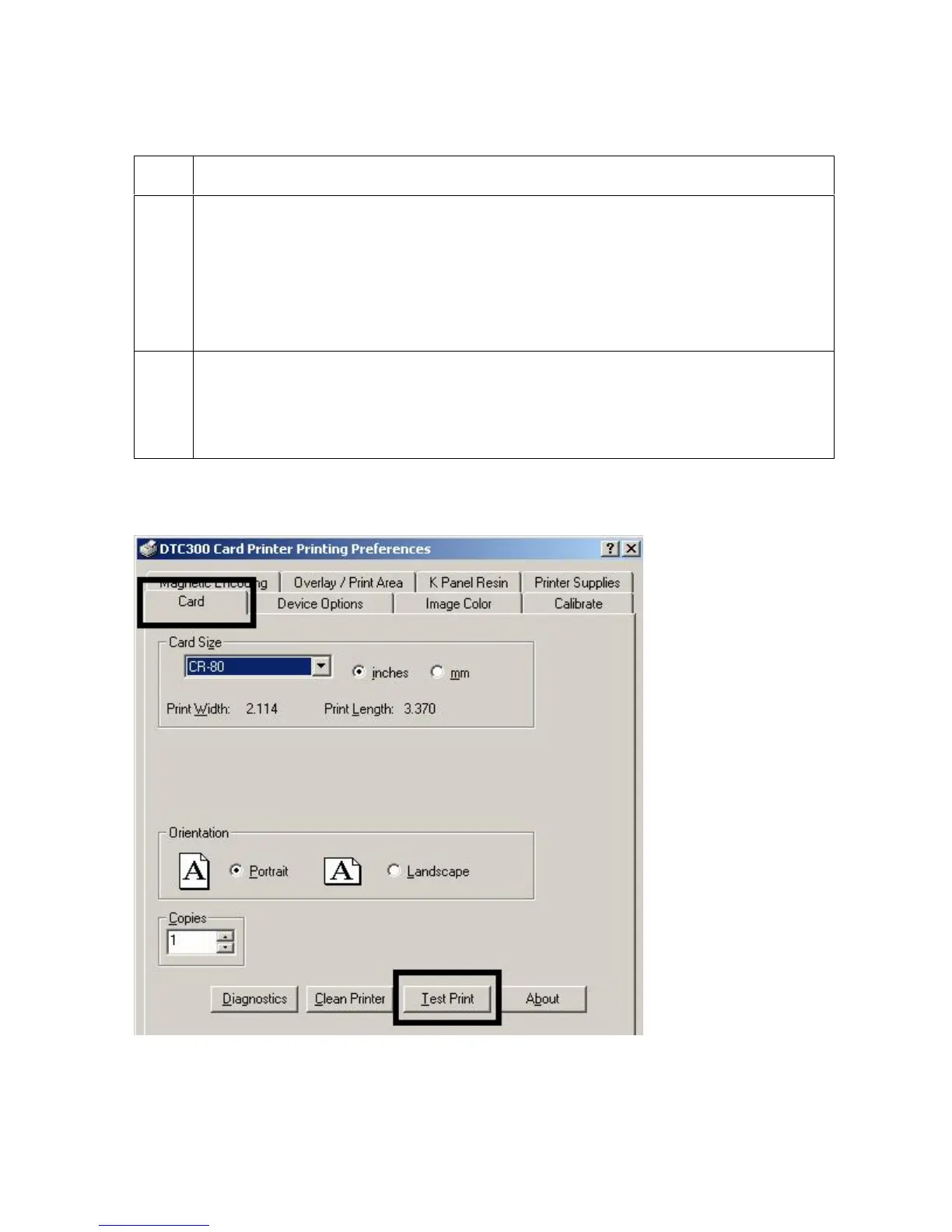
a. Select the Card tab, and then click on the Test Print button, as shown in
Display A in this section. (Note: Ensure that a full color YMCKO Ribbon is
installed before proceding.)
b. When the Test Print button is selected, an image is copied to the Printer.
Display A - DTC300/DTC300M Printer Driver Card Tab:
Continued on the next page



 To Next Page