72
J.3 Create & Upload Label to Sbarco Printer
1. Run BarDrawer. Click File and then New.
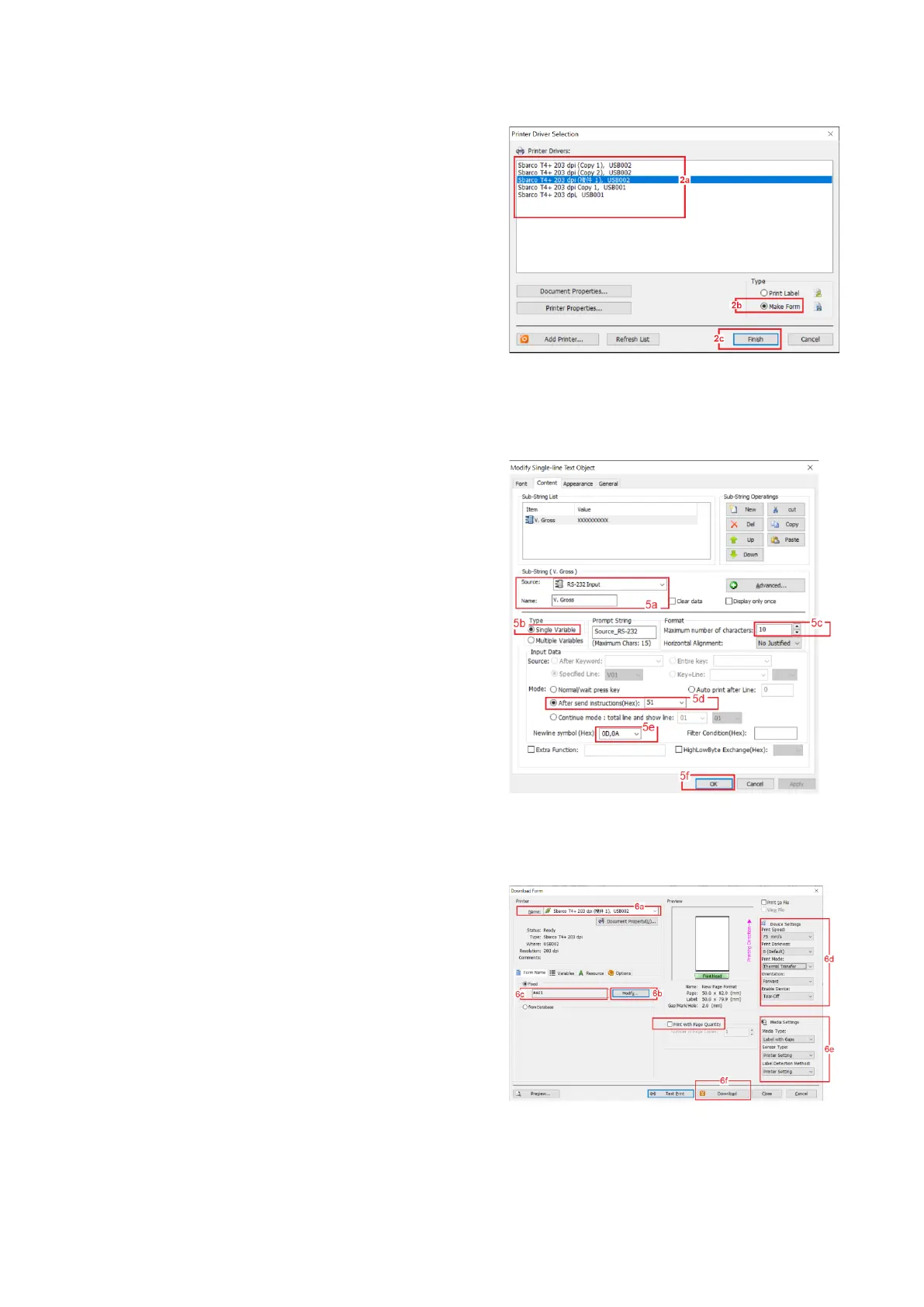
2. On Printer Driver Selection page: -
a. click on the preferred printer driver, then
b. select Make Form under Type, then
a click Finished.
3. Double click in the blank label area, then complete
all settings on Page, Label Layout, Measurements,
and Orientation. Then click OK
4. Create all fixed content and variables on the label.
5. To program variables, double click on the variable to
program. On Content page: -
a. on Sub-String section, select RS-232 Input for
Source and give a proper name to the select
variable (optional)
b. on Type section, select Single Variable,
c. on Format section, input value of Maximum
number of characters. Refer to K.1 Suggested
Length column for suggested value.
d. on Input Data section, select After send
instructions (Hex). Then input the Prompt
Command listed on K.1.
e. Always select 0D,0A for Newline symbol (Hex)
box.
f. Click OK to save the above settings for this variable.
g. Repeat above a ~ f for all other variables.
6. Once the label foundation has been completed, then
click on File, then click on Print. On Download Form
page: -
a. select name of Print to output,
b. click Modify and then give a proper name to the
file (e.g., AA01… AA99 for an individual
transaction label and BB01…BB99 for a
totalized label).
c. always leave Print with Page Quantity box
unchecked.
d. set all boxes under Device Settings,
e. set of boxes under Media Settings



 To Next Page