Vital Signs Simulator
Save and View Test Results
71
Make an Operator ID
Test results are kept in memory by an operator ID. To make a new operator ID:
1. Push .
2. Push or to highlight Test Record ID in the list.
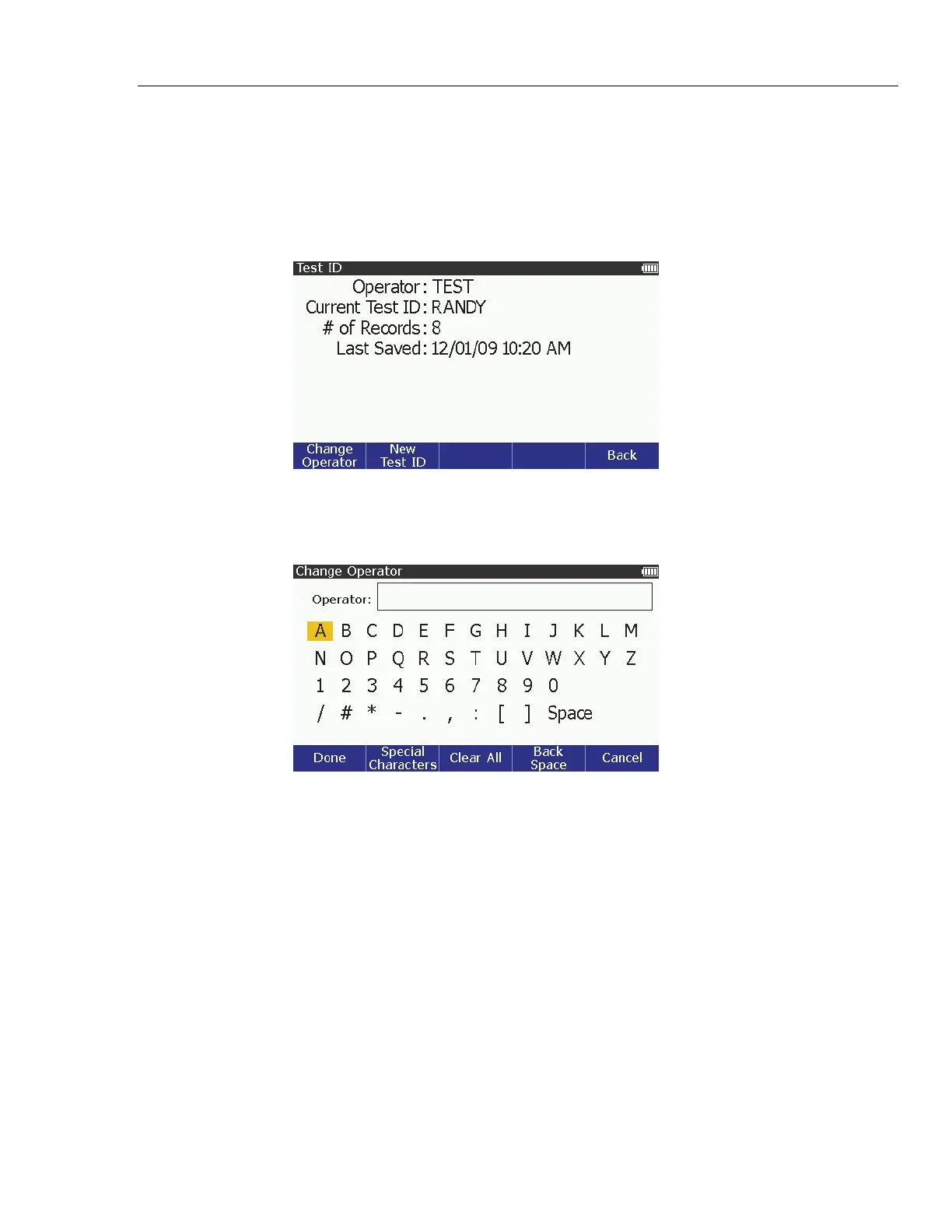
3. Push to open the Test ID screen shown in Figure 51.
glh036.bmp
Figure 51. Operator ID Screen
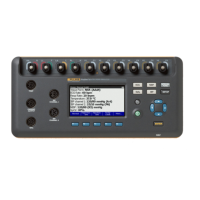
4. Push the Change Operator softkey to open the Change Operator screen
shown in Figure 52.
glh037.bmp
Figure 52. Change Operator ID Screen
5. Push , , , and to highlight a character for the operator ID.
6. Push to add the highlighted character to the operator ID.
7. Do steps 5 and 6 for each character in the operator ID. You can have the
maximum number of characters that fit in the test ID field on the display. If
you use more of the narrow characters like I and 1, you can have more
characters in the operator ID than when wider characters are used.
8. Push the Done softkey when you have all the characters in the operator ID.
Note
If this is a new operator ID, the ID won’t exist until you save the first
test result.
Do these same steps when you change the operator ID to an ID that is already in
memory. After you type the ID in as it already is in memory, all saved results data
are added to that operator ID.


 To Next Page